Add from Enclosed.
A file added through Enclosed starts shared with the client. Use it for a brief, supporting document or delivery file that belongs with this invoice or estimate.
Features / Shared files
Add files and external links to invoices and estimates. Choose what stays private, what the client can open now, and what an invoice releases after payment in full.
At the foot of the invoice or estimate, choose Add, or Files when empty. Upload a file or add a link.
Use the file row's menu to choose who sees it. Check each item before sharing the document.
Clients open shared material from their document page. Shared names also appear under Enclosed on the document and its PDF.
A choice for each item
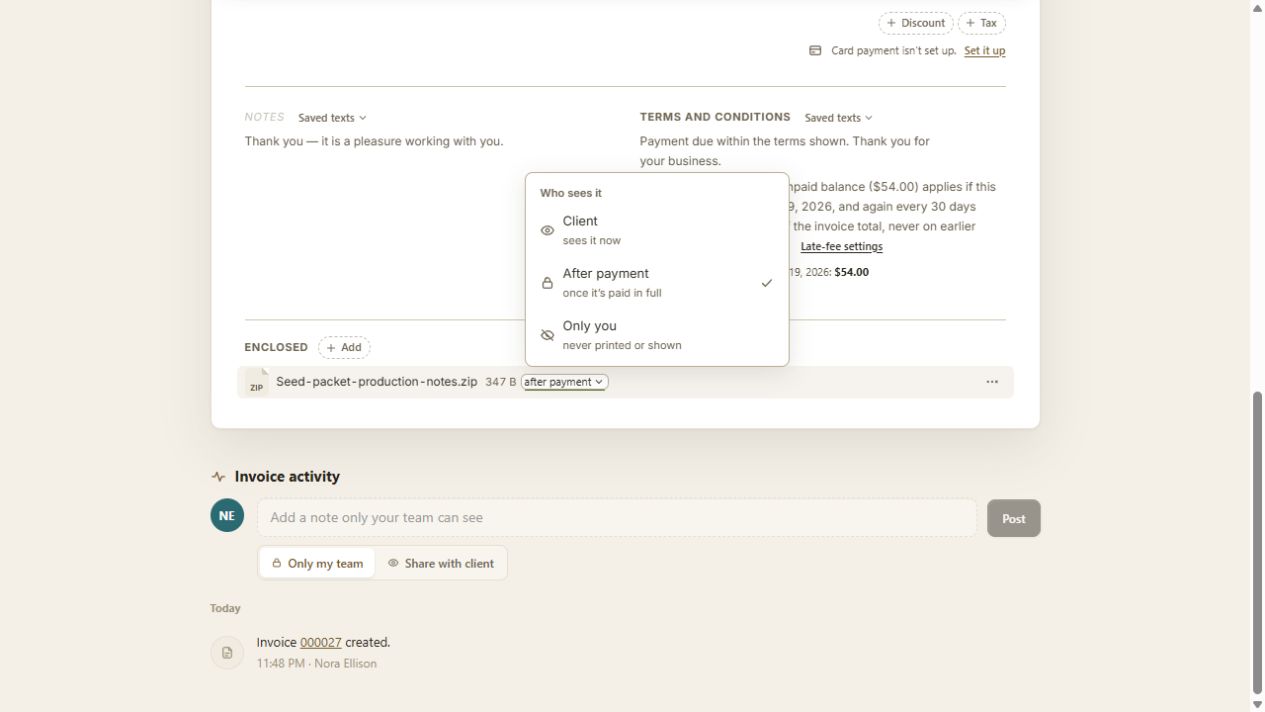
A clear delivery condition
After payment items show their names and payment condition before they open. Once the invoice is paid in full, the client can access them and receives an email that they are ready.
Refunds do not lock files again. Deleting a payment recorded by mistake or raising the invoice total can lock them when the invoice is no longer covered. Access is checked again when the client downloads.
A shared reference brief is available now. Final artwork marked After payment stays locked.
Remaining $600 receivedThe invoice is paid in full. The final artwork opens for the client.
Settings > Files lists the largest uploads first. Plans and Pricing shows usage and storage options. Private and shared uploads both count toward storage; external links do not.
Remove in the editor can be undone. Deleting from Settings > Files removes the file permanently. Check that you no longer need it before deleting.