Several services for one client.
Put the client's services on separate rows and group by customer to create one invoice with its itemized work.
For exampleWebsite care + design support
Two lines for one client, together on one invoice.
Features / Bulk invoicing
Prepare several clients' invoices together. Paste the work, check the amounts and choose how the invoices are created and sent.
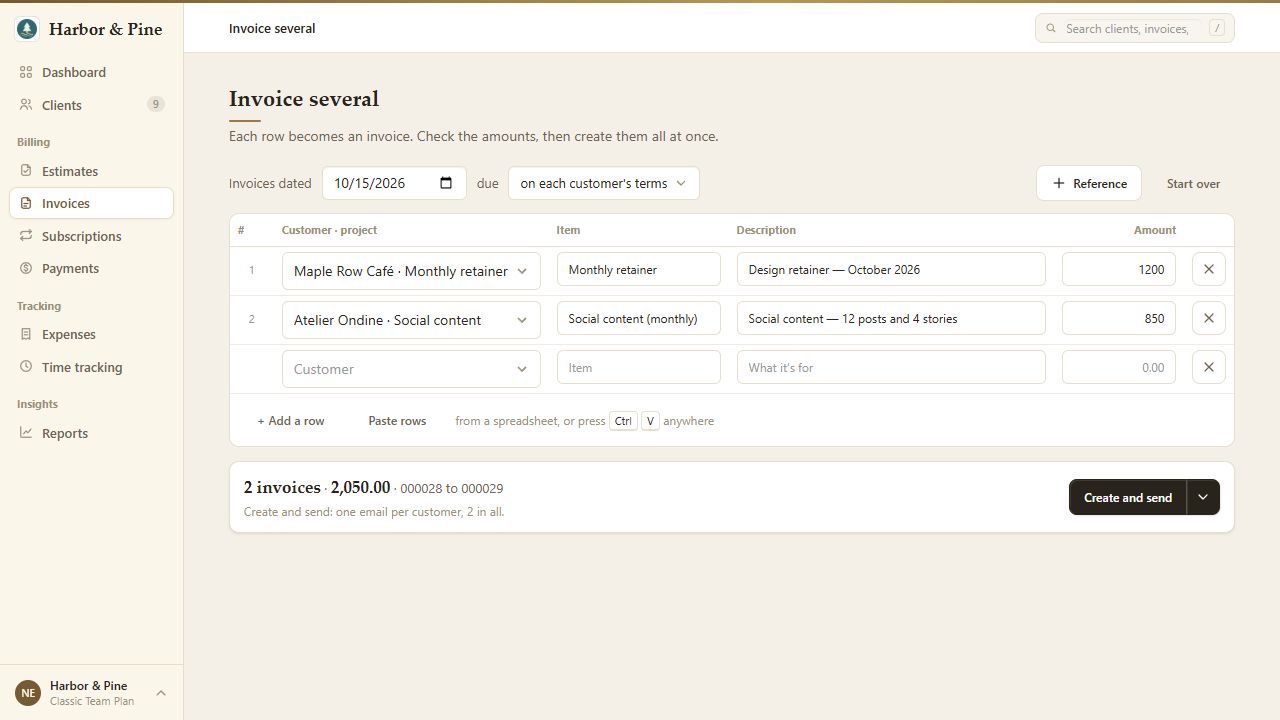
Fill in the sheet, paste rows, repeat last month's invoices or start from invoices selected in your list.
Review clients, line items, amounts and due terms. Group rows into one invoice per customer, or create an invoice per row.
Save drafts for another look, mark invoices as sent, or email them. Creating invoices and delivering their emails are separate steps.
Bulk invoicing is a billing run you prepare and review. For a saved invoice that repeats automatically, use recurring invoices.
The resulting invoices live in your invoice list. Open one to review the document, follow up or record a payment. Explore the invoice workflow.
On Invoices, open the New menu and choose Invoice several. On the dashboard, choose Several beside Invoice in the create menu.
No. You can create drafts to review before sending. Marking an invoice as sent does not itself deliver an email.
The created invoice remains available. Check the delivery result and follow up on that invoice; an email failure does not undo its creation.
No. It gives you a starting point for a batch you review. Set up a recurring invoice separately when you want automatic repeat billing.