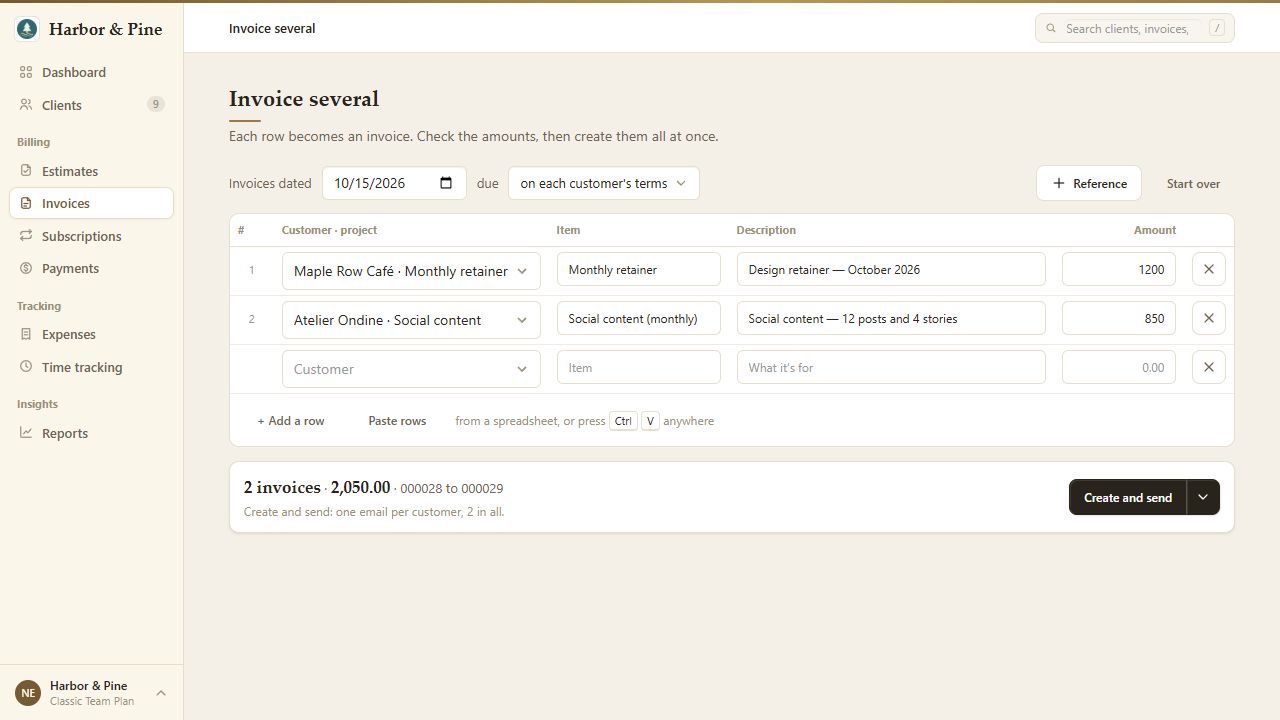
Use Invoice several when you want to prepare a batch of invoices in one sheet. Enter the work, check the invoices each row will become, then choose whether to keep drafts or send them.
Open the sheet
- On Invoices, open the New menu and choose Invoice several. From the dashboard, choose Several beside Invoice in the create menu.
- Set Invoices dated and choose the due terms. You can keep each customer's own terms or choose one of the sheet's shared options.
- Choose a customer and project on each row, then enter the item, description and amount. Use + Add a row for more work. The sheet accepts up to 100 rows.
Start from invoices you have already made
When the empty sheet offers Last month's invoices, choose it to reuse their rows. You can also select two or more invoices in the Invoices list and choose More > Duplicate to open them as rows in this sheet. Duplicating one invoice creates a single draft instead. Review the new dates, prices and recipients; these are new invoices, so only include work you intend to charge again.
Paste a spreadsheet
- Choose Paste rows, copy the cells from Excel or Google Sheets, and paste into the input. You can also paste while working in the sheet.
- Review how BillGrid matched your columns and the customers. Correct the column choices or unresolved customers before continuing.
- The pasted rows wait above the sheet. Review them, then add them to the sheet or discard them. Pasting alone creates no invoices.
For project time and expenses already in BillGrid, add the source work to an invoice instead of retyping it here. That keeps the invoice linked to what you logged.
Add purchase-order or job references
Choose + Reference to show the column, or include a reference column in your paste. BillGrid warns when that customer already has an invoice with the reference, or when it appears twice in the sheet. Check the warning before creating another invoice.
If you combine rows with different references, each reference stays on its own line. A shared reference can appear on the invoice as the customer's reference.
Check grouping and preview
When a customer has more than one row, use One invoice per customer to combine them, or switch it off for one invoice per row. Check the invoice count and total below the sheet.
Choose a row's number to see the invoice it becomes, with the heading As the customer will see it. Use the preview's arrows to move between invoices. Check the work, references, dates and totals before creating the batch.
Create drafts, mark as sent or email
The main button is Create and send. Its arrow also offers:
- Create drafts: prepare the invoices for review without sending.
- Create and mark as sent: record that you are delivering them outside BillGrid.
Sending offers a short Undo before the batch begins. Leaving the page while that send is waiting starts it immediately. After creation, open any invoice from the result list to inspect it.
If a row or email needs attention
A row error appears beside the relevant field. Correct it and review the totals before trying again. An email can fail after its invoice has been created: the result names the invoice and explains what was not sent. Open that invoice, fix the recipient or delivery problem, and send from there. Check the created list before rebuilding a batch so you do not invoice the same work twice.
Download the selected PDFs
On Invoices, select the documents you need and choose Download PDFs in the selection bar. A single selection downloads one PDF; several are prepared together in a ZIP. Wait for the preparation to finish. If it reports a problem, follow its message or select fewer invoices and try again.
For editing, files and individual sends, see creating and sending an invoice.