Your client opens the link in an invoice or estimate email. They do not need to create a BillGrid account. The page shows your document, branding and the actions available for that document's current status.
Check the page before sharing
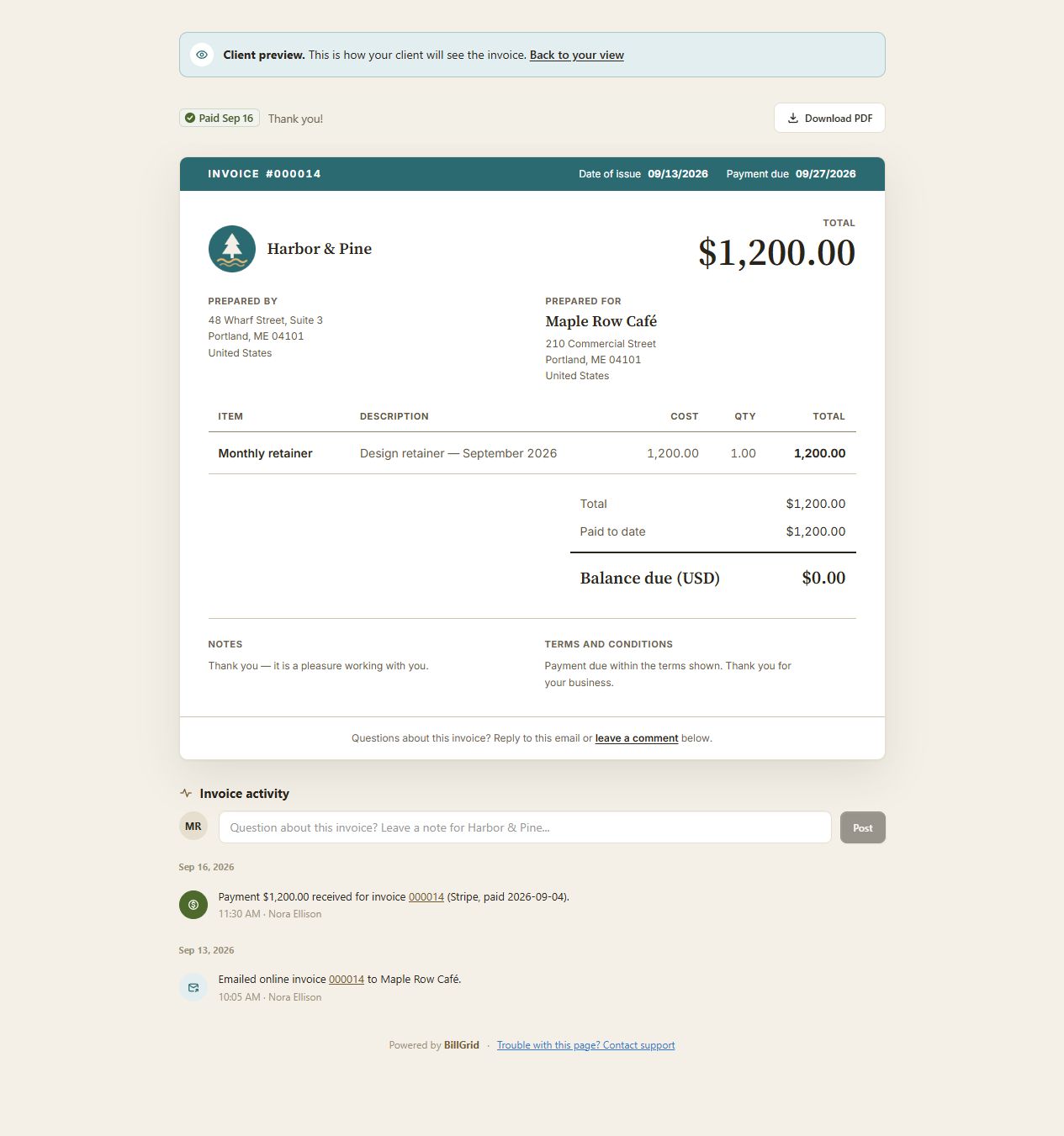
Open the invoice or estimate and choose View as client from its … menu. Review the details and shared files. Treat a document link as private: anyone you share it with can open the document.
Read and pay an invoice
The client sees the work, payment terms, payments already recorded and what remains due. They can download the PDF and use the document conversation for questions.
When you have connected Stripe and the invoice is eligible for card payment, the Pay button shows the remaining balance and opens the payment form. Clients can pay all or part of that balance. A successful card payment is recorded on the invoice. If they pay by bank transfer, check or another method outside BillGrid, record that payment yourself.
Online card payments work for invoices in USD, CAD, EUR, GBP and AUD. PayPal can pay your BillGrid subscription; client invoice card payments use Stripe. See connecting online payments.
Approve an estimate or ask for changes
- The client opens the estimate link and reviews the scope, price and terms.
- They choose Approve, check who they are signing as and type their full name.
- They choose Approve and sign to record their approval. Approval does not itself create an invoice or take a payment.
They can choose Ask for changes to explain what needs adjusting, or Decline. An expired estimate cannot be approved online; it offers Ask for an updated estimate instead. For your next steps and the approval record, see estimate approvals and changes.
Keep questions with the document
Clients can comment from the invoice or estimate page. Reply in that document's conversation so the discussion stays with the work. A private team note stays internal. Replying to a notification email does not add a document comment.
Open shared files
Files and links you share appear under Enclosed:
- Client files are available immediately.
- After payment files on an invoice show their names and wait until the invoice is paid in full. The client then receives an email that the files are ready.
- Only you files do not appear on the client's document or its PDF.
Estimates offer Client or Only you; they have no payment-based file release. For access changes, external links and storage, see files on invoices and estimates.
If your account is paused
Clients can still open documents you have sent, but online payments and estimate approval wait until your account is active again. See trial and paused access.