When a client is with you, at the end of a shoot, a session or a job, you can take payment there and then. Your screen shows the amount and a QR code. Your client scans it with their phone's camera and pays on their own phone, by card, or with Apple Pay or Google Pay when available. You don't need a card reader, and they don't need an app.
Before you start
- Connect Stripe and leave Cards On in Settings > Online Payments.
- The invoice must be issued, allow online payment and still owe something. Draft, void and fully settled invoices do not offer Pay here.
- For wallets, leave Apple Pay and Google Pay On and check that Settings shows readiness. The payer needs a compatible device or browser with a wallet set up.
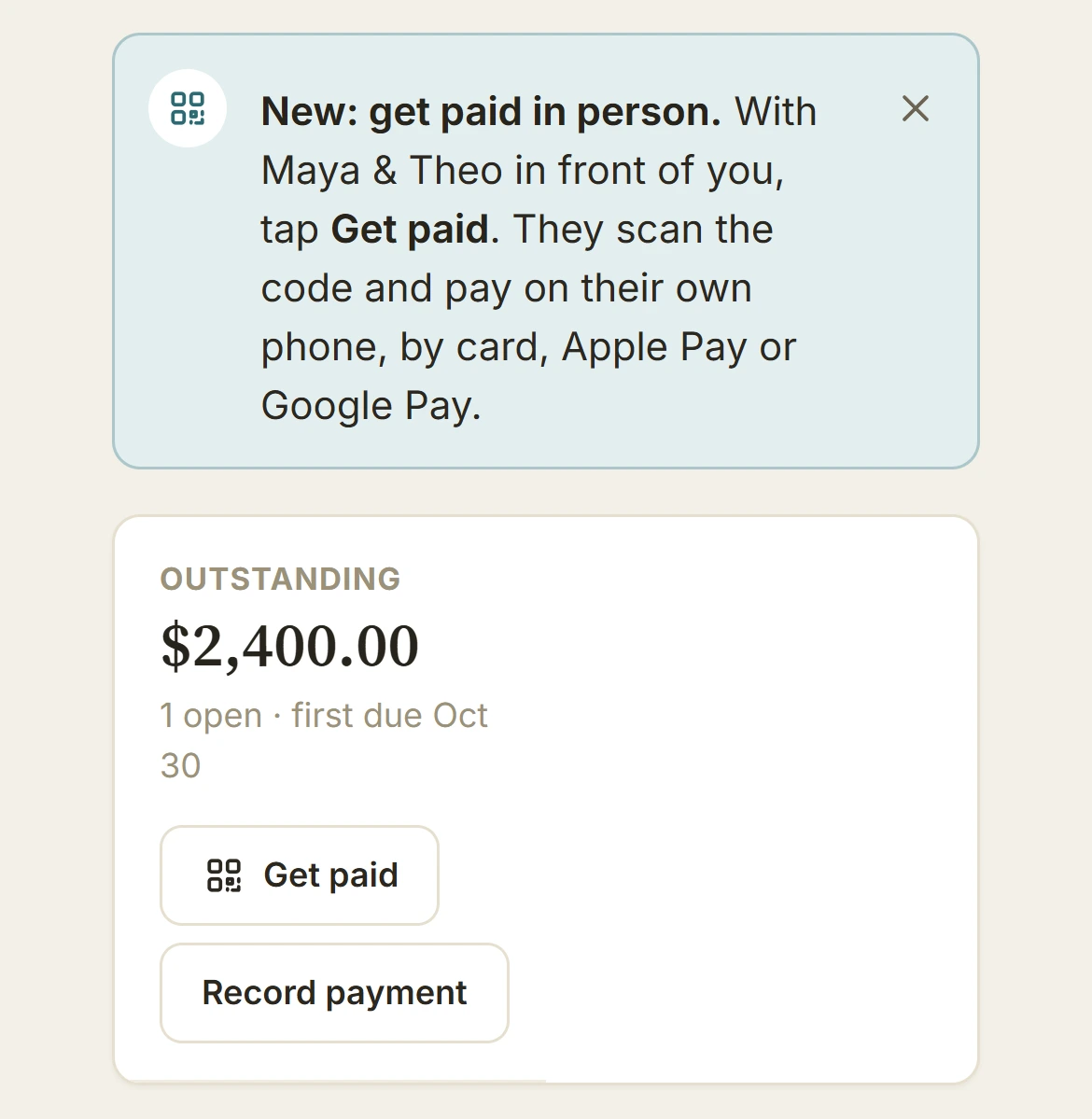
1. Open the client and tap Get paid
On the client's page, Get paid sits beside Record payment, under what they owe. Record payment is for money that already came in, a check or cash; Get paid is for taking it now.
2. Choose the invoice
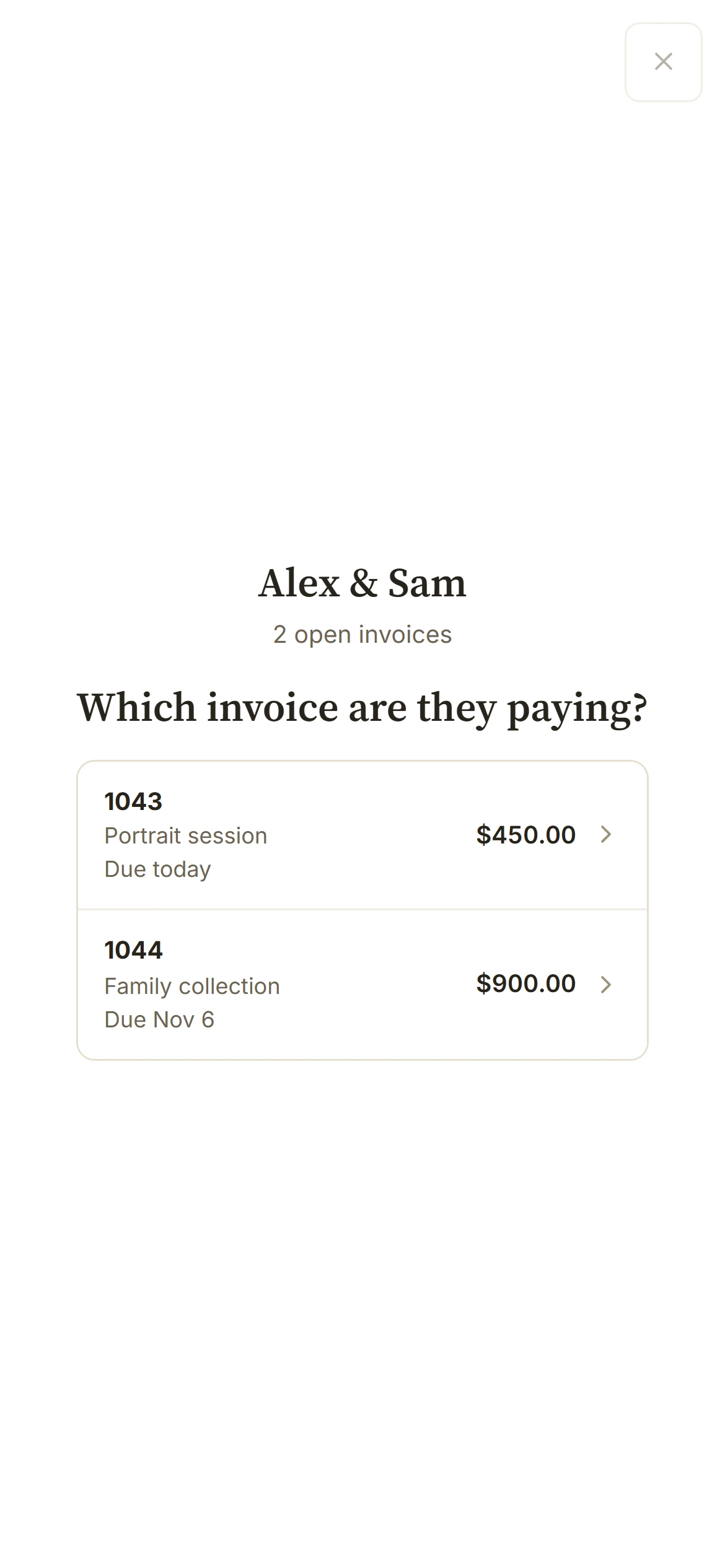
With one payable invoice, its sheet opens directly. With more than one, choose the one they're paying; each shows what it's for and when it's due, the oldest due first. For a schedule, the date follows the earliest unpaid installment. Other invoices takes you back. Each code opens one invoice.
3. Turn your screen to them
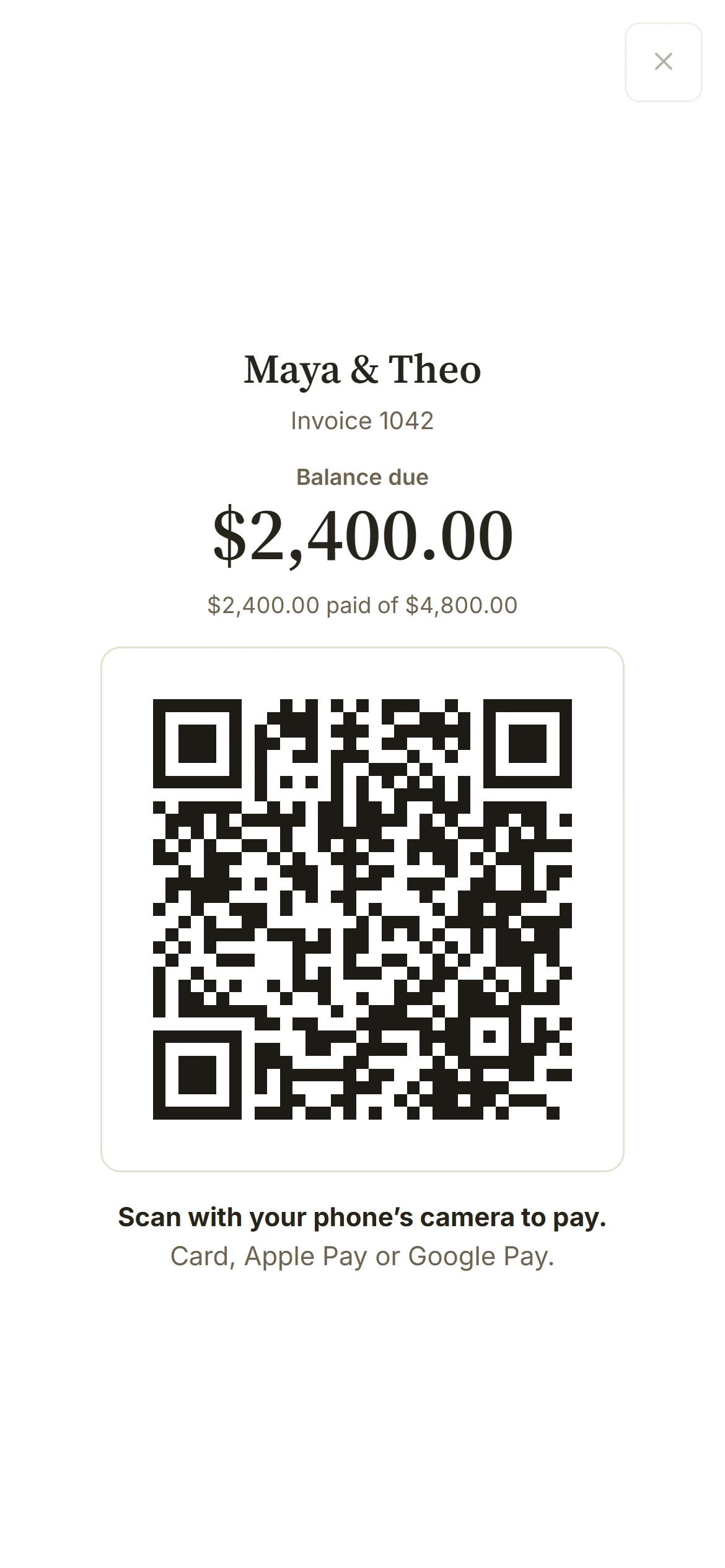
The screen shows your client's name, the amount and the code. When an installment is due, a scheduled invoice shows Due now and the remaining balance. The client scans the code, opens the invoice's payment page and reviews the amount before paying. On supported browsers, BillGrid asks to keep your screen awake while it checks for payment.
4. Paid
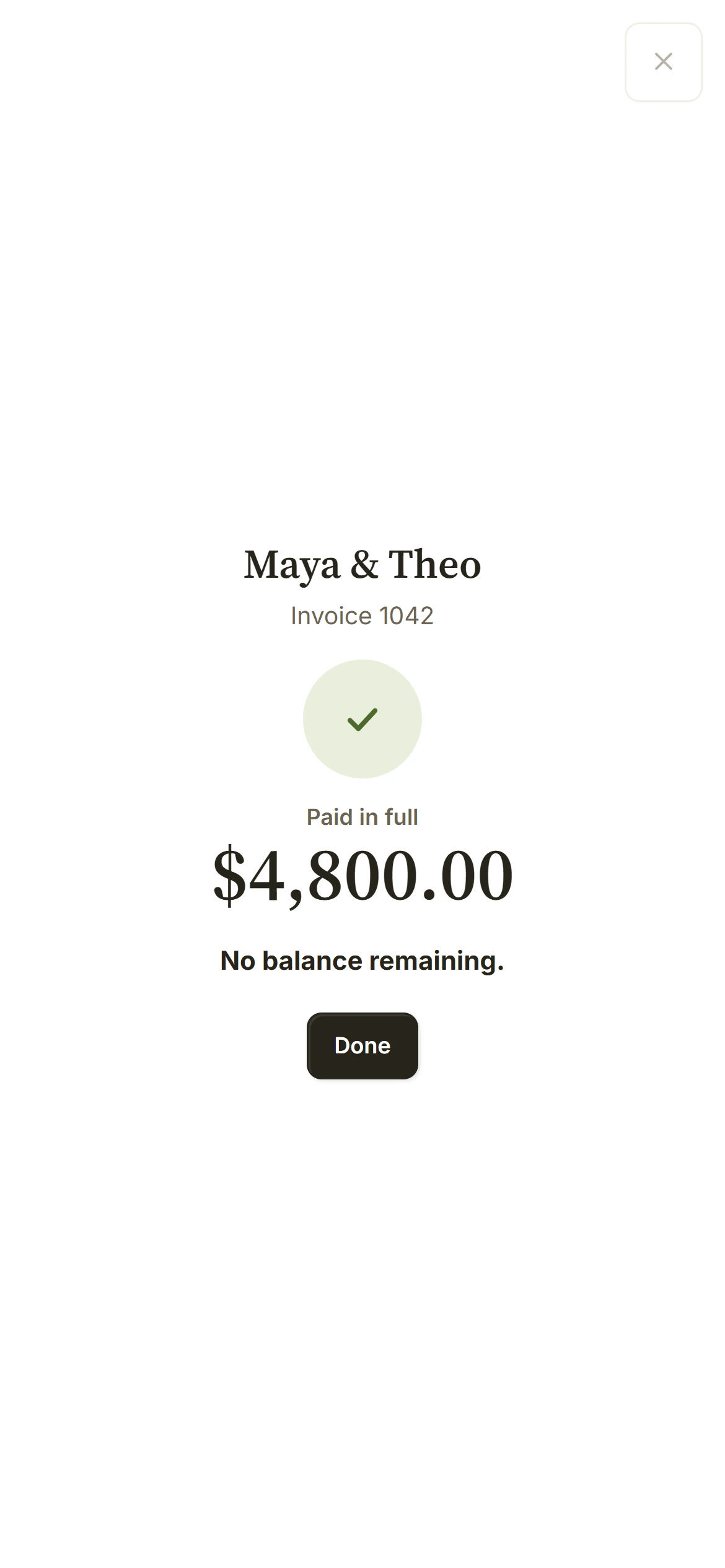
Keep the sheet open: while visible, it checks for updates about every five seconds. A confirmed partial payment updates what's left and keeps the invoice open. Full settlement shows No balance remaining; Done reloads the page with the current invoice. A credit or invoice edit can also clear the balance, so that message alone is not a payment receipt.
A successful payment appears in the invoice's payment record. You get the payment email, and the client gets the thank-you note when enabled. Remaining reminders stop and payment-protected files unlock only when the invoice is settled in full. Stripe's payout to your bank is a separate event.
From an invoice
Already on the invoice? Choose Pay here from its ... menu for the same screen.
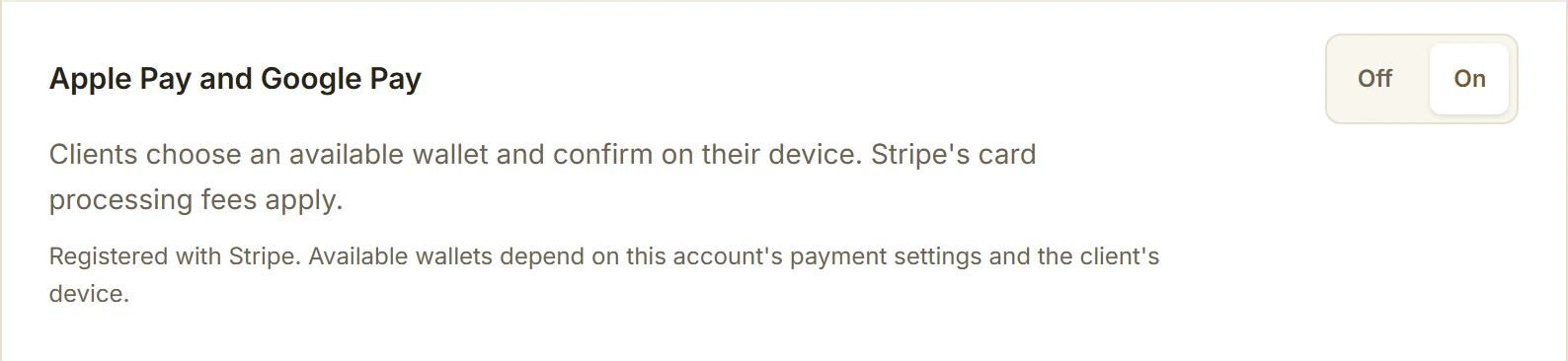
Apple Pay and Google Pay
Wallets are offered only on invoices eligible for card payment, with Cards and wallets On, Stripe setup ready, and a compatible payer device or browser with a wallet configured. Your client chooses an available wallet, then taps the button naming that wallet and confirms on their device. Authentication varies by device. If no wallet appears, they can enter a card when card payment is available.
BillGrid sets this up with your Stripe account when you connect. Settings > Online Payments shows when it's ready, or why not with Try again, and turns it on or off for your company. If you turned Apple Pay or Google Pay off in your Stripe Dashboard, it stays off here too: turn it back on in Stripe, then refresh the page. Stripe's processing fees apply; BillGrid adds no payment fee. Refunds are handled in your Stripe account.
If a wallet window does not finish opening, close that window. While Cancel is available on the invoice, you can leave the payment form and open Pay again to choose a fresh wallet or card entry. Once a payment is being submitted, wait for its result or use the payment-status action before trying again. Cancel also lets you return to the invoice while payment details are loading.
If the code or payment status is unavailable
If online payment is Off on this invoice, close the sheet and edit the invoice to turn it On. If company setup needs attention, the owner sees Payment settings. A pending bank payment has its own message; wait for verification or processing instead of taking another online payment.
If status cannot be confirmed, the code hides and Check again lets you retry after restoring the connection or signing in. Checking also stops after 15 minutes; Check again starts a fresh check. Review the current invoice and its payment record before taking another payment.
Don't see Get paid?
- Nothing is owed, or online payment is off for the client's invoices. The screen says what to turn on.
- A bank payment is still going through on that invoice: another payment waits until it clears.
- Only people who handle money see Get paid.