Open the client, choose New project and select Retainer. This guide follows the agreement from the first fee to its last period. To create a client or add project tasks, start with the project guide.
Set up a project retainer
A retainer bills a regular project fee, with an hours allowance if your agreement includes one. You need permission to handle money to change its terms or make billing decisions.
- Choose Retainer in the project form. Enter the Fee, choose Month or Quarter under Every, and set the First invoice date.
- Enter Hours included, or leave it blank for a flat fee without an allowance or extra-hours calculation.
- If you included hours, open Change beside the extra-hours rules. Choose Invoice them or Don't invoice them, and enter the rate if you plan to bill extra time. This is the suggested answer; BillGrid still asks when a period has extra hours.
- If your agreement allows carry-over, tick Unused hours carry over and set the cap as a percentage of the included hours. Save the project.
Read the hours and carry-over
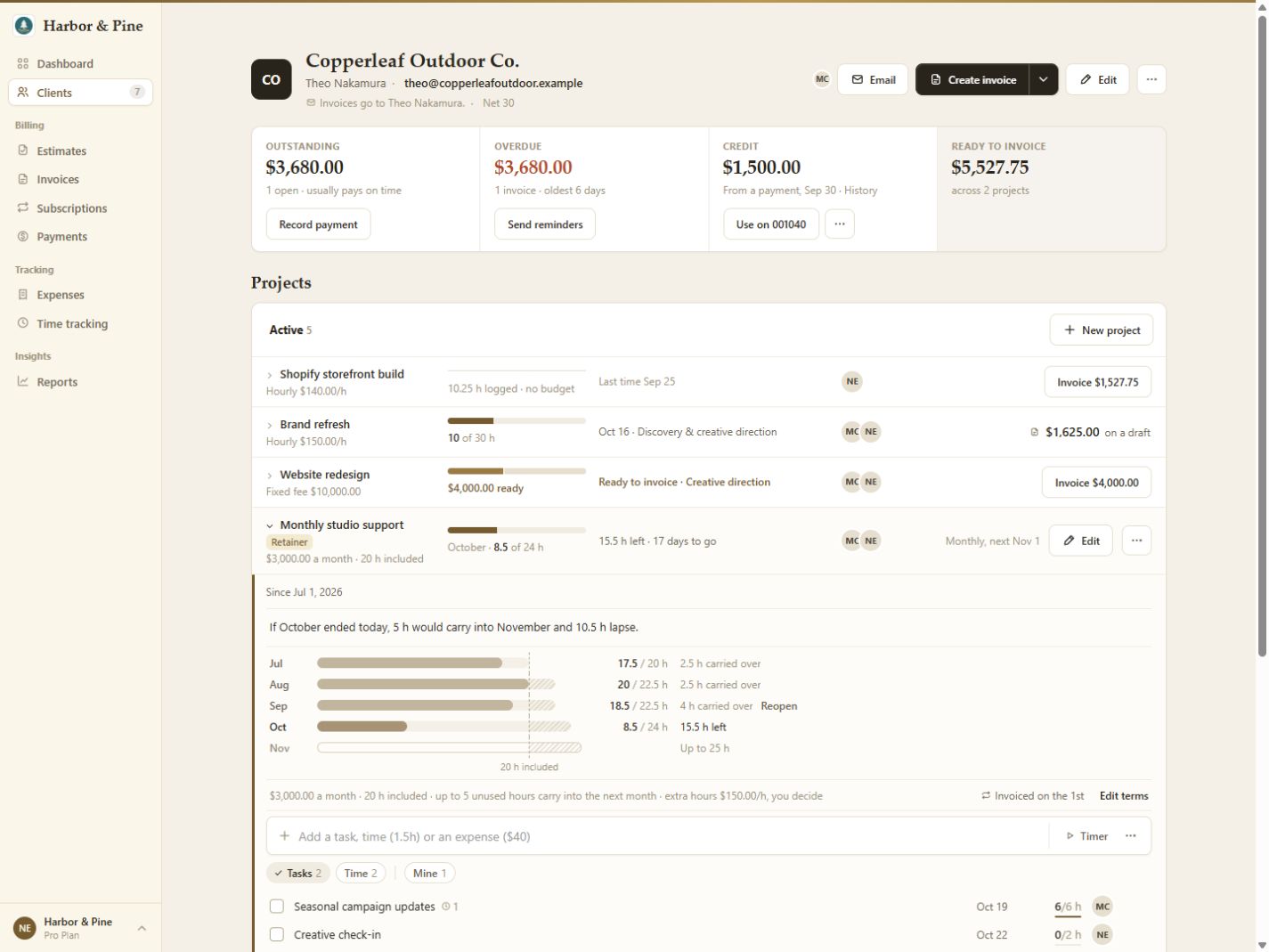
Open the retainer project on its client's page. Billable time dated within a period uses that period's included hours plus any carried in. Non-billable time and expenses do not use the allowance. The period ledger shows hours used, hours available and what remains, carries over or lapses; open Earlier to see older periods.
For example, 20 included hours with a 25% carry-over cap can carry at most 5 unused hours into the next period. A flat-fee retainer has no hours ledger.
Review a finished period
BillGrid settles a period seven days after it ends, leaving time for late entries. Within the allowance, unused hours carry forward up to your cap. If there are extra hours, that period waits for your answer before later periods settle.
Choose Invoice (the button shows the extra hours and amount) or Don't invoice. Invoicing adds a line to the next period's existing draft when one is available, or creates a separate draft. Review and send it yourself. The confirmation offers Undo if you chose the wrong answer.
Settled time is locked. When the latest recorded period is settled, choose Reopen beside it to correct its entries. It settles again on the next morning's run. You cannot reopen it once its extra hours are on a sent invoice.
Review and send the fee invoices
The retainer creates a linked schedule under Subscriptions. A new schedule creates fee invoices as drafts, with automatic emailing off. Open it to change sending settings or pause billing; you do not need to create another recurring invoice. Automatic emailing sends the invoice, and your client chooses when to pay. See recurring invoice settings.
Change or stop the agreement
Choose Edit terms on the open retainer project to change its fee, included hours or rules. The period in progress keeps its original terms; changes apply to later periods. Once the first fee invoice has been created, switching between monthly and quarterly billing requires ending this retainer and starting a new one.
To end it, choose Mark complete from the project's menu or change its billing arrangement. The linked schedule stops after the period in progress; if it has not billed yet, it stops immediately. Reopening a completed project does not restart that schedule.
A retainer is a billing agreement. Money a client has already paid in advance is client credit, which you can apply to invoices.