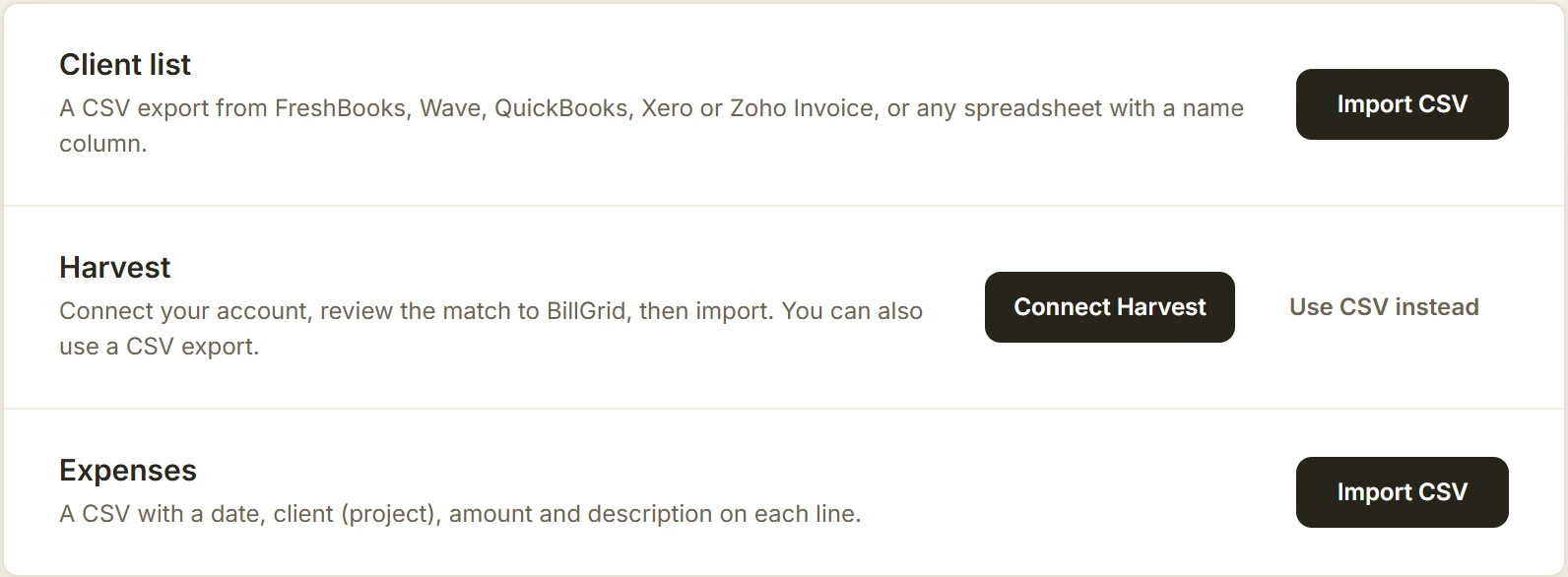
Connect Harvest and BillGrid brings your business over in one pass: clients and contacts, projects, people, time, expenses, and your past invoices, estimates and payments. You see what Harvest holds and choose how each person, client and project comes over before anything is saved. Most accounts take a few minutes. The account owner imports, on any plan.
1. Connect Harvest
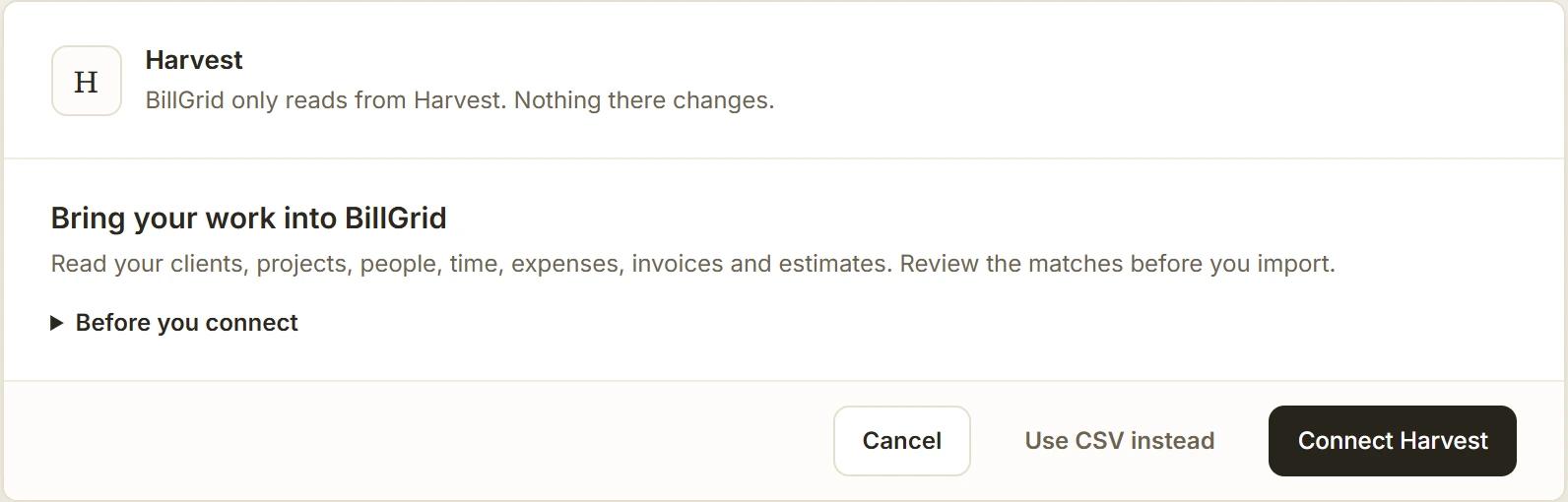
- Open Settings > Import data and choose Connect Harvest.
- Choose Connect Harvest again and sign in to Harvest as an administrator. An administrator sees everyone's time and every invoice; anyone else brings only their own.
- Allow access. Harvest doesn't offer read-only access, but BillGrid only reads: nothing in Harvest changes.
2. Let BillGrid read your account
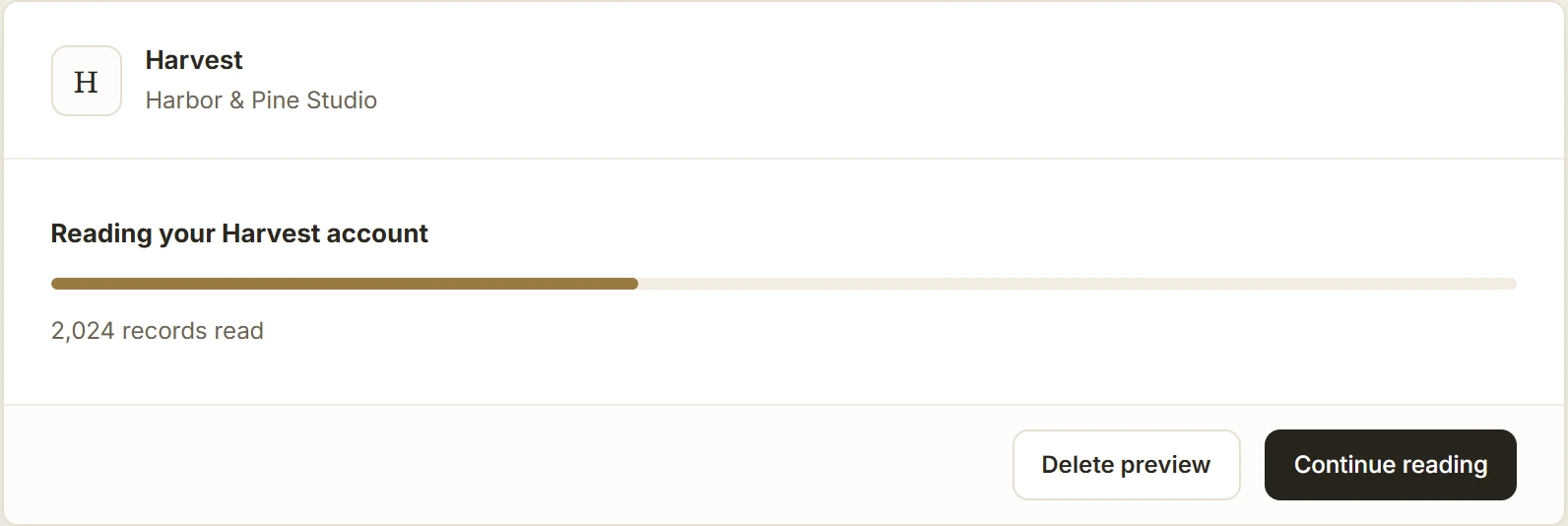
Keep the page open while BillGrid reads, page by page, at the pace Harvest allows. If you leave, it pauses; come back and it carries on where it stopped. Years of time take a few minutes.
3. Review
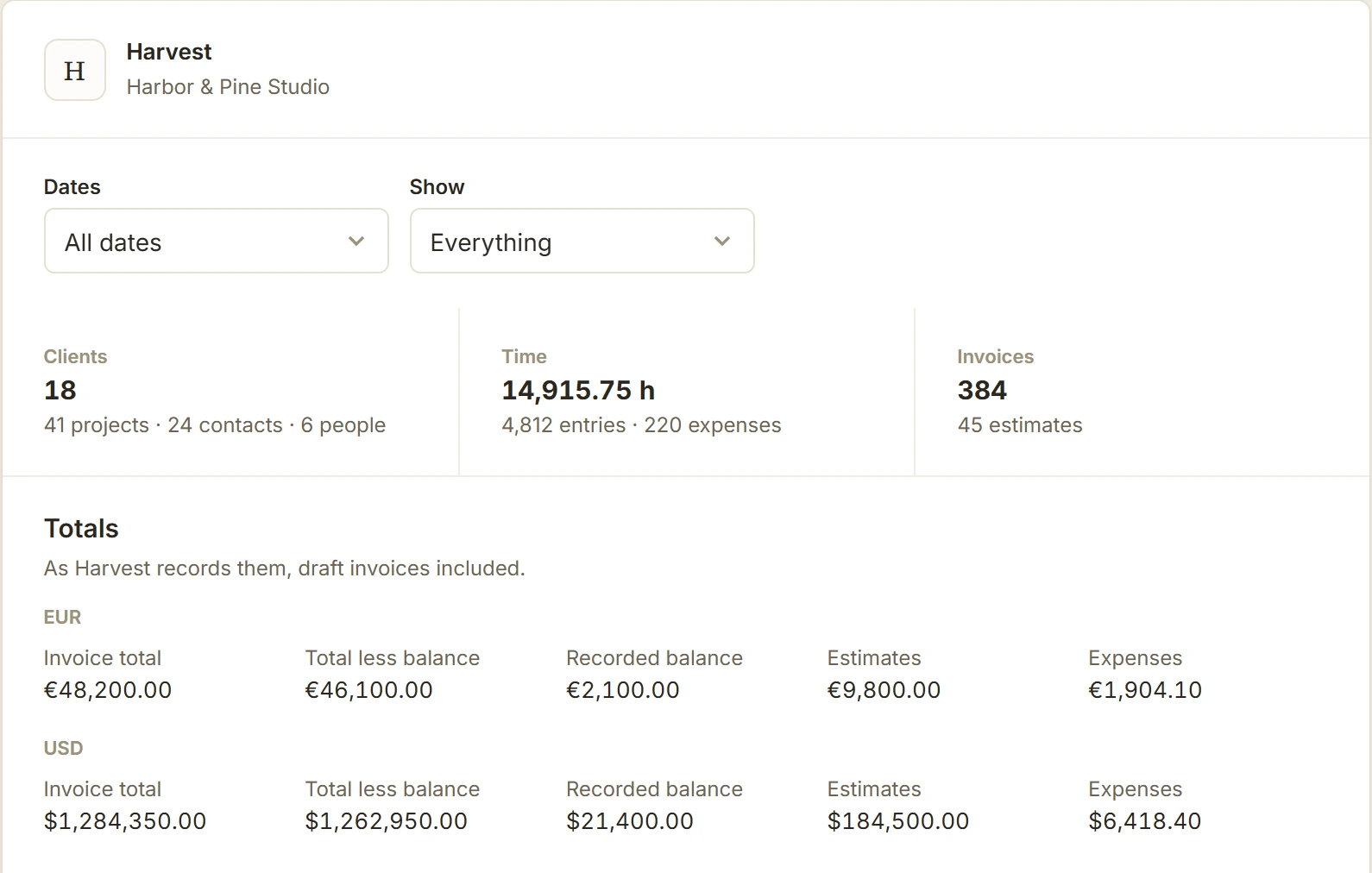
What Harvest holds
BillGrid counts what it found: clients, projects, contacts and people, hours and expenses, invoices and estimates, with totals in each currency. Choose a year or dates to bring only part of your history, or only the work you haven't billed yet. Nothing is imported at this point.
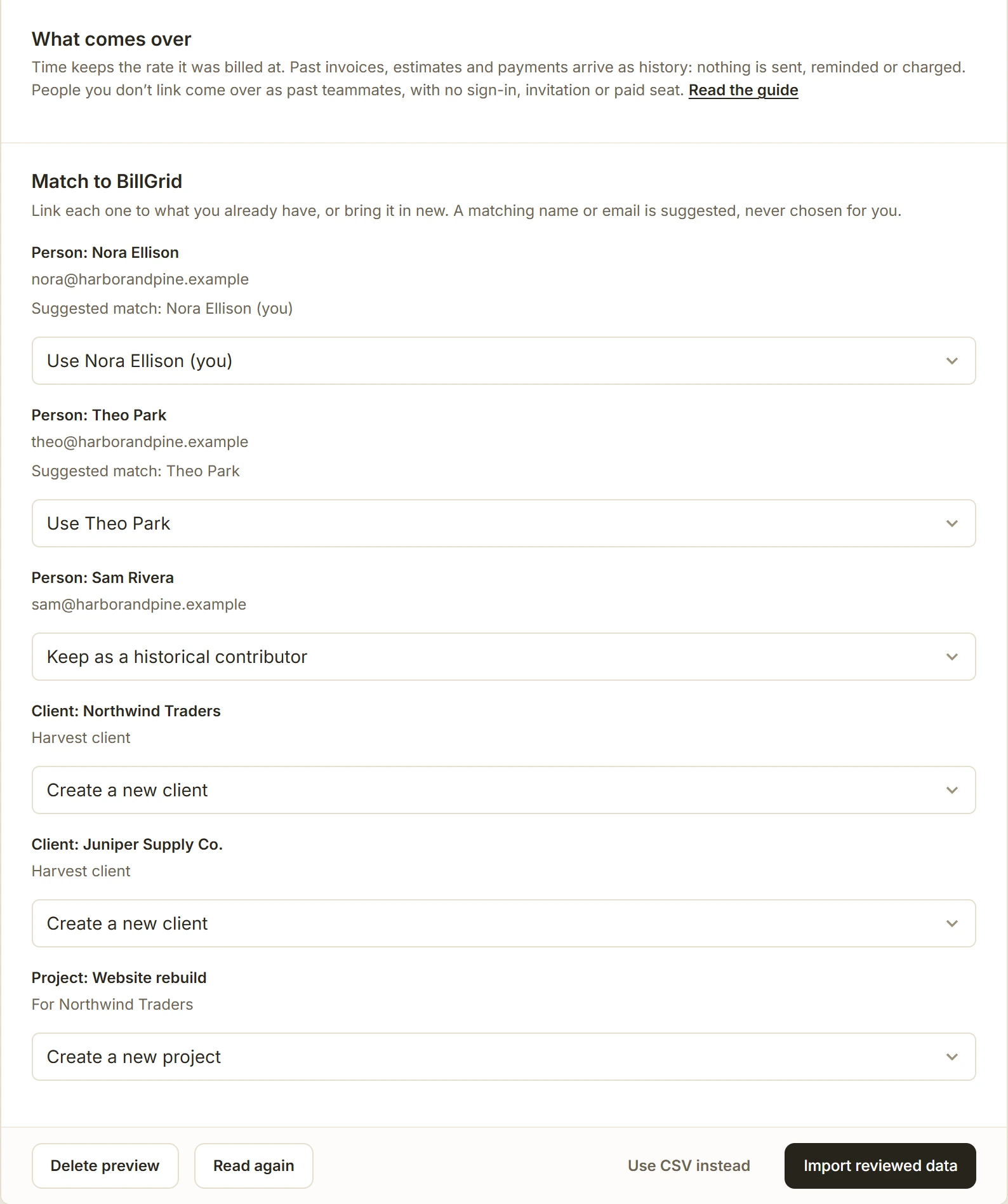
Match people, clients and projects
For each person, client and project, choose what it becomes in BillGrid:
- Use one you already have, when it's already in BillGrid, for example a client you imported from a CSV, or a teammate you invited. Its time and documents join it, and its own settings stay as they are.
- Bring it in new. A person you don't link comes over as a past teammate: their time keeps their name, with no sign-in, invitation or paid seat.
When a name or email matches, BillGrid suggests it, but you choose every one. To give someone their past time on their own BillGrid sign-in, invite them before you import and link them here.
4. Import
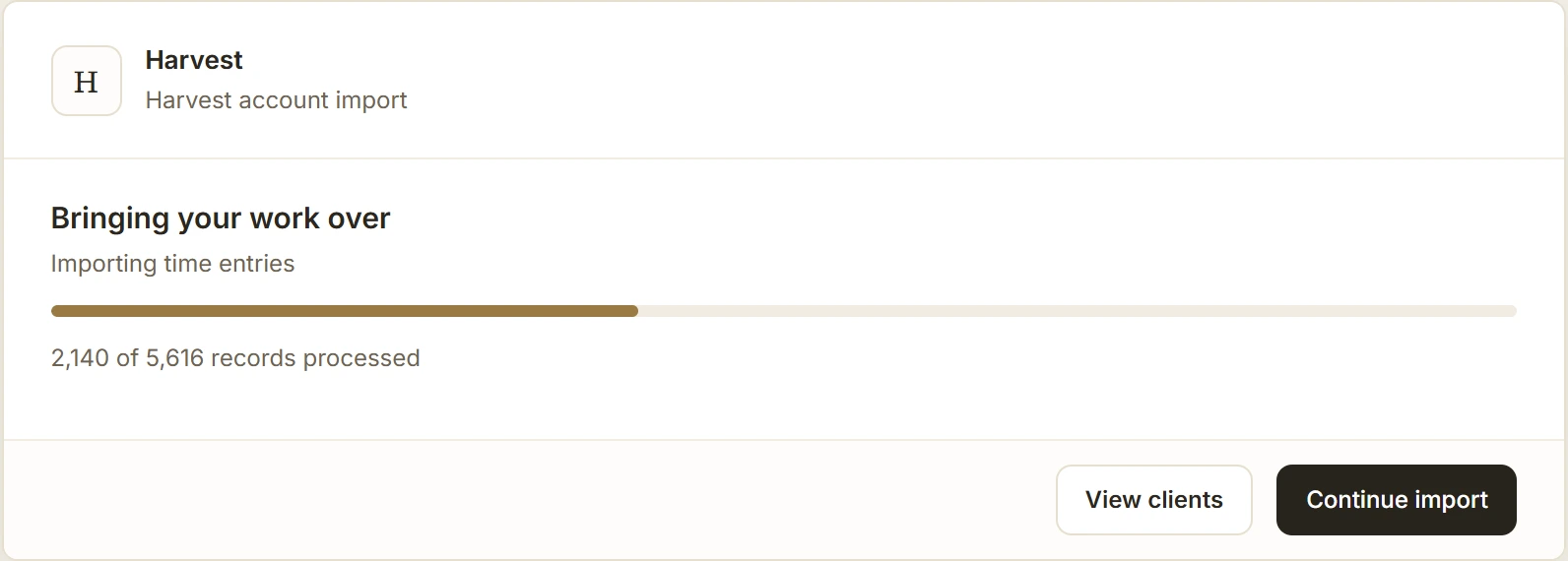
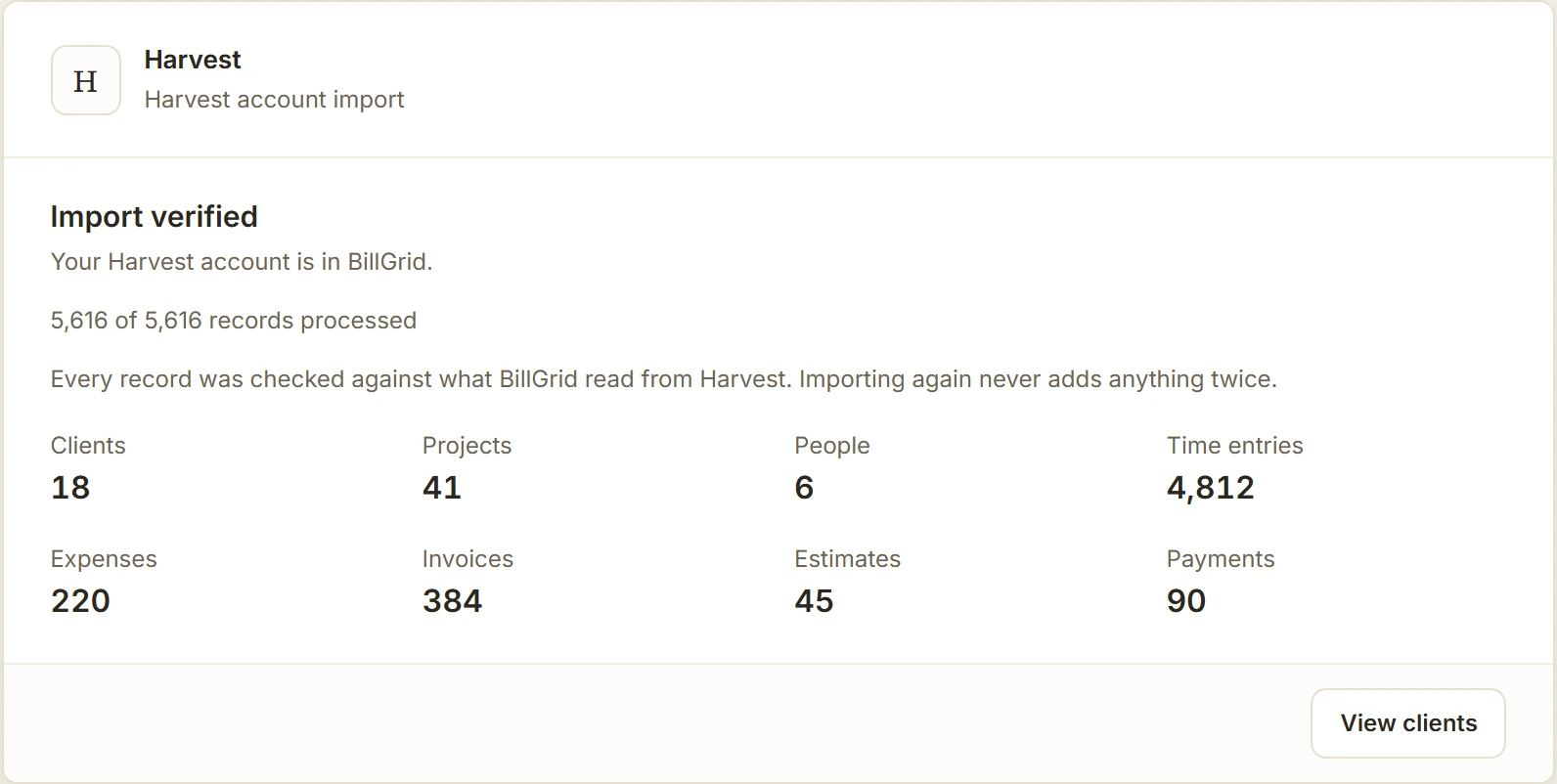
Choose Import reviewed data and keep the page open until it finishes. BillGrid then checks every record it saved against what it read from Harvest.
What comes over
- Clients and contacts, with their currency and address.
- Projects, with their currency, rates and hourly budgets. A fixed-fee project comes over as a fixed-fee project; add its milestones in BillGrid when you bill the rest of the fee.
- Tasks and time: each day's hours, person, task, notes and the rate it was billed at. Hours Harvest already invoiced stay invoiced, so they're never billed again.
- Expenses, in their own currency, with their category and whether they were billed.
- Invoices, estimates and payments, as history on each client. They're there to look back on: BillGrid doesn't send, remind or charge them, or turn them into new documents.
Cost rates, Harvest roles and rates planned by task are kept as notes on the imported records. BillGrid doesn't round time to billing increments; each entry keeps the hours Harvest recorded.
After the import
- Collect open Harvest invoices in Harvest. They arrive as history, so no client is asked to pay twice. Bill new work from BillGrid.
- Send your first invoice. Unbilled time and expenses wait on each client. See reviewing unbilled work.
If the import stops
Some records need a decision before they can come over, such as a timer still running in Harvest or a billable entry with no rate. The message names the record and its date. Fix it in Harvest, choose Read again, then import. Anything already imported stays, and nothing comes over twice.
Or use two exports
For only your clients and the hours you haven't billed, two Harvest exports do it without connecting your account.
Import your clients
- In Harvest, open Clients > Import/Export. Choose Export contacts for primary contacts and email addresses, or Export clients for billing addresses.
- In BillGrid, open Clients > Import CSV and choose the file.
- Check the new clients, the columns BillGrid used and any rows it skips, then choose Import.
Clients already in BillGrid and repeated rows are skipped.
Import projects and unbilled hours
- In Harvest, open the Detailed time report for the dates you want and export it as CSV.
- In BillGrid, choose Import CSV again and choose that file.
- Check each person's hours and who receives them, then import.
BillGrid adds any client that isn't here yet, makes each project an hourly project and logs the hours Harvest hasn't invoiced. Each entry keeps the explicit hourly rates the report shows, so entries with different rates keep them; a project default is set only when every row has the same rate. Review entries that need a rate before invoicing them. Non-billable hours come in as non-billable. Importing the same file again adds nothing; if hours or rates changed since, BillGrid asks you to review them first.
If you use QuickBooks Online, check which invoices it copies before you connect it.