Connect one QuickBooks Online company to copy supported BillGrid invoices and payments into your books. Choose Manual or Automatic, review older invoices by year, and resolve possible duplicates beside the record.
Coming to Pro and Team. Production access has not opened yet. This guide previews the connection and review workflow. The workspace owner manages it once access is enabled; changing plan does not enable the upcoming integration today.
Connect the right business
- In Settings, choose QuickBooks. Connect and sign in with Intuit, then select the QuickBooks company that belongs to your BillGrid issuing business.
- Confirm that the two represent the same business. This release supports one US QuickBooks company using USD.
- Choose an existing active service item for invoice lines. It must have an eligible income account. Your bookkeeper manages these items and accounts in QuickBooks.
- If you enable Copy invoice payments, choose an eligible Undeposited Funds account. If no eligible account appears, check it in QuickBooks and refresh the lists, or turn off payment copying and continue with invoices only. BillGrid does not invent an account for you.
- Keep Manual or choose Automatic, then Finish connecting. If a separate connection-enable action is shown, complete it before expecting delivery.
Later, open Connection settings beside the company name. Change the choices and click Save Changes. A radio selection alone does not change the saved mode. Cancel keeps the previous settings.
Manual or Automatic?
Manual is the default. Come back to Sync invoices when you want to send eligible invoices or later receipts to QuickBooks. Saving or sending an invoice in BillGrid does not approve its accounting copy in this mode.
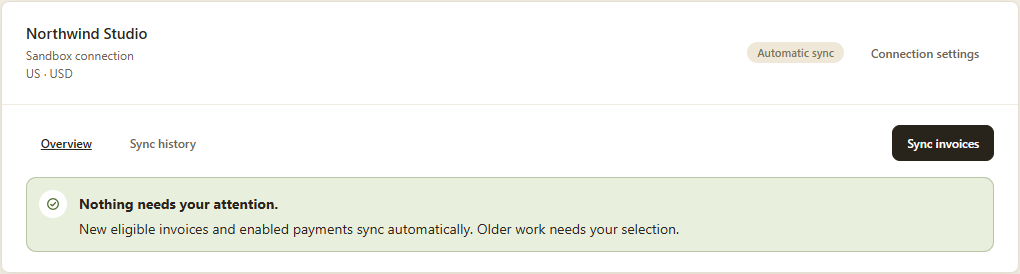
Automatic admits eligible newly issued invoices and enabled new payments from the time you save it. Existing invoices and older payments still need your selection. Switching to Automatic does not approve a manual backlog, and switching back does not recall a request already sent to QuickBooks.
Both modes use the same delivery and history. Allow time for background delivery; a saved invoice is not proof that QuickBooks has accepted it. When something needs attention, open Review and follow the record's next step.
Sync an invoice year
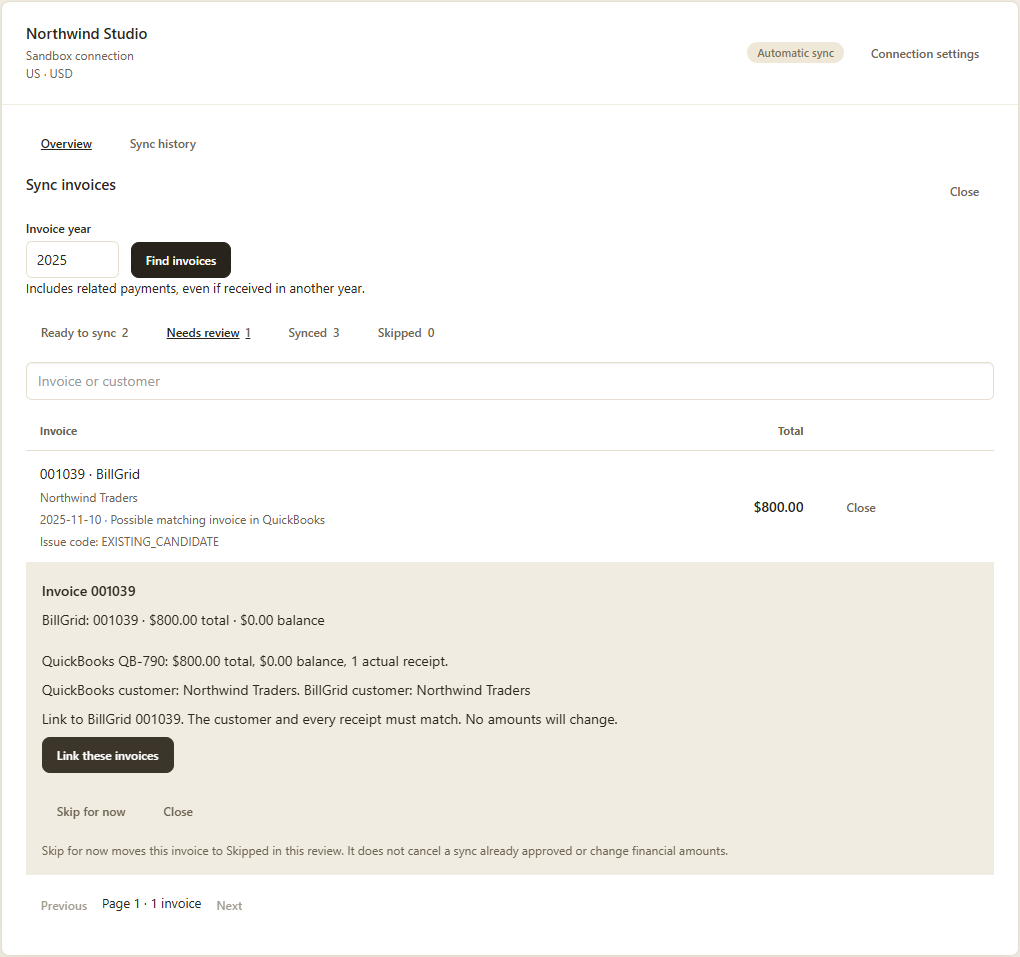
- Choose Sync invoices, select the invoice year and click Find invoices. BillGrid compares records from both systems for that year.
- Use Ready to sync for eligible outbound work. Select the invoices you want and use the batch sync action. A linked invoice with a later payment can send the payment without creating the invoice again.
- Open Needs review for individual decisions. Search by invoice or customer, and use the pages to work through a larger year.
- Check Synced for completed records. Skipped keeps work you set aside; reopen it when you are ready. A reopened record may need a fresh comparison.
A payment can cover invoices from different years. BillGrid checks the whole receipt and its allocations; an unresolved related invoice can prevent the payment from copying. Resolve that group rather than entering a second receipt.
Link an existing invoice or import one
Importing from QuickBooks makes AI assistants unavailable for this workspace to protect imported QuickBooks data. Your records remain available in BillGrid. Syncing invoices originally created in BillGrid does not apply this restriction.
Compare & link opens a possible QuickBooks counterpart for the BillGrid invoice. Check the customer, lines, dates, amounts and any payments to confirm that both records represent the same work before choosing Link these invoices. Linking saves the relationship; it does not import an invoice, move money or change either amount.
Review import means an invoice was found in QuickBooks without a linked BillGrid invoice. Choose the existing BillGrid customer or explicitly create one, review the current records, then approve the import. If a possible BillGrid match appears, compare it before importing another copy.
Imports always require an individual decision, even in Automatic mode. Imported invoice amounts and actual receipts are historical records. Sending, reminders, late fees and automatic collection stay disabled for them; edits made later in QuickBooks are not automatically imported.
Record the payment, then reconcile the payout
Payment copying records what the client paid, with its allocation to the invoice. An illustrative $100 card receipt with a $3 processing fee pays $100 of the invoice; the fee and $97 bank payout are separate bookkeeping. This integration does not copy processing fees or payouts.
Use one app or workflow to create each QuickBooks receipt. If another integration already recorded it, review the existing records before copying. Payments recorded only in QuickBooks do not come back automatically. Record the actual payment in BillGrid too if you need its balance and reminders to reflect it.
When a record needs attention
A review message should answer three questions: which record or customer needs attention, why it needs attention, and what the next action changes. Use the issue code shown beside the record to find the explanation in the issue-code reference below. A review decision is not always an error.
Not linked does not mean missing. A customer or invoice may already exist under a different name, number or year. Search and compare before creating another. An incomplete search cannot establish that a record is absent. An unsupported invoice may be correct in your books while remaining outside this integration's supported scope.
For an uncertain customer match, choose the correct QuickBooks customer rather than creating another. Customers without eligible invoices need no setup work. A new customer can be created when their first eligible invoice is copied.
If settings or financial records changed, find invoices again and review the current comparison. If QuickBooks may already have accepted a request, follow the review path; do not create another invoice to get around the warning. Sync history retains earlier attempts, so an earlier failure can remain visible after a successful resolution.
Reconnect required means the owner needs to authorize the same QuickBooks company again. Reconnecting preserves record relationships. Disconnecting stops new copying; it does not delete existing QuickBooks invoices or payments.
Paused sync, reconnecting and changing company
SYNC_DISABLED means BillGrid has turned off syncing in this environment. Your saved connection remains in place. Reconnecting does not turn syncing on; contact support to review the hold and any queued work. SYNC_UNAVAILABLE means BillGrid cannot currently start QuickBooks requests. PAUSED means the connection itself is paused; use Enable connection only when it is offered.
Open Disconnect or change company on the QuickBooks settings page. Confirm disconnection to stop access; existing invoices, payments, record links and sync history are retained. You can then connect again. Choose the same QuickBooks company to reuse its history, or another QuickBooks company to keep its links and history separate. Reconnecting does not reassign the original BillGrid issuing business or erase duplicate-prevention history.
If REVOCATION_PENDING appears, remove BillGrid from the connected-apps page in QuickBooks, then contact BillGrid support. Support must verify revocation and that no request is still in flight before another connection can start. Refreshing, waiting or confirming a checkbox does not clear that reservation.
What the review actions change
- Sync approves eligible BillGrid work for copying to QuickBooks. Delivery happens in the background; check its final result in Sync history.
- Link records that two existing invoices represent the same work after their supported details and receipts match. It does not change amounts or move money.
- Import creates a historical BillGrid invoice from the reviewed QuickBooks records and associates it with your chosen BillGrid customer. It does not request another client payment.
- Choose a customer identifies the corresponding customer. It does not merge two customers or settle an invoice.
- Skip for now puts the record aside in this review. It does not delete it, correct a difference, mark an unpaid invoice as paid or cancel a sync you already approved. Reopen it when you are ready; a new comparison may be required.
When totals, dates, lines or payment allocations differ, confirm the real transaction with your bookkeeper and correct the appropriate record before finding invoices again. Linking is not an instruction to make one system overwrite the other. This invoice review is also separate from reconciling bank deposits, fees and payouts.
QuickBooks issue-code reference
These are BillGrid's review codes, shared with the sync screen. They describe the decision or safeguard that applies to your record; they are separate from Intuit's numeric API error codes. Open a code for its cause, next step and effect. Several issues can apply to one record, so another check may appear after the first is resolved.
For example, an unlinked invoice first needs the right customer. After you choose that customer, the comparison can reveal a different balance or an already linked payment. Resolving the customer choice does not approve the later financial decision.
Customer matching
CUSTOMER_REVIEW — Choose the matching QuickBooks customer
Why this appears: BillGrid could not establish one safe customer match. Names or email addresses can match more than one record.
Next step: Compare the offered customer names and email addresses, then choose the actual customer.
What changes: Reviewing does not create, overwrite or charge anything.
CUSTOMER_LOOKUP_INCOMPLETE — QuickBooks customer search incomplete
Why this appears: The customer search did not finish with complete, consistent evidence. No missing customer is assumed.
Next step: Use Check again in the customer review. If the search remains incomplete, contact support; do not create a duplicate.
What changes: Reviewing does not create, overwrite or charge anything.
CUSTOMER_UNSUPPORTED — BillGrid customer details need review
Why this appears: The BillGrid client has unsupported identity, contact, address, archive or currency details.
Next step: Review the client name, USD currency and contact information. Internal, archived and hierarchical records need a supported workflow.
What changes: Reviewing does not create, overwrite or charge anything.
CUSTOMER_LINK_CONFLICT — Customer linked to a different QuickBooks customer
Why this appears: The BillGrid customer already points to a different QuickBooks customer than the invoice being reviewed.
Next step: Choose the correct existing BillGrid customer. If the saved link is wrong, contact support; this screen cannot silently replace it.
What changes: Reviewing does not create, overwrite or charge anything.
CUSTOMER_ALREADY_LINKED — Existing BillGrid customer link found
Why this appears: This QuickBooks customer already has a saved BillGrid customer relationship.
Next step: Use Change BillGrid customer and choose that existing customer instead of creating another.
What changes: Reviewing does not create, overwrite or charge anything.
BILLGRID_CUSTOMER_EXISTS — Possible existing BillGrid customer found
Why this appears: A BillGrid customer already matches this QuickBooks name or email address. That is a candidate, not permission to merge records.
Next step: Choose the existing BillGrid customer after checking its details, then review the import again.
What changes: Reviewing does not create, overwrite or charge anything.
IMPORT_CUSTOMER_INACTIVE — QuickBooks customer is inactive
Why this appears: The historical invoice refers to a QuickBooks customer that is not active.
Next step: Review the customer in QuickBooks. Import only after its supported active status is verified.
What changes: Reviewing does not create, overwrite or charge anything.
IMPORT_CUSTOMER_HIERARCHY — QuickBooks subcustomer or job is unsupported
Why this appears: The invoice customer is a job, subcustomer or part of a customer hierarchy this import cannot preserve.
Next step: Keep this invoice in QuickBooks and ask your bookkeeper about a supported migration approach.
What changes: Reviewing does not create, overwrite or charge anything.
IMPORT_CUSTOMER_CURRENCY — QuickBooks customer currency is unsupported
Why this appears: The invoice customer is not a supported USD customer.
Next step: Keep the record outside this import. Changing a currency label does not convert the financial amounts.
What changes: Reviewing does not create, overwrite or charge anything.
IMPORT_CUSTOMER_MISMATCH — Invoice and customer references differ
Why this appears: The selected QuickBooks customer does not match the customer referenced by this invoice.
Next step: Find invoices again and verify that the invoice belongs to the customer being imported.
What changes: Reviewing does not create, overwrite or charge anything.
CUSTOMER_CURRENCY_MISMATCH — BillGrid customer currency does not match
Why this appears: The selected BillGrid customer does not use the supported USD currency for this QuickBooks invoice.
Next step: Use Change BillGrid customer and choose the correct existing USD customer.
What changes: Reviewing does not create, overwrite or charge anything.
Invoice matching
IMPORT_REVIEW — QuickBooks invoice not linked in BillGrid
Why this appears: No linked BillGrid invoice was established for this QuickBooks record. An existing invoice or customer may still need matching.
Next step: Choose an existing BillGrid customer, or explicitly create one if new, then check import details.
What changes: Reviewing does not create, overwrite or charge anything.
EXISTING_CANDIDATE — Possible matching invoice in QuickBooks
Why this appears: A QuickBooks invoice may represent the same work. A matching number or amount alone does not establish identity.
Next step: Compare the customer, dates, lines, total, balance and actual payments before linking.
What changes: Reviewing does not create, overwrite or charge anything.
EXISTING_INVOICE — Possible existing QuickBooks invoice found
Why this appears: Duplicate-prevention checks found a QuickBooks invoice that may already represent this BillGrid invoice.
Next step: Use Find invoices, then compare and link the actual existing record before another create.
What changes: Reviewing does not create, overwrite or charge anything.
EXISTING_BILLGRID_INVOICE — Possible existing BillGrid invoice found
Why this appears: An invoice already in BillGrid may match the QuickBooks invoice selected for import.
Next step: Review the existing BillGrid invoice and link the same work instead of importing another copy.
What changes: Reviewing does not create, overwrite or charge anything.
INVOICE_ALREADY_LINKED — Invoice already linked in BillGrid
Why this appears: This QuickBooks invoice already has a saved BillGrid relationship.
Next step: Open the existing BillGrid invoice from Synced instead of importing it again.
What changes: Reviewing does not create, overwrite or charge anything.
INVOICE_MISMATCH — Invoice details do not match
Why this appears: The two invoice records cannot be linked with their current financial details.
Next step: Compare dates, currency, line items, total and balance. Have the correct source record corrected, then find invoices again.
What changes: Reviewing does not create, overwrite or charge anything.
INVOICE_DATE_MISMATCH — Invoice dates do not match
Why this appears: The issue dates differ between the BillGrid and QuickBooks invoices.
Next step: Verify the intended issue date in both systems, correct the source if needed, then find invoices again.
What changes: Reviewing does not create, overwrite or charge anything.
INVOICE_DUE_DATE_MISMATCH — Invoice due dates do not match
Why this appears: The due dates differ between the BillGrid and QuickBooks invoices.
Next step: Verify the agreed due date in both systems, correct the source if needed, then find invoices again.
What changes: Reviewing does not create, overwrite or charge anything.
INVOICE_CURRENCY_MISMATCH — Invoice currency differs or is unavailable
Why this appears: The invoice currencies differ, are unsupported, or could not be verified from the current QuickBooks record.
Next step: Review the actual currency and amounts with your bookkeeper. Find invoices again if the currency is unavailable. Do not relabel a foreign-currency amount as USD.
What changes: Reviewing does not create, overwrite or charge anything.
INVOICE_TOTAL_MISMATCH — Invoice totals do not match
Why this appears: BillGrid and QuickBooks show different invoice totals.
Next step: Compare both totals and line items, correct the appropriate source with your bookkeeper, then find invoices again.
What changes: Reviewing does not create, overwrite or charge anything.
INVOICE_BALANCE_MISMATCH — Invoice balances do not match
Why this appears: The current unpaid balances differ between the two systems.
Next step: Compare actual payments, credits and allocations as well as totals. Do not create a balancing receipt from the difference.
What changes: Reviewing does not create, overwrite or charge anything.
INVOICE_LINES_MISMATCH — Invoice line items do not match
Why this appears: The supported descriptions, quantities, rates or line amounts do not match exactly.
Next step: Compare line items in both systems, correct the intended source and find invoices again.
What changes: Reviewing does not create, overwrite or charge anything.
INVOICE_CUSTOMER_MISMATCH — Invoice customer references do not match
Why this appears: The invoice belongs to a different customer than the saved matching relationship.
Next step: Review the actual customer on each invoice and the existing customer link before linking.
What changes: Reviewing does not create, overwrite or charge anything.
CROSS_YEAR_COUNTERPART — Matching BillGrid invoice is in another year
Why this appears: A possible counterpart falls outside the selected invoice year. Related records are checked across years to prevent duplicates.
Next step: Review the existing invoice and its date. Do not import another copy just to put it in the selected year.
What changes: Reviewing does not create, overwrite or charge anything.
SOURCE_CHANGED — BillGrid record changed since review
Why this appears: The BillGrid source no longer matches the version used for this review or saved sync.
Next step: Find invoices again and compare the current BillGrid record with its saved QuickBooks counterpart.
What changes: Reviewing does not create, overwrite or charge anything.
DESTINATION_CHANGED — Linked QuickBooks record needs review
Why this appears: The QuickBooks evidence is unavailable or no longer matches the saved version. This is not proof that the record was deleted.
Next step: Check the existing QuickBooks record and find invoices again before approving further work.
What changes: Reviewing does not create, overwrite or charge anything.
CORRECTION_REQUIRES_REVIEW — Existing QuickBooks copy needs correction review
Why this appears: This record already has an accepted QuickBooks identity. Creating another copy would risk a duplicate.
Next step: Compare the existing records with your bookkeeper. Automatic financial corrections are outside this workflow.
What changes: Reviewing does not create, overwrite or charge anything.
Payments and allocations
PAYMENT_MISMATCH — Payments do not match
Why this appears: Actual payment identities, counts, amounts, dates, customers, accounts or invoice allocations differ.
Next step: Compare the complete receipts and allocations in both systems. Linking cannot invent or move a payment.
What changes: Reviewing does not create, overwrite or charge anything.
PAYMENT_ALREADY_LINKED — Payment already linked in BillGrid
Why this appears: A QuickBooks payment in this import is already linked to a BillGrid receipt.
Next step: Review its existing invoice and receipt before importing another copy.
What changes: Reviewing does not create, overwrite or charge anything.
PAYMENTS_DISABLED — Payment copying is off
Why this appears: The current outbound settings do not allow copying or linking this payment group.
Next step: Open Connection settings and enable payment copying with an eligible payment account if you intend to copy receipts.
What changes: Reviewing does not create, overwrite or charge anything.
DEPENDENCY_REVIEW — Related invoices need review
Why this appears: This payment includes other invoices whose relationships are not yet resolved.
Next step: Review the whole related invoice group, including invoices in other years, before copying the receipt.
What changes: Reviewing does not create, overwrite or charge anything.
DEPENDENCY_CHANGED — A related record is no longer ready
Why this appears: A prerequisite customer or invoice changed or no longer has a verified relationship.
Next step: Resolve the prerequisite record, then refresh the invoice review.
What changes: Reviewing does not create, overwrite or charge anything.
IMPORT_PAYMENT_UNAPPLIED — Payment includes unapplied money
Why this appears: The receipt contains money that is not fully applied to this invoice.
Next step: Review the unapplied payment or customer credit in QuickBooks. This import cannot turn it into invoice payment.
What changes: Reviewing does not create, overwrite or charge anything.
IMPORT_PAYMENT_DUPLICATE — Payment appears more than once
Why this appears: The same QuickBooks payment identity appears repeatedly in the import group.
Next step: Find invoices again and inspect the actual receipt references before importing.
What changes: Reviewing does not create, overwrite or charge anything.
IMPORT_PAYMENT_MISSING — Referenced payment was not supplied
Why this appears: The invoice references a receipt that could not be verified in the complete payment group. It is not assumed paid from balance alone.
Next step: Check the actual payment in QuickBooks, then find invoices again.
What changes: Reviewing does not create, overwrite or charge anything.
IMPORT_PAYMENT_CUSTOMER — Payment belongs to another customer
Why this appears: A receipt customer does not match this invoice customer.
Next step: Check the customer and invoice allocation on the actual QuickBooks receipt.
What changes: Reviewing does not create, overwrite or charge anything.
IMPORT_PAYMENT_CURRENCY — Payment currency is unsupported
Why this appears: A receipt uses an unsupported currency or exchange-rate representation.
Next step: Review the currency with your bookkeeper; this workflow imports supported USD receipts only.
What changes: Reviewing does not create, overwrite or charge anything.
IMPORT_PAYMENT_TOTAL — Payment amounts do not reconcile
Why this appears: The actual receipts and invoice allocations do not reproduce the invoice paid amount and balance.
Next step: Compare actual receipt amounts, applied amounts and the current invoice balance. Correct the source, then find invoices again.
What changes: Reviewing does not create, overwrite or charge anything.
IMPORT_CREDIT_TRANSACTION — Invoice has a credit or unsupported linked transaction
Why this appears: The invoice links a credit or another transaction that is not a supported actual payment.
Next step: Review the linked credit or transaction with your bookkeeper. Keep it outside this individual invoice import.
What changes: Reviewing does not create, overwrite or charge anything.
Unsupported accounting
SOURCE_INVALID — BillGrid invoice or payment details are incomplete
Why this appears: Required invoice or payment identity, ownership, dates or financial fields are missing or inconsistent.
Next step: Review the BillGrid invoice and its actual receipts. If the data is correct but remains blocked, contact support.
What changes: Reviewing does not create, overwrite or charge anything.
FORM_UNSUPPORTED — Invoice or payment form is unsupported
Why this appears: The invoice type or state, payment structure or receipt allocations are outside the supported sync contract.
Next step: Review the invoice status and the actual receipt group. Draft or voided invoices and unsupported payment allocations cannot use this sync.
What changes: Reviewing does not create, overwrite or charge anything.
CURRENCY_UNSUPPORTED — Invoice or payment currency is unsupported
Why this appears: The invoice or receipt does not use the supported USD currency for the connected US company.
Next step: Keep unsupported currency records outside this sync; changing the label does not convert their amounts.
What changes: Reviewing does not create, overwrite or charge anything.
TAX_UNSUPPORTED — Invoice tax is unsupported
Why this appears: The invoice or a line includes tax this version cannot represent exactly.
Next step: Keep this invoice out of sync and review the accounting approach with your bookkeeper.
What changes: Reviewing does not create, overwrite or charge anything.
DISCOUNT_UNSUPPORTED — Invoice discount is unsupported
Why this appears: This version does not copy the invoice discount representation.
Next step: Keep this invoice out of sync rather than replacing the discount with a fabricated adjustment line.
What changes: Reviewing does not create, overwrite or charge anything.
LATE_FEE_UNSUPPORTED — Invoice late fee is unsupported
Why this appears: The invoice includes a late fee this version cannot copy.
Next step: Review the invoice with your bookkeeper and skip it for this sync.
What changes: Reviewing does not create, overwrite or charge anything.
CREDIT_UNSUPPORTED — Credit or unapplied balance needs review
Why this appears: The invoice or payment group includes credit or unallocated money outside the supported receipt contract.
Next step: Review customer credit and actual receipt allocations; do not copy a net balance as a new payment.
What changes: Reviewing does not create, overwrite or charge anything.
REFUND_UNSUPPORTED — Refund or reversal needs review
Why this appears: Refund, reversal, void or dispute evidence is outside the supported copy representation.
Next step: Review the actual invoice and receipt with your bookkeeper before further copying.
What changes: Reviewing does not create, overwrite or charge anything.
RETAINER_UNSUPPORTED — Retainer invoice is unsupported
Why this appears: This invoice or a source line comes from retainer billing this integration cannot preserve.
Next step: Keep this invoice outside the sync and review the retainer accounting approach.
What changes: Reviewing does not create, overwrite or charge anything.
LINES_UNSUPPORTED — Invoice line structure is unsupported
Why this appears: Line types, descriptions, precision or count are outside the supported service-line contract.
Next step: Review the lines. Expense-linked, sectioned and unsupported line forms are not flattened into ordinary services.
What changes: Reviewing does not create, overwrite or charge anything.
ROUNDING_UNSUPPORTED — Invoice rounding cannot be reproduced
Why this appears: Rounding the supported lines does not reproduce the exact intended invoice amount.
Next step: Review the line rates and rounding with your bookkeeper; this workflow will not force a balancing amount.
What changes: Reviewing does not create, overwrite or charge anything.
TOTAL_MISMATCH — Source totals do not reconcile
Why this appears: The source total or related payment preflight does not reproduce the verified financial amounts. This is not always a difference between two invoice totals.
Next step: Compare source line totals and actual payment allocations before attempting another review.
What changes: Reviewing does not create, overwrite or charge anything.
PAYLOAD_LIMIT — Record exceeds the supported size limit
Why this appears: The source snapshot is larger than the supported payload size.
Next step: Contact support with the invoice number and issue code. Do not remove financial detail just to bypass the limit.
What changes: Reviewing does not create, overwrite or charge anything.
NUMBER_UNSUPPORTED — Invoice number is unsupported
Why this appears: The QuickBooks custom number is blank, longer than 21 characters or reserved by the provider.
Next step: Review the invoice numbering with your bookkeeper before finding invoices again.
What changes: Reviewing does not create, overwrite or charge anything.
INVOICE_UNSUPPORTED — Invoice cannot be represented safely
Why this appears: The invoice is outside the supported copy contract.
Next step: Check the more specific invoice details in this review, or contact support if no further cause is shown.
What changes: Reviewing does not create, overwrite or charge anything.
UNSUPPORTED — Accounting operation is unsupported
Why this appears: This financial representation is not supported by the current integration.
Next step: Keep the record outside this workflow and contact support about the supported accounting path.
What changes: Reviewing does not create, overwrite or charge anything.
IMPORT_INVOICE_CURRENCY — Import currency or exchange rate is unsupported
Why this appears: The historical invoice does not have a supported USD currency and exchange-rate representation.
Next step: Keep it in QuickBooks and review a supported migration approach with your bookkeeper.
What changes: Reviewing does not create, overwrite or charge anything.
IMPORT_INVOICE_TAX — Historical invoice tax is unsupported
Why this appears: The QuickBooks invoice or its lines contain tax this import cannot preserve.
Next step: Keep the invoice in QuickBooks. Do not delete tax to make an import pass.
What changes: Reviewing does not create, overwrite or charge anything.
IMPORT_INVOICE_DEPOSIT — Historical invoice deposit is unsupported
Why this appears: The QuickBooks invoice includes a deposit this individual import cannot represent.
Next step: Review the deposit and related records with your bookkeeper before migration.
What changes: Reviewing does not create, overwrite or charge anything.
IMPORT_INVOICE_LINES — Historical invoice lines are unsupported
Why this appears: The invoice contains unsupported line types, descriptions, quantities, rates or precision.
Next step: Review the line structure in QuickBooks. Do not flatten financial forms into misleading service lines.
What changes: Reviewing does not create, overwrite or charge anything.
IMPORT_INVOICE_ROUNDING — Historical invoice totals cannot be reproduced
Why this appears: The supported line amounts do not reproduce the QuickBooks total exactly.
Next step: Compare line amounts, quantities and rounding with your bookkeeper before importing.
What changes: Reviewing does not create, overwrite or charge anything.
IMPORT_INVOICE_BALANCE — Historical invoice balance is invalid
Why this appears: The current balance is missing, negative or outside the supported invoice total.
Next step: Check the current invoice and its actual receipts in QuickBooks, then find invoices again.
What changes: Reviewing does not create, overwrite or charge anything.
CLOSED_PERIOD — QuickBooks accounting period is closed
Why this appears: The transaction date falls on or before the closing date in the connected books.
Next step: Ask the accounting owner how to handle the transaction. BillGrid will not bypass the closed period.
What changes: Reviewing does not create, overwrite or charge anything.
Connection and access
ACCOUNTING_SETTINGS — QuickBooks connection settings need review
Why this appears: The issuing business, company preferences, service item, income account or payment account is unavailable, changed or incompatible.
Next step: Open Connection settings and verify the business, active service item and eligible payment account. Refresh the lists and save.
What changes: Reviewing does not create, overwrite or charge anything.
CONNECTION_CHANGED — QuickBooks connection changed
Why this appears: The saved review or queued authority belongs to an older connection or authorization.
Next step: Verify the connected company and find invoices again under the current connection.
What changes: Reviewing does not create, overwrite or charge anything.
SETTINGS_CHANGED — QuickBooks settings changed
Why this appears: The review was prepared using settings that are no longer current.
Next step: Verify the saved settings and find invoices again before approving current work.
What changes: Reviewing does not create, overwrite or charge anything.
MODE_CHANGED — Saved sync mode changed
Why this appears: The work was prepared under a different Manual or Automatic authority.
Next step: Review the saved mode and current invoices. A mode change does not recall a request already sent.
What changes: Reviewing does not create, overwrite or charge anything.
MAPPING_CHANGED — Saved record relationship changed
Why this appears: The saved customer, invoice, item or account relationship no longer matches the prepared work.
Next step: Verify the current relationship in Connection settings or the record review, then find invoices again.
What changes: Reviewing does not create, overwrite or charge anything.
AUTHORIZATION — Reconnect QuickBooks
Why this appears: The QuickBooks authorization cannot currently be used. Some refresh outcomes also require reconnecting safely.
Next step: Reconnect the same QuickBooks company and issuing business, then review current work.
What changes: Reviewing does not create, overwrite or charge anything.
SYNC_DISABLED — Sync paused by BillGrid
Why this appears: Syncing is turned off for this environment. Your saved QuickBooks connection has not been disconnected.
Next step: Contact BillGrid support to review the hold and queued work. Reconnecting does not turn syncing on.
What changes: Reviewing invoices and connection settings does not send invoices or payments to QuickBooks.
PAUSED — QuickBooks copying is paused
Why this appears: This connection is not currently allowed to dispatch new accounting writes.
Next step: Check Connection settings and use Enable connection only when it is offered. Contact support if activation is unavailable.
What changes: Reviewing does not create, overwrite or charge anything.
OWNER_REQUIRED — Workspace owner access is required
Why this appears: This operation is available only to the authorized workspace owner.
Next step: Ask the owner to open QuickBooks settings. Do not share credentials or private invoice links.
What changes: Reviewing does not create, overwrite or charge anything.
CONNECT_FAILED — QuickBooks connection did not complete
Why this appears: The business selection or Intuit authorization could not be completed safely.
Next step: Check your issuing business and try Connect QuickBooks again.
What changes: Reviewing does not create, overwrite or charge anything.
OAUTH_NOT_COMPLETED — QuickBooks authorization was not completed
Why this appears: Authorization was canceled, expired or could not be verified for the current signed-in session.
Next step: Return to QuickBooks settings and start Connect again. Do not reuse or share the callback URL.
What changes: Reviewing does not create, overwrite or charge anything.
SETTINGS_NOT_SAVED — Connection settings were not saved
Why this appears: One or more submitted settings are invalid or no longer current.
Next step: Check the business, active service item, payment account and same-business confirmation. Reload first if another owner changed the page.
What changes: Reviewing does not create, overwrite or charge anything.
DISCONNECT_CONFIRMATION_REQUIRED — Confirm disconnection first
Why this appears: The disconnection request did not include the required confirmation.
Next step: Read the disconnection consequence and confirm only if you intend to stop BillGrid access.
What changes: Reviewing does not create, overwrite or charge anything.
REVOCATION_PENDING — Intuit disconnection needs completion
Why this appears: BillGrid access has stopped, but Intuit has not confirmed token revocation.
Next step: Remove BillGrid from the QuickBooks connected-apps page, then contact BillGrid support. Support must verify revocation and that no request is still in flight before another connection can start.
What changes: BillGrid access stays stopped. Existing invoices and payments remain in both systems; BillGrid retains sync history. This does not clear the connection reservation.
DISCONNECT_FAILED — Disconnection could not be completed
Why this appears: The saved connection changed or the disconnection request could not complete.
Next step: Reload Connection settings and retry the supported disconnect action. Existing accounting records remain in both systems.
What changes: Reviewing does not create, overwrite or charge anything.
RESUME_FAILED — Connection could not be enabled
Why this appears: The saved connection cannot currently be resumed with this request.
Next step: Reload Connection settings and check eligibility. Use Enable connection only when it is offered.
What changes: Reviewing does not create, overwrite or charge anything.
SESSION_CHANGED — Your session or connection changed
Why this appears: BillGrid could not read a verified signed-in response for this request. An earlier approval may still have reached the server.
Next step: Reload the signed-in page, then check Sync history before repeating an approval.
What changes: Reviewing does not create, overwrite or charge anything.
Discovery and review
REVIEW_CHANGED — Saved review is no longer current
Why this appears: The scan expired or its connection, settings, selected records or financial fingerprints changed.
Next step: Use Find invoices again and review the current records. The old approval is not reused.
What changes: Reviewing does not create, overwrite or charge anything.
REVIEW_REQUIRED — Accounting review is required
Why this appears: The record needs attention, but no more specific supported diagnostic is available.
Next step: Check Sync history and the records in both systems. Contact support with this code if the cause remains unclear.
What changes: Reviewing does not create, overwrite or charge anything.
ATTENTION_REQUIRED — Accounting review is required
Why this appears: An older or unrecognized saved diagnostic cannot be shown as a specific verified cause.
Next step: Review the record and contact support with its invoice number and this code.
What changes: Reviewing does not create, overwrite or charge anything.
INVALID_REQUEST — Review choices are incomplete or invalid
Why this appears: The selected year, cursor, invoice, customer or request values cannot be used for this action.
Next step: Check the visible form choices. Reload the page if valid choices continue to be rejected.
What changes: Reviewing does not create, overwrite or charge anything.
LOOKUP_FAILED — QuickBooks lookup did not complete
Why this appears: Discovery or verification failed before a complete trustworthy review could be established.
Next step: Try Find invoices again after the connection is available. Incomplete results never mean a record is missing.
What changes: Reviewing does not create, overwrite or charge anything.
INVOICE_LOOKUP_INCOMPLETE — Invoice duplicate check is incomplete
Why this appears: QuickBooks invoice search was incomplete, stale or inconsistent. A new invoice cannot safely be assumed.
Next step: Find invoices again. Contact support if a complete duplicate check remains unavailable.
What changes: Reviewing does not create, overwrite or charge anything.
LIMIT_EXCEEDED — QuickBooks lookup or response limit reached
Why this appears: A QuickBooks lookup or provider response exceeded a supported safety limit.
Next step: Contact support with the invoice year and code. A year filter does not necessarily reduce the underlying provider scan.
What changes: Reviewing does not create, overwrite or charge anything.
GROUP_TOO_LARGE — Too many related records for one review
Why this appears: This invoice exceeds the supported sync limit for related payments, candidates or allocations. The complete financial group is retained.
Next step: Contact support about the complete financial group. This workflow will not truncate or split it silently.
What changes: Reviewing does not create, overwrite or charge anything.
PROVIDER_SNAPSHOT_INVALID — QuickBooks record could not be verified
Why this appears: Required provider identities, versions, dates or financial fields are missing or inconsistent.
Next step: Find invoices again. Contact support if the current record still cannot be verified; raw provider payloads are not shown.
What changes: Reviewing does not create, overwrite or charge anything.
OPERATION_BLOCKED — QuickBooks operation is blocked
Why this appears: The operation cannot proceed with the current verified state and no narrower safe cause is available.
Next step: Check your connection settings and the record review. Contact support if it stays blocked.
What changes: Reviewing does not create, overwrite or charge anything.
Delivery and verification
ALREADY_QUEUED — Existing sync is pending
Why this appears: An existing operation already owns this work; this is not permission to create another copy.
Next step: Check Sync history and wait for its current result before approving another create.
What changes: Reviewing does not create, overwrite or charge anything.
UNKNOWN_OUTCOME — QuickBooks result could not be confirmed
Why this appears: QuickBooks may already have accepted the write even though BillGrid did not receive a trustworthy final result.
Next step: Review the existing QuickBooks records and retained attempt. Do not blindly retry or create another invoice or receipt.
What changes: Reviewing does not create, overwrite or charge anything.
PARITY_MISMATCH — Accepted QuickBooks record does not match
Why this appears: QuickBooks accepted a record, but its verified financial result differs from the intended source. Its identity is retained.
Next step: Compare the accepted record with BillGrid and involve your bookkeeper or support. Do not create another copy to fix it.
What changes: Reviewing does not create, overwrite or charge anything.
IDENTITY_CONFLICT — QuickBooks record identities conflict
Why this appears: The saved identities or versions contradict each other, so another write cannot be safely authorized.
Next step: Contact support with the invoice number and code. Do not overwrite or recreate the record.
What changes: Reviewing does not create, overwrite or charge anything.
VERIFICATION_PENDING — QuickBooks result is being verified
Why this appears: A provider receipt has been retained, but exact verification has not completed yet.
Next step: Wait for verification and check Sync history. A second create is blocked while the result is verified.
What changes: Reviewing does not create, overwrite or charge anything.
VERIFICATION_FAILED — Accepted result could not be verified
Why this appears: The accepted response is retained, but BillGrid could not finish verifying the accounting result.
Next step: Review the existing QuickBooks record and contact support. This does not mean nothing copied.
What changes: Reviewing does not create, overwrite or charge anything.
STALE_SOURCE — QuickBooks accepted an older BillGrid version
Why this appears: The accepted result belongs to an earlier BillGrid source revision.
Next step: Compare the retained QuickBooks copy with the current BillGrid invoice before any further approval.
What changes: Reviewing does not create, overwrite or charge anything.
LATE_RESULT — A late QuickBooks response needs review
Why this appears: The response belongs to a superseded request authority, lease, connection or source version. Its evidence is retained.
Next step: Review the retained attempt and existing provider record with support before another create.
What changes: Reviewing does not create, overwrite or charge anything.
THROTTLED — QuickBooks request limit reached
Why this appears: QuickBooks asked BillGrid to slow down. Eligible work uses bounded backoff.
Next step: Wait and check Sync history. Repeated manual requests do not speed up the provider limit.
What changes: Reviewing does not create, overwrite or charge anything.
RETRY_EXHAUSTED — Automatic retries stopped
Why this appears: The bounded preparation or throttled-delivery attempts were exhausted. This code alone does not prove a write was sent.
Next step: Check the attempt history. Review uncertain writes before another create; only proven unsent work can be safely reapproved.
What changes: Reviewing does not create, overwrite or charge anything.
REJECTED — QuickBooks rejected the request
Why this appears: QuickBooks rejected the operation. A safe specific accounting fault is not available in this diagnostic.
Next step: Check the source and connection settings, then contact support with the code. Do not guess a missing customer from this result.
What changes: Reviewing does not create, overwrite or charge anything.
TRANSPORT — QuickBooks connection was interrupted
Why this appears: The network response could not be completed. The correct recovery depends on whether a write crossed the dispatch boundary.
Next step: Check Sync history. If the result is uncertain, verify existing records before any new create.
What changes: Reviewing does not create, overwrite or charge anything.
PREPARATION_FAILED — Sync preparation could not finish
Why this appears: BillGrid could not finish preparing a verified request. Some transient preparation failures retry before any write.
Next step: Check whether the operation is still queued or blocked. Wait for queued retries; review blocked work before approving again.
What changes: Reviewing does not create, overwrite or charge anything.
NOT_SENT — Request was not sent to QuickBooks
Why this appears: The dispatch did not cross the provider write boundary and the existing operation can be safely queued.
Next step: Wait for the existing operation to continue and check Sync history.
What changes: Reviewing does not create, overwrite or charge anything.
CHECKING_CUSTOMERS — Checking QuickBooks records
Why this appears: The worker is verifying prerequisites or duplicate-prevention evidence. This older internal code is not limited to customer searches.
Next step: Wait for the existing operation. Resolve an explicit customer or invoice issue if one appears.
What changes: Reviewing does not create, overwrite or charge anything.
LEASE_EXPIRED — Sync preparation will resume
Why this appears: A preparation claim expired and the existing operation can be requeued under its saved identity.
Next step: Wait for the next worker run and check Sync history.
What changes: Reviewing does not create, overwrite or charge anything.
BUDGET_EXHAUSTED — Sync will continue in the next run
Why this appears: The worker reached its bounded request or time budget. This is an operational pause, not an accounting mismatch.
Next step: Wait for the next background run. Do not create another operation for the same record.
What changes: Reviewing does not create, overwrite or charge anything.
PAYLOAD_CHANGED — Prepared sync details no longer match
Why this appears: The frozen request no longer matches its verified content hash.
Next step: Find invoices again. Contact support if the mismatch persists; do not force an old request.
What changes: Reviewing does not create, overwrite or charge anything.
PAYLOAD_EXPIRED — Prepared sync details are unavailable
Why this appears: The saved request payload is no longer available for a trustworthy dispatch.
Next step: Refresh the review or contact support. An uncertain prior write must be checked before another create.
What changes: Reviewing does not create, overwrite or charge anything.
SOURCE_RESTRICTED — This source cannot be copied out
Why this appears: The record is imported, tombstoned or otherwise outside the eligible BillGrid source contract.
Next step: Keep the historical source policy intact. Review the existing record rather than exporting it as a new BillGrid invoice.
What changes: Reviewing does not create, overwrite or charge anything.
SOURCE_WITHDRAWN — BillGrid invoice is no longer issued
Why this appears: The source became draft, voided or otherwise withdrawn from eligible outgoing work.
Next step: Review the BillGrid invoice and any retained QuickBooks copy. Unsent work is canceled; accepted copies are not silently deleted.
What changes: Reviewing does not create, overwrite or charge anything.
SOURCE_DELETED — BillGrid source record was deleted
Why this appears: The local source record is no longer available. Any retained remote identity or uncertain attempt still needs review.
Next step: Review the existing QuickBooks record with your bookkeeper. Deleting a BillGrid source does not delete the provider copy.
What changes: Reviewing does not create, overwrite or charge anything.
APPROVAL_REQUIRED — Current work needs your approval
Why this appears: This operation does not have the required current manual approval.
Next step: Use Sync invoices to select the eligible work and approve its current financial group.
What changes: Reviewing does not create, overwrite or charge anything.
If a code is unfamiliar or keeps returning
Keep the issue code, invoice number, selected year, the time of the attempt and the action you were taking. Share those details with BillGrid support from the Help Center. Never send your password, authorization codes or connection tokens. If the result is uncertain, check QuickBooks and Sync history before trying to create anything again.
QuickBooks can reject a customer name because a customer, vendor or employee already uses it. Intuit's duplicate-name guide explains how to locate that existing record. Ask your bookkeeper before changing accounting identities to get around a warning.
Supported scope
This release covers supported USD service invoices for the connected US company. It excludes tax, discounts, late fees, recurring and retainer invoices, expense-linked or sectioned invoice lines, credits, refunds and processor settlement. Unsupported records wait for review. It does not keep your full customer directory in sync or perform ongoing two-way financial updates.
For the broader product overview, see QuickBooks Online integration. For recording client payments in BillGrid, see payments and client credit.