Two-step sign-in adds a six-digit code after your password or Google sign-in. The code comes from an authenticator app and helps protect your account if your password is exposed. It’s optional and available on every plan. Each person sets it up for their own sign-in.
Turn it on
- Install an authenticator app on your phone, if you don’t have one: Google Authenticator, Microsoft Authenticator and 1Password all work.
- Open Settings > Sign-in & security and choose Turn on beside Two-step sign-in.
- Enter your current password. If you only use Google, choose Verify with Google instead.
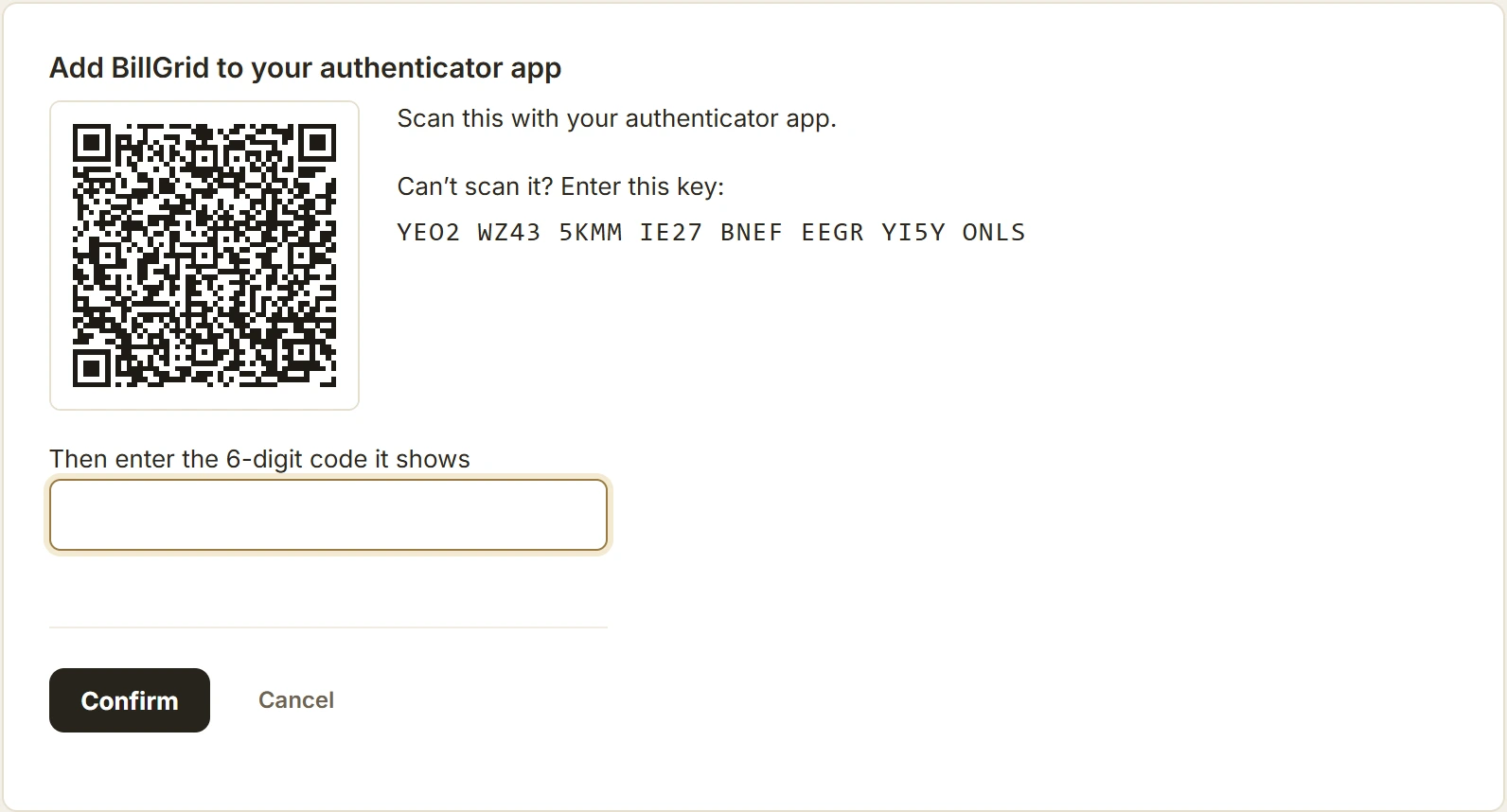
- Scan the QR code with your app. On your phone, choose Open in authenticator app; or type the key shown under the code.
- Enter the 6-digit code your app now shows and choose Confirm.
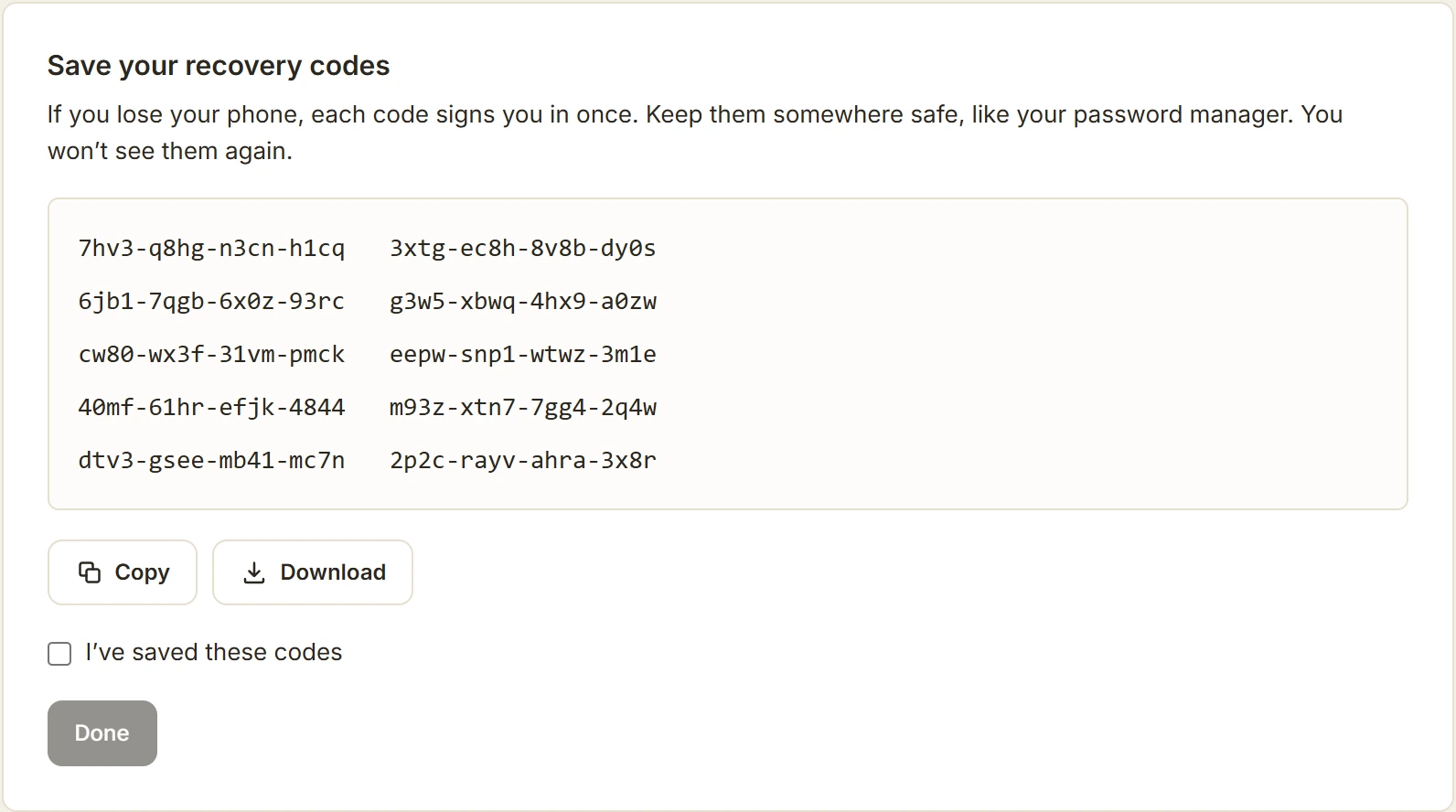
- Save your ten recovery codes, with Copy or Download, somewhere safe such as your password manager. You won’t see them again.
Signing in
After your password (or Google), enter the code your app shows. Each code works once and changes every 30 seconds. Choose Don’t ask again on this browser for 30 days on a computer only you use. You’ll still sign in with your password or Google.
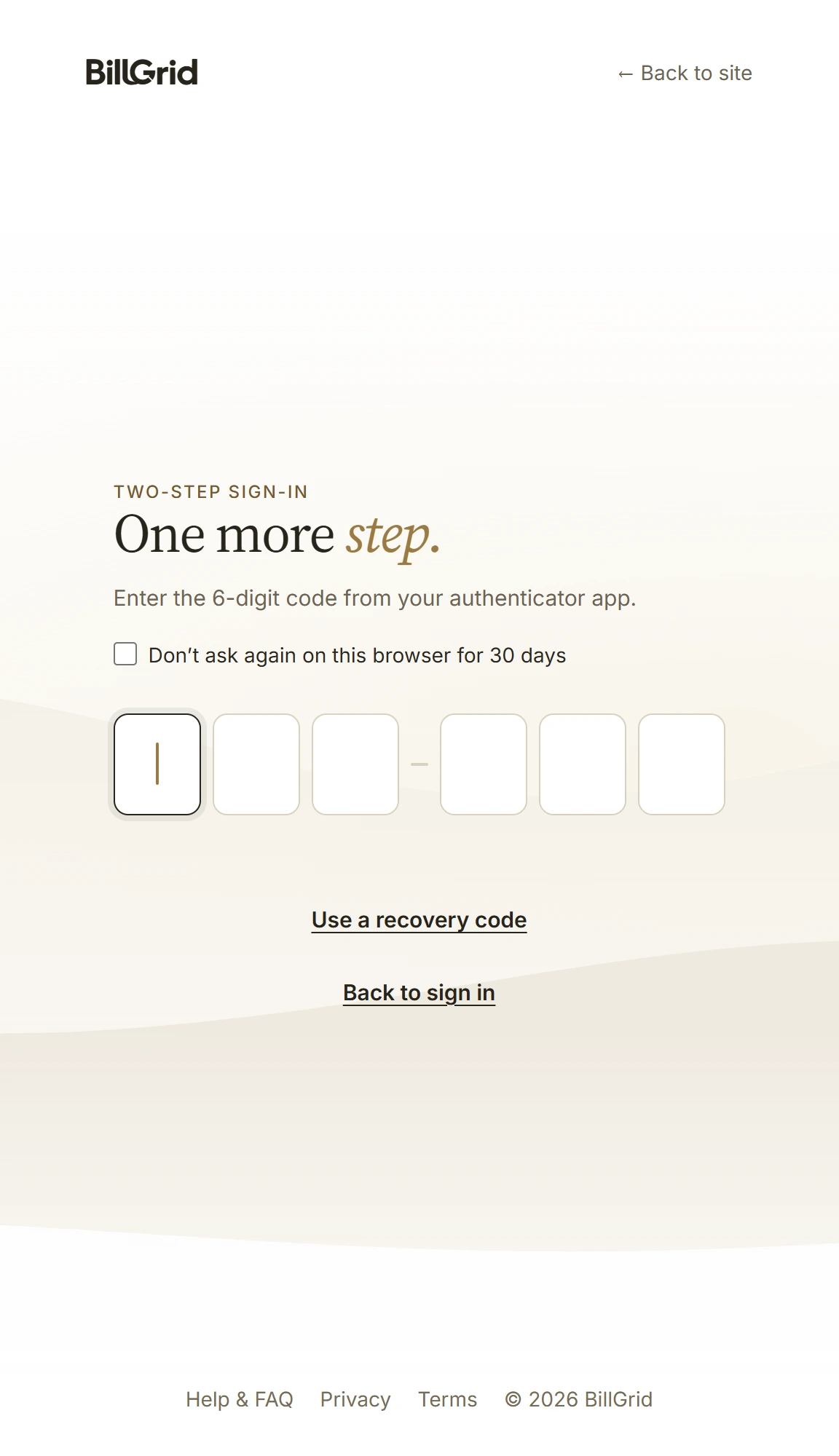
If a code doesn’t match, use the newest one, and check that your phone sets its date and time automatically. The sixth digit signs you in, so tick Don’t ask again first. After five wrong codes the sign-in ends; sign in again to start over. After ten wrong codes in a row, codes from your app pause until you sign in with a recovery code, and we email you: whoever typed them knew your password, so change it.
Moving to a new phone
While you still have the old phone, open Settings > Sign-in & security, choose Manage, enter a code from the old phone and choose Set up a new phone. Scan the new QR code with the new phone’s app and confirm its code. Two-step sign-in stays on the whole time.
If you lose your phone
- Use a recovery code. On the code page, choose Use a recovery code and enter one of your saved codes. Each works once. Then set up your new phone under Manage.
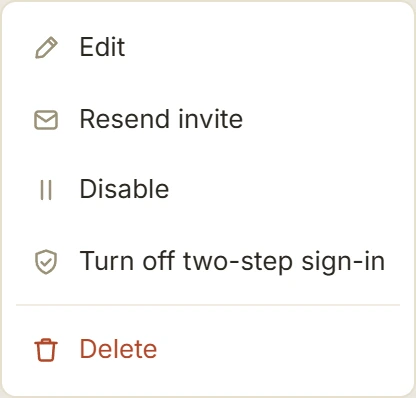
- Staff and contractors without their codes: ask your account owner. On the Team page, the owner opens your row’s menu and chooses Turn off two-step sign-in. You can then sign in with your password or Google and turn it on again.
- Account owners without their codes: email support@billgrid.com from your BillGrid sign-in address. We’ll confirm it’s you before we turn it off, so it can take a little while.
Recovery codes
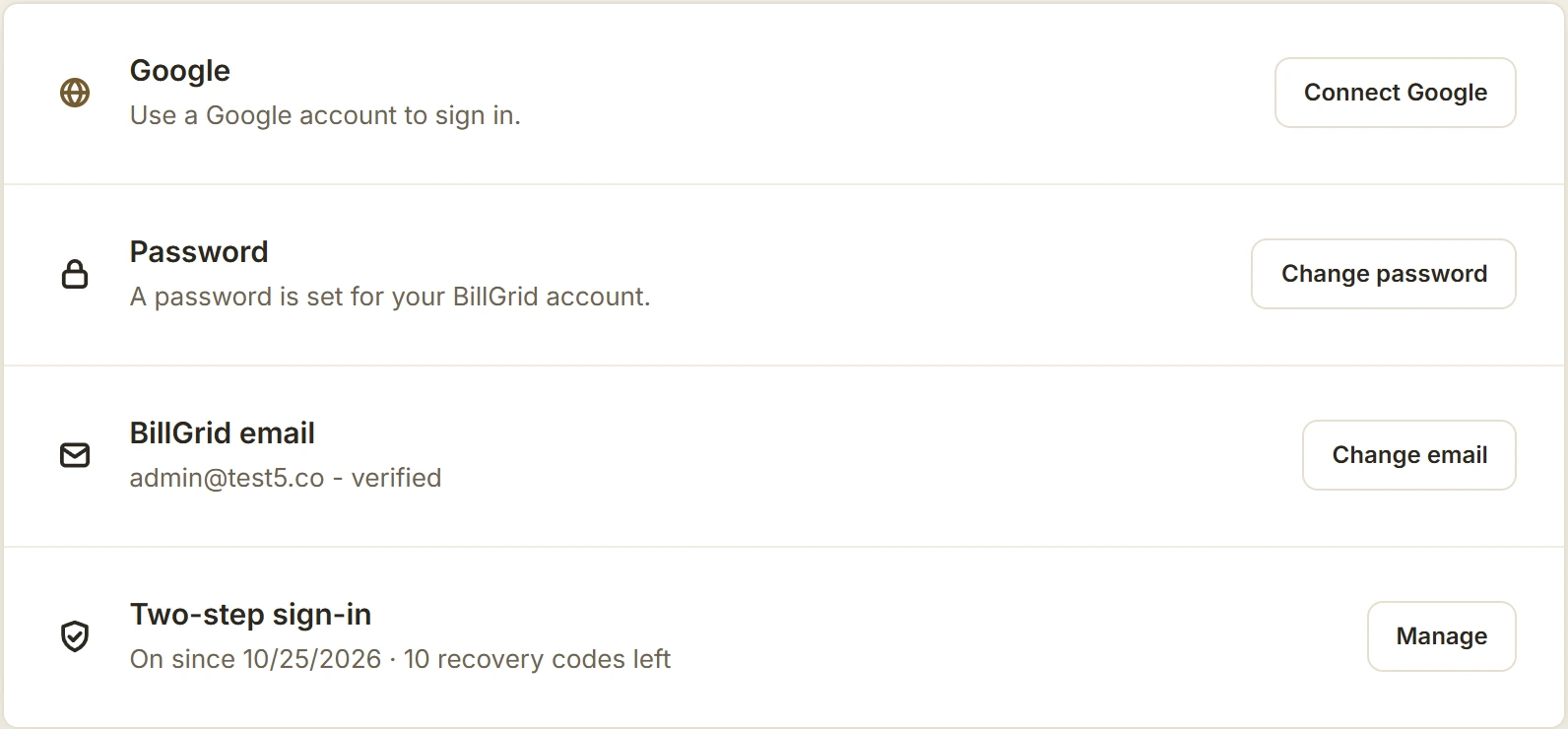
The Two-step sign-in row says how many codes you have left. To get a fresh set, choose Manage, enter a code and choose New recovery codes: the old ones stop working.
Turn it off
Choose Manage, enter a code from your app or a recovery code, and choose Turn off. Your recovery codes stop working too.
Security emails
BillGrid emails your sign-in address whenever two-step sign-in is turned on or off, moves to a new phone, gets new recovery codes, or a recovery code is used to sign in. If you didn’t make the change, reset your password and email us.