Your Invoices, on Your Calendar
Fifty-nine percent of U.S. small businesses are waiting on an overdue invoice. Often nobody noticed the due date pass. We rebuilt BillGrid's Google Calendar sync so every due date sits on the calendar you already check, and each entry shows whether you've been paid.
Why the Calendar
Small businesses are owed an average of $17,700 in unpaid invoices, and 39% of owners say a single late payment has made payroll or bills hard to cover, according to Intuit's 2026 Small Business Late Payments Report, a survey of 1,305 owners. (More on that in our guide to late fees.)
Invoicing software shows a due date only when you go looking for it. Your calendar is open all day.
One Entry, Always Current
Each invoice gets one all-day entry on its due date. The entry stays put; its title keeps up with the invoice: due, overdue, partially paid, payment plan or paid, with the amount and the client.
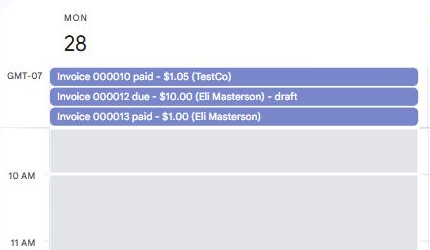
Estimates get the same treatment on their delivery date, reading delivery, approved or billed. BillGrid updates an entry whenever its document changes, including when a client pays online and when an invoice goes overdue overnight. Invoices from recurring subscriptions get entries too.
Open It, Skip the Login
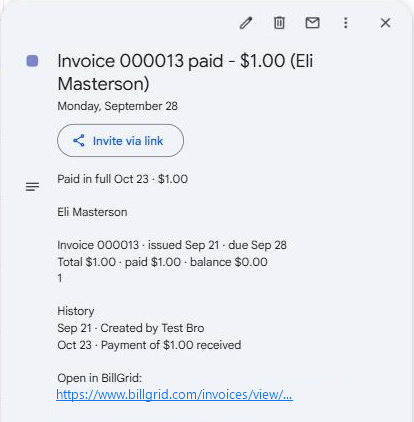
Click an entry and it tells you where the document stands, who the client is, the totals, and its history: sent, viewed, paid, approved. A link opens it in BillGrid.
It Fills In and Fixes Itself
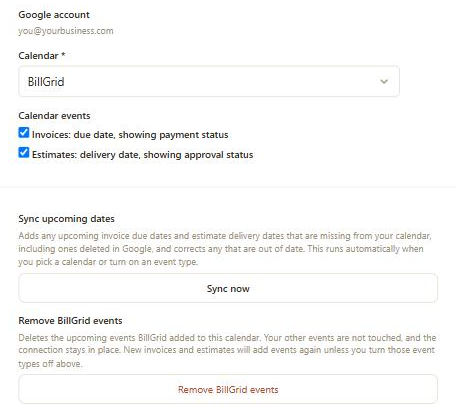
Connect a calendar and BillGrid adds every upcoming due date and delivery date right away. Sync now restores entries deleted in Google and corrects any that drifted; running it twice does no harm. Remove BillGrid events clears BillGrid's upcoming entries and nothing else.
It Speaks Up When Google Won't
Google can revoke access, after a password change, say. The old integration then went quiet. Now Calendar Sync shows Needs reconnecting, and a staff-only note in your dashboard names the invoice or estimate it couldn't add. Reconnect, and the upcoming dates it missed come back.
A calendar problem never stops an invoice. If Google is slow or down, the invoice still saves and still sends.
What It Doesn't Do Yet
- It syncs one way. Moving an entry in Google doesn't change the invoice; Sync now moves it back.
- It maintains upcoming dates only. Past entries stay as they are.
- It's Google only. No Outlook or iCloud yet.
- Disconnecting leaves entries in place. Click Remove BillGrid events first if you want them gone.