A Clearer Handoff to QuickBooks Online
Fifty-nine percent of US small businesses surveyed had invoices overdue by at least 30 days in Intuit's 2026 Small Business Late Payments Report. Following that money takes enough work. Entering the same invoice in your accounting software should not add another job.
BillGrid's QuickBooks Online integration connects the invoice you send with the accounting record your bookkeeper needs. It is coming to Pro and Team. Production access has not opened yet. This preview shows how the connection will work.
Choose When the Books Catch Up
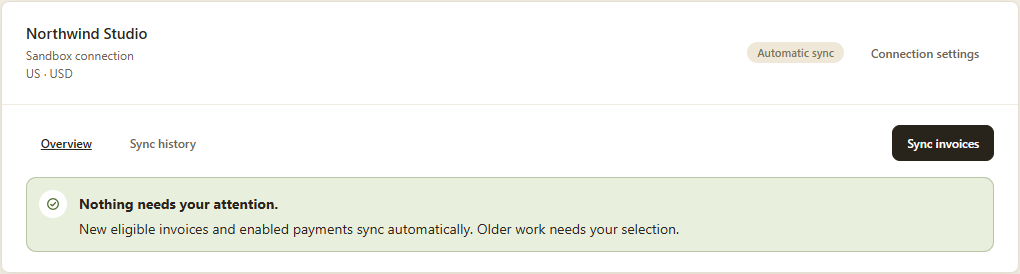
Manual is the default. Open QuickBooks in Settings, choose an invoice year and find invoices. BillGrid compares that year's records in both systems. Select eligible invoices and sync them when you are ready. Return for later payments too; Manual does not send them in the background.
Choose Automatic in Connection settings and save to copy eligible newly issued invoices and enabled new payments as they happen. Older work stays available for your selection. Turning automation on does not sweep your invoice history into QuickBooks.
Keep Existing Records in the Picture
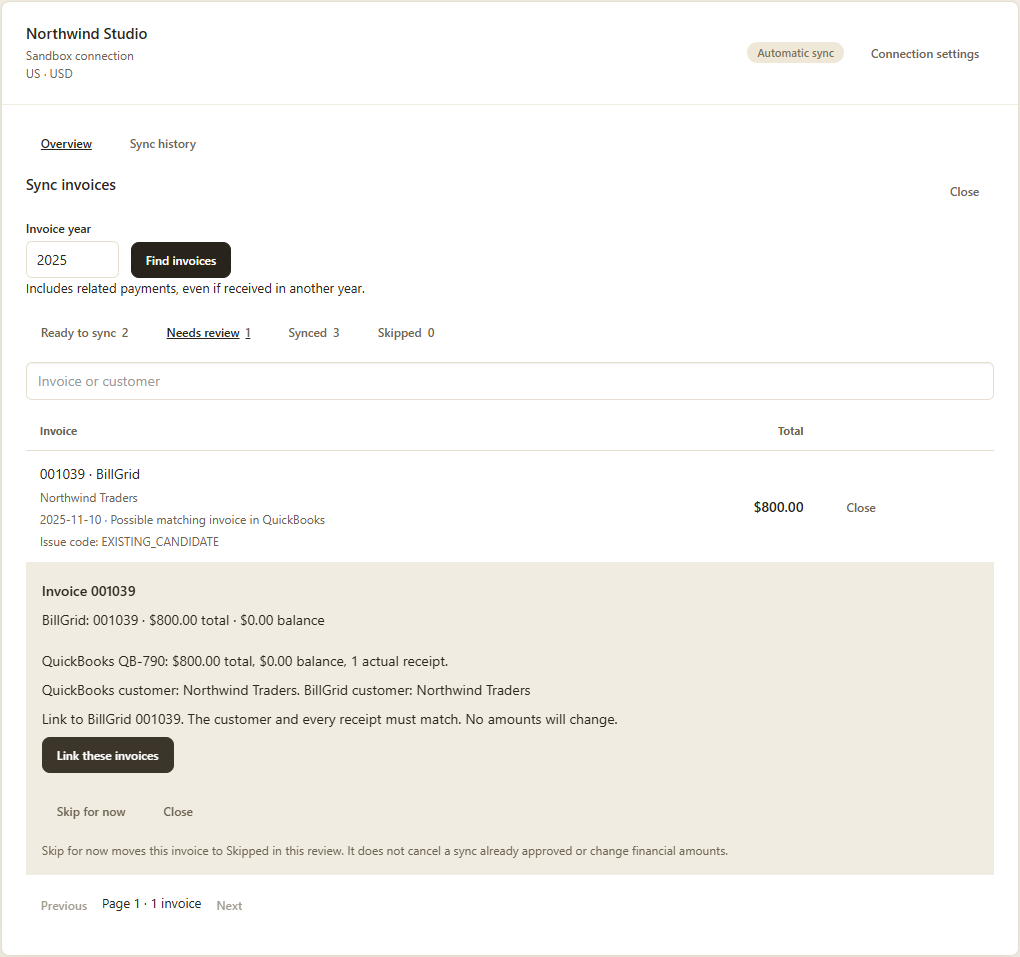
Already entered an invoice in QuickBooks? Compare the existing record and link it to its BillGrid counterpart. Linking connects the records without creating another invoice or changing either amount. Uncertain customer matches wait for your decision; clear matches can be reused.
An invoice found in QuickBooks without a BillGrid link is a different case. Review it and choose its BillGrid customer before importing it. Each import needs your decision. Imported historical records retain their QuickBooks reference, with sending, reminders and automatic collection disabled. Importing also makes AI assistants unavailable for the workspace to protect imported QuickBooks data.
Know Why a Record Needs Review
A missing link, an uncertain customer match and a different invoice balance call for different decisions. The review screen names the issue, shows its code and explains the next step. CUSTOMER_REVIEW asks you to choose the corresponding customer. IMPORT_REVIEW means a QuickBooks invoice has no BillGrid link; compare possible counterparts before importing another copy. PAYMENT_MISMATCH needs the actual receipts and allocations checked before the invoices can be linked.
The action matters too. Linking connects existing records without changing amounts. Importing creates historical BillGrid records. Skipping sets work aside without changing either system's financial records. The Help Center issue-code reference explains the individual cases and their remedies.
A Receipt Is Not a Bank Payout
A $100 client payment clears $100 of the invoice even if the payment processor later deducts a fee. BillGrid copies the gross receipt and its invoice allocation to your chosen eligible QuickBooks account. Fees and payouts need separate bookkeeping. Intuit's report also found that 49% of surveyed owners said processing times created moderate or critical cash-flow gaps; received and available are different stages.
Keep one workflow responsible for creating each payment record. Payments entered only in QuickBooks do not automatically settle a BillGrid invoice or stop its reminders.
What This Release Covers
The initial connection supports one US QuickBooks company using USD, eligible service invoices and their payments. Tax, discounts, late fees, recurring and retainer invoices, credit adjustments, refunds, and processor fees or payouts are outside this release. Changes in QuickBooks do not flow back automatically. Issues remain visible for review rather than being silently overwritten.