Get Paid in Person. On Their Phone.
The work is done and your client is right there. Now you can be paid before they leave: show a code on your phone, and they pay on theirs by card, or with Apple Pay or Google Pay when available. No card reader. Nothing for them to install.
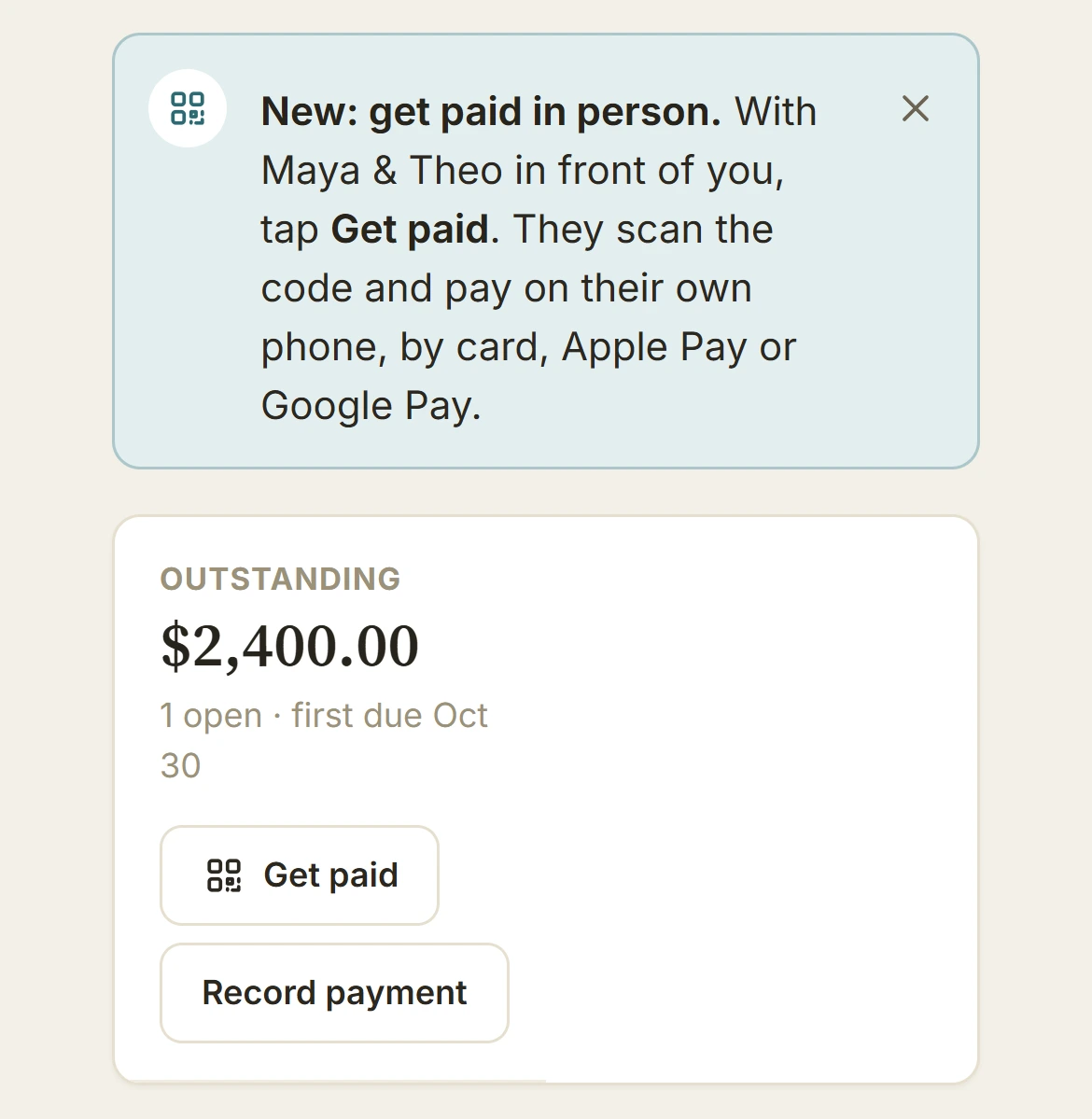
Open the client. Tap Get paid.
Whether it's the last frame of a wedding, the end of a session or a job signed off on site, the client is in front of you, not an invoice number. So it starts on their page: Get paid sits beside Record payment, under what they owe. Record payment is for money that already came in. Get paid is for taking it now.
With more than one payable invoice open, BillGrid asks which one they're paying, oldest due first, each with what it's for and when it's due.
Turn your screen around.
The screen shows your client's name, the amount and a QR code. On a payment schedule, it shows what's due now when an installment is due, with the remaining balance underneath. The client can review the amount before paying. On supported browsers, BillGrid asks to keep your screen awake while it checks for payment.
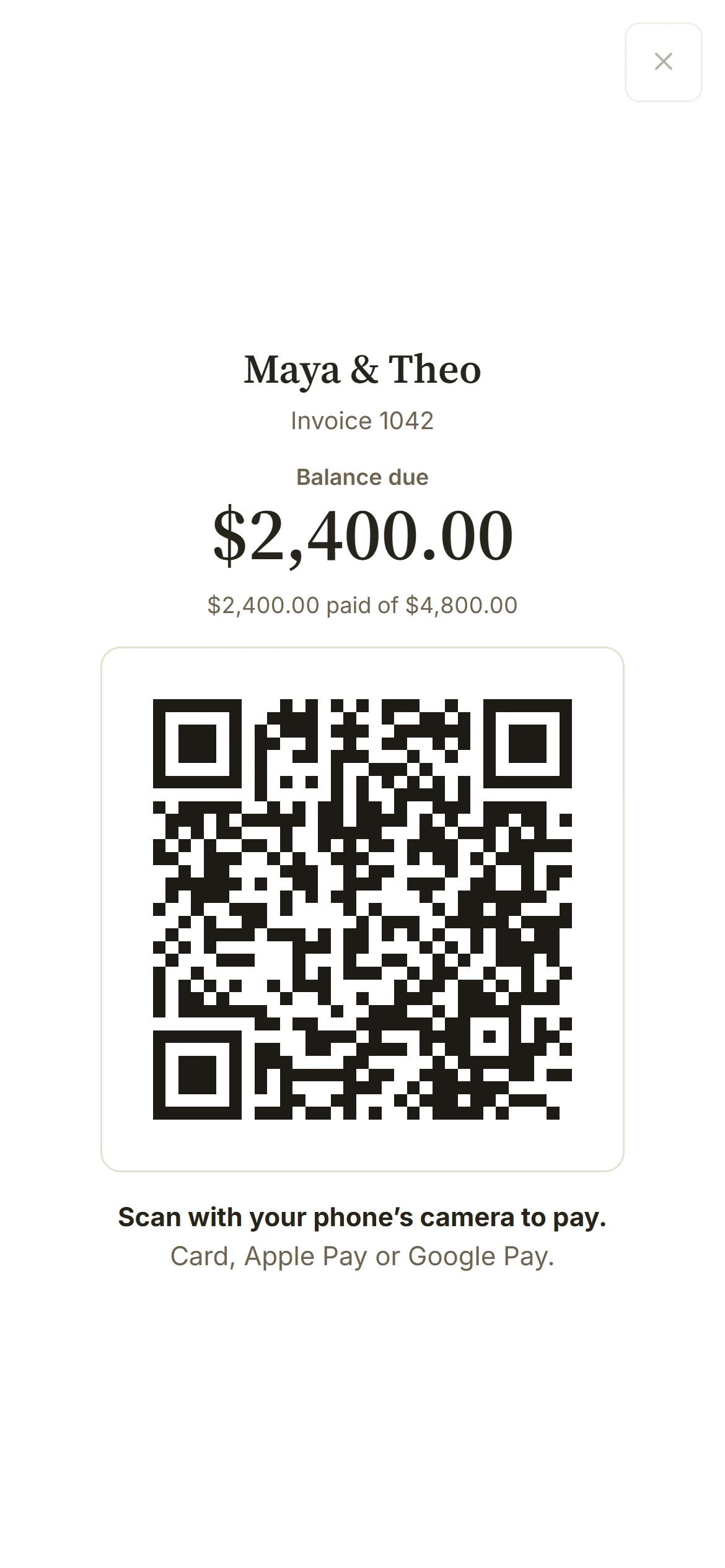
Your client points their camera at it and lands on the invoice's payment page. On an eligible phone or browser, an available wallet appears beside Card. They choose it, tap Pay, and confirm on their device. They can also enter a card in Stripe's secure form.
Paid. And everything after it.
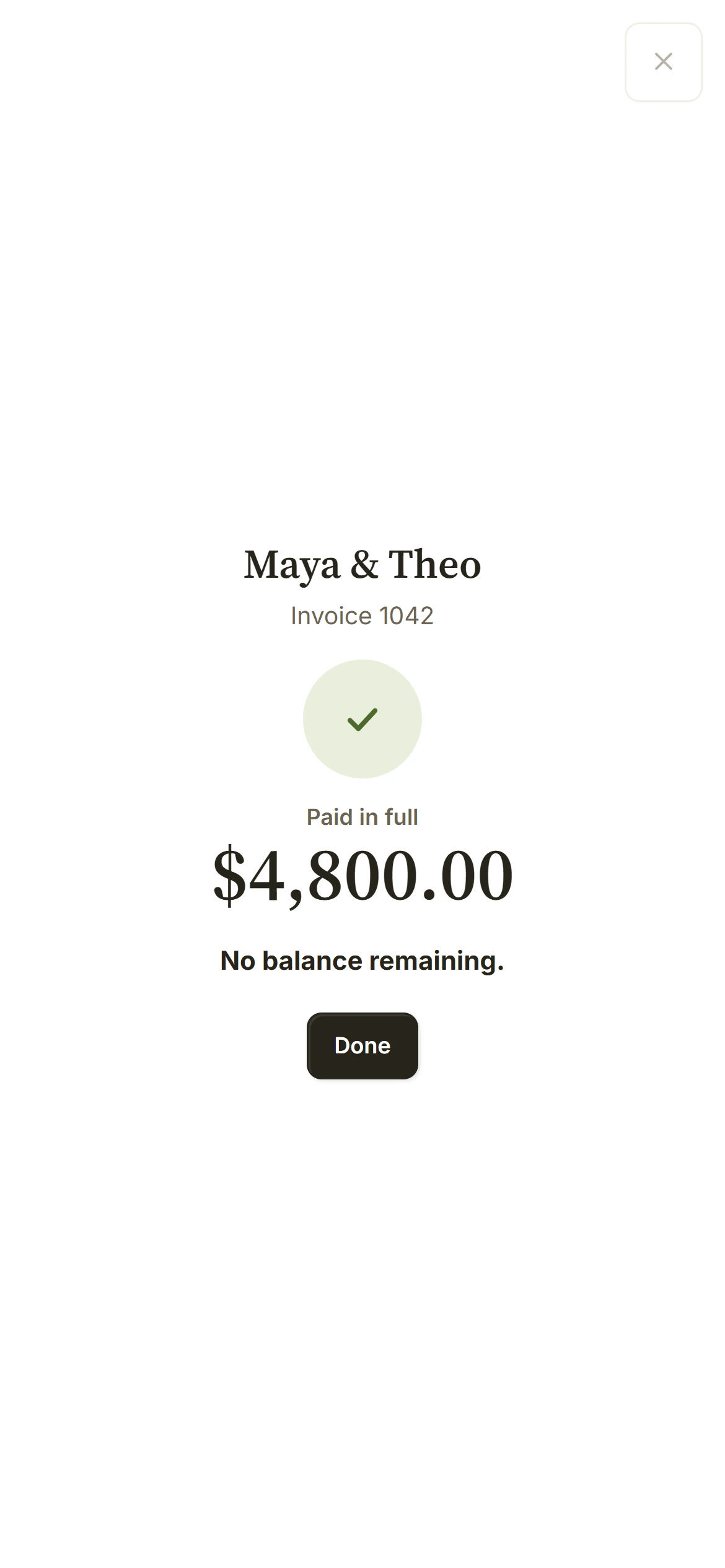
While visible, your open screen checks for updates about every five seconds. A confirmed part payment updates what's left; it leaves the invoice open for the rest. A full payment clears the balance, stops remaining reminders and unlocks files set to wait for payment. Done reloads the page with the current invoice.
The payment record and emails work as they do when a client pays from their inbox: you get a payment email, and the client gets the thank-you note when enabled. A cleared balance can also come from a credit or an invoice edit, so the screen says No balance remaining without claiming a new payment arrived.
Already on the invoice? Pay here, in its ... menu, opens the same screen.
Apple Pay and Google Pay, from the invoice.
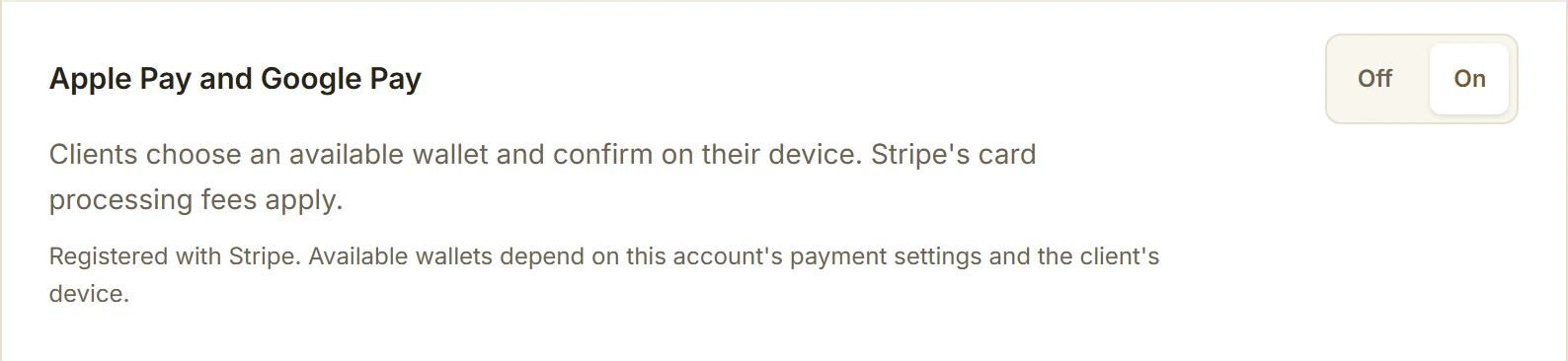
The same wallet options can appear when clients pay from their inbox. Your Stripe connection must be ready, Cards and Apple Pay and Google Pay must be On, and the invoice must allow card payment in a supported currency. The payer also needs an eligible device or browser with a wallet set up.
BillGrid requests wallet setup with Stripe when you connect. Settings > Online Payments shows readiness or a reason it is unavailable, with Try again. If a wallet isn't offered, clients can still pay by card when card payments are available.
A wallet payment uses the same invoice balance and payment choices as a card payment. Refunds are handled in your Stripe account. Pay here opens one invoice at a time; it isn't NFC Tap to Pay, and the client uses their own phone to scan and pay.