More Ways to Pay. Clearer Payment Terms.
BillGrid now supports US bank payments through Stripe on eligible USD invoices, alongside card payments. Payment terms also have their own place in Settings, bringing your due-date defaults, reminders and late fees together.
A Bank Option on the Invoice
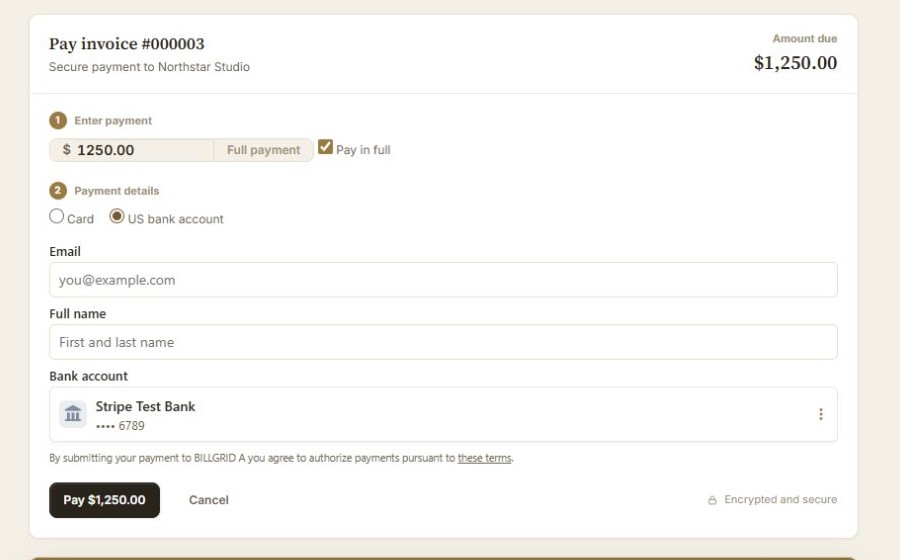
Connect your Stripe account from Settings > Online Payments. To enable ACH Direct Debit, choose Configure beside Stripe, then Turn on US bank payments. Existing Off preferences stay Off. Stripe must approve your account for the method, and online payment must be allowed on the invoice.
Clients on eligible invoices can choose a US bank account, complete Stripe's bank verification and authorize the payment from the invoice. Card payments remain available in supported currencies; ACH is for USD invoices and US bank accounts. The online payments guide explains the distinction, and Connecting Stripe walks through setup.
Started, Processing, Paid
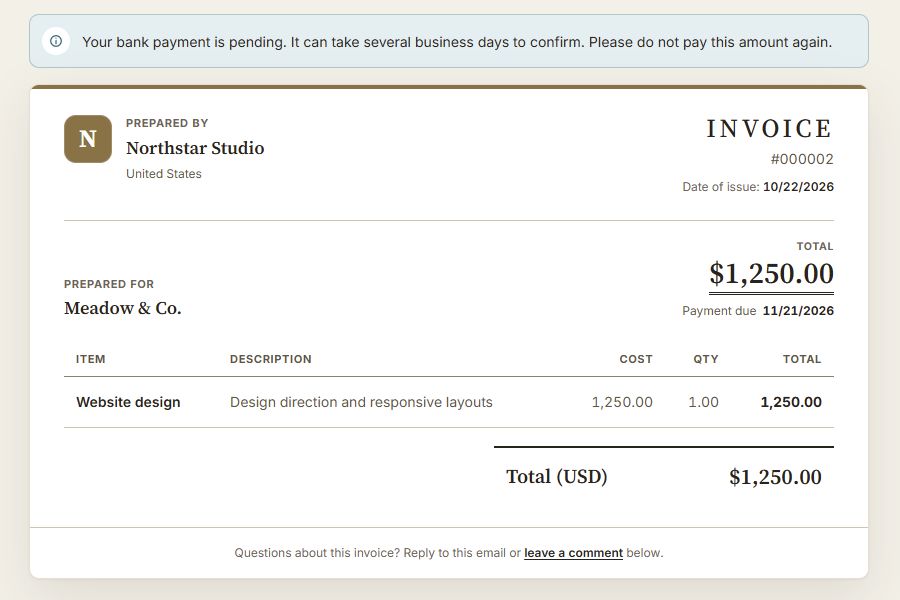
A bank payment takes time. Stripe may verify the bank immediately or ask the client to confirm microdeposits later. Verification is a separate step from processing the debit. As Stripe's ACH guide explains, ACH is a delayed payment method; submitting the form does not mean the money has arrived.
BillGrid shows the bank payment's current state on the invoice. While verification or processing is outstanding, another online payment is held, and automatic reminders and late fees wait. A processing payment does not mark the invoice paid or unlock files reserved for payment in full.
When Stripe confirms success, BillGrid records the payment and updates the balance. A full payment unlocks any payment-protected delivery. If a payment fails or a bank return reverses it later, the balance reflects the change. Payment confirmation and the payout to your own bank account remain separate events.
Payment Terms, in Their Own Place
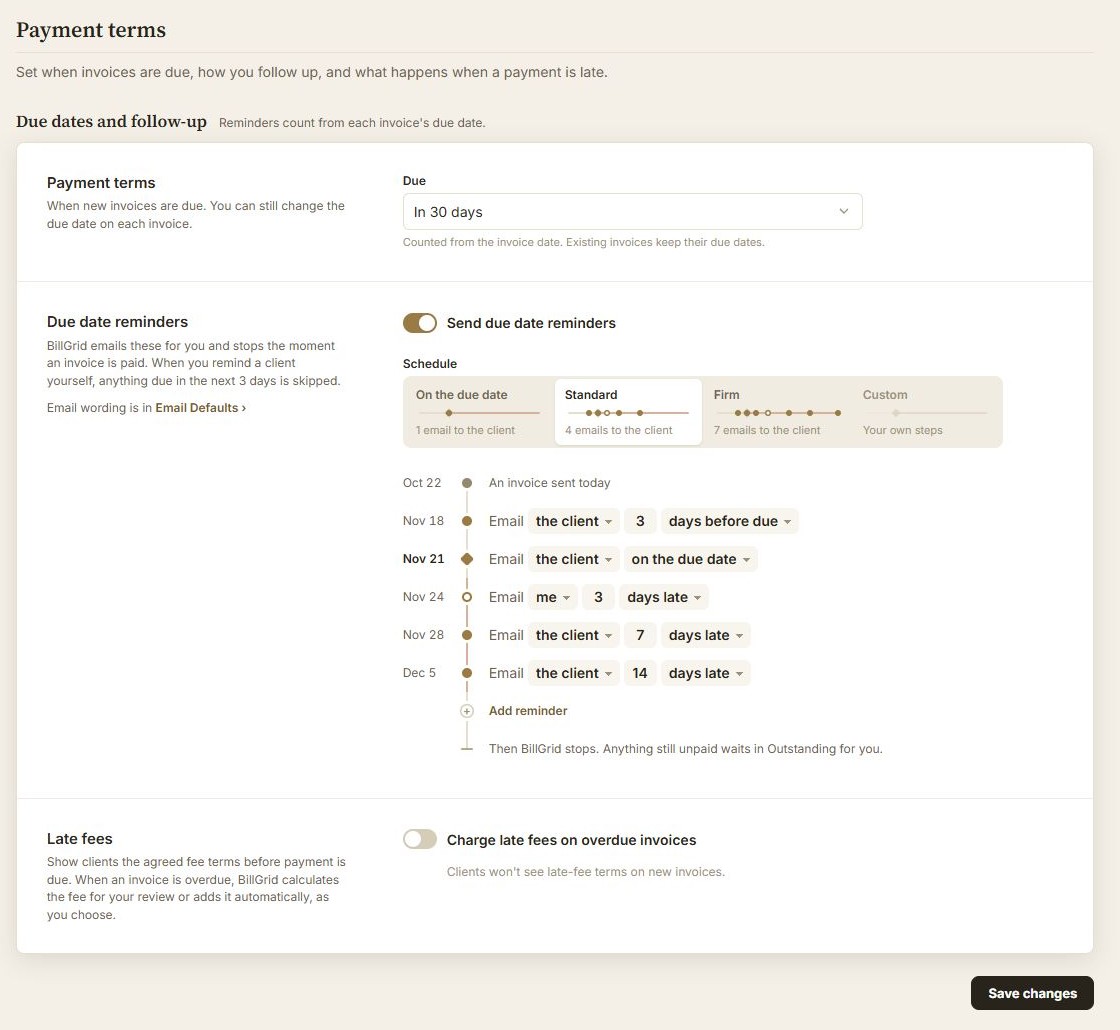
Open Settings > Payment terms to choose when new invoices are due, set due-date reminders and manage late fees. These are the same controls, now grouped around getting paid. Invoice Defaults keeps document numbering, saved Terms and Notes, and PDF preferences.
Choose payment on receipt or a number of days after the invoice date. A client's own due-date default takes precedence, and you can change an individual invoice's due date. Existing invoices keep their dates. A recurring invoice keeps the date gap set on its template.
The new Payment terms feature guide connects those choices with reminders and fees. Saved Terms text remains wording for your agreement; choosing a due-date rule does not rewrite that text or agree new terms with a client.