Reusable client emails, from proposal to payment
A client approves a proposal, the first milestone is ready to bill, and a payment reminder follows a few weeks later. Each email has a different job. Your team can save the wording that works for each one and let BillGrid fill in the client and document details. Here’s how that looks for Nora at Harbor & Pine.
Start with the email your client will read
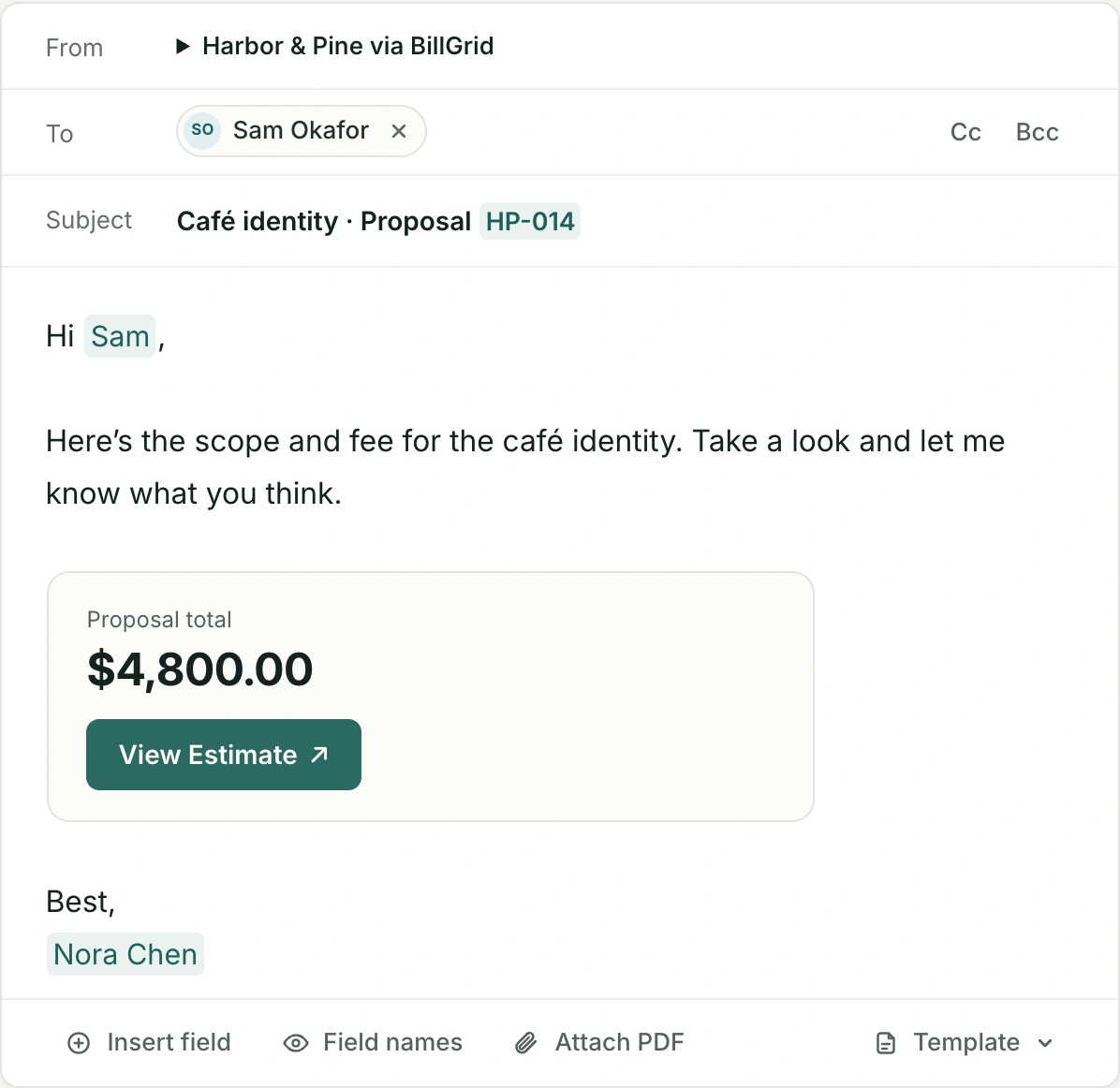
Open an invoice and choose Send invoice. Write the part you’d say to any client at this milestone. Use Insert field for details that change, such as the client’s first name or the invoice number. You can see their values as you write.
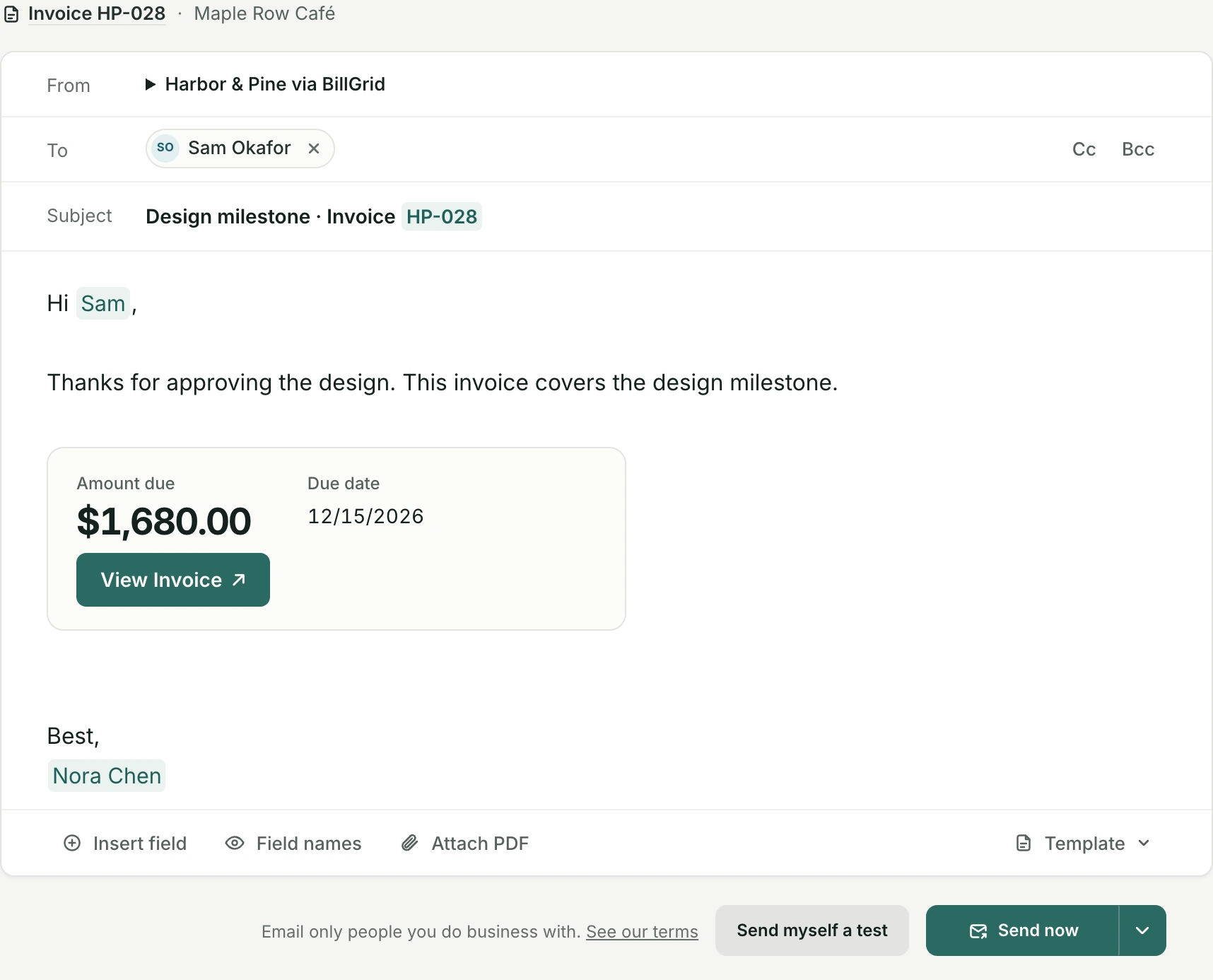
Change a field or the invoice button
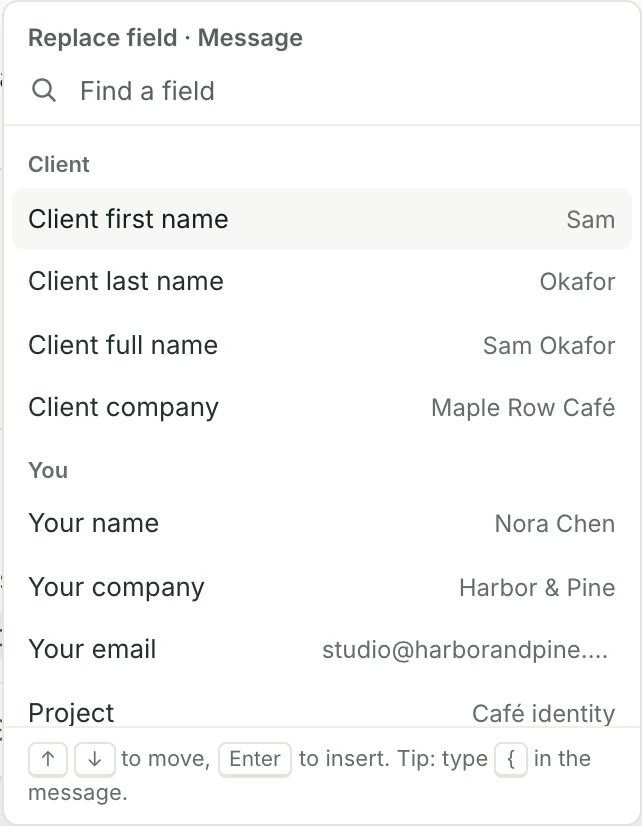
Click a highlighted name and choose Change field…. Pick the detail you want in its place. For a billing department, for example, you might address the client’s company instead of using a first name.
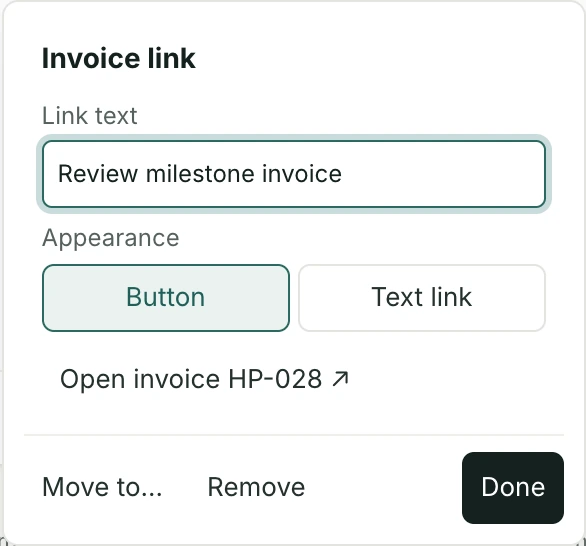
Click View Invoice to change the words on the button. Choose Text link if you’d like a link in the message instead.
Save the wording once
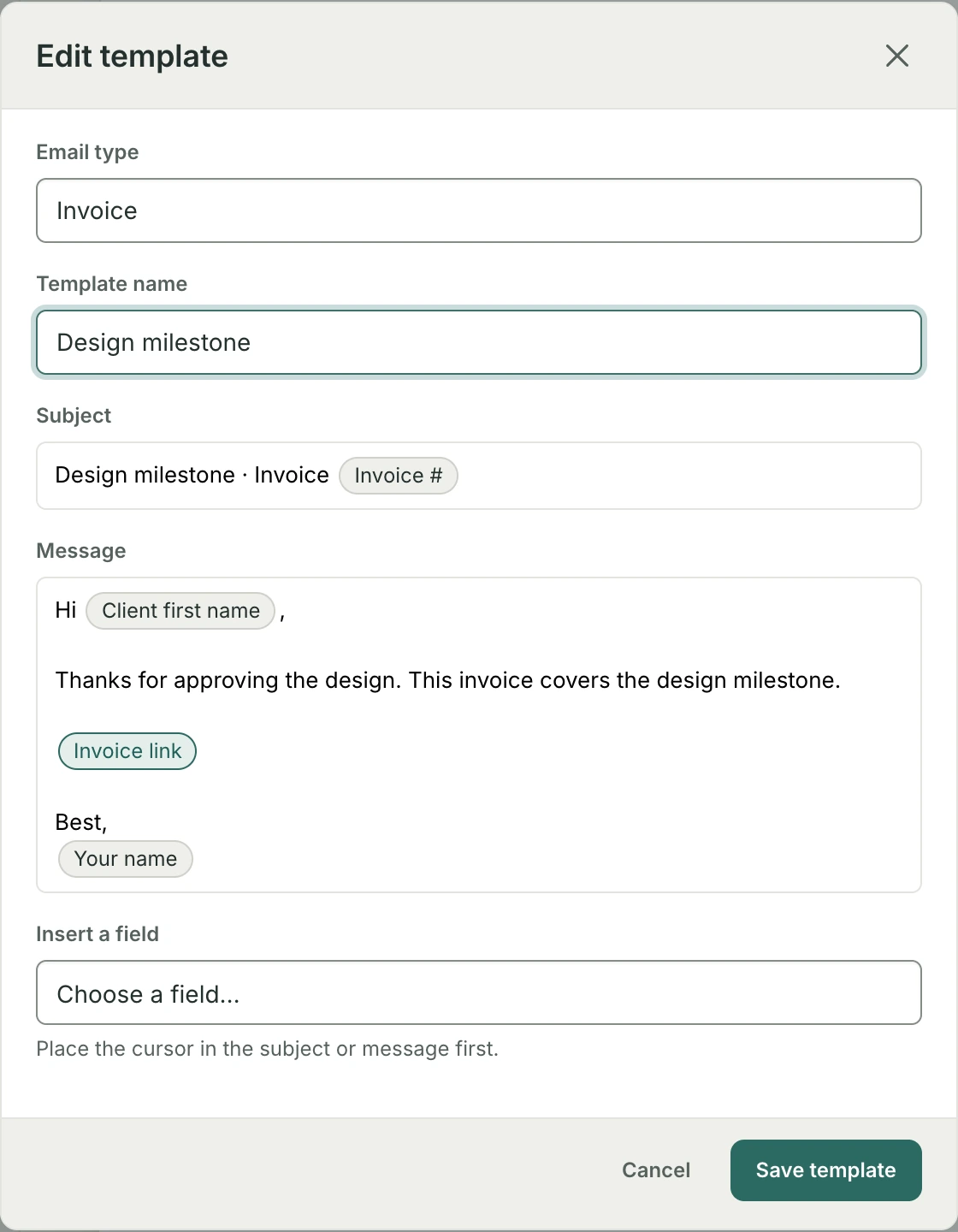
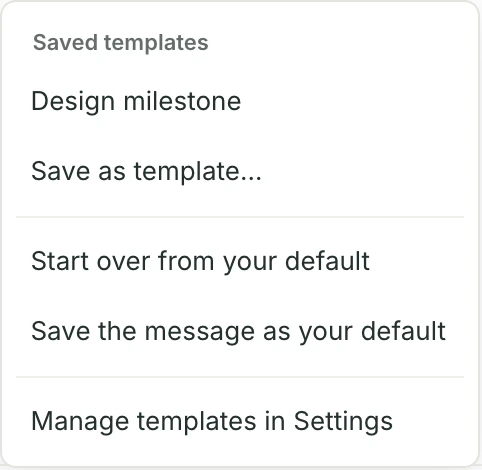
Nora wants the team to use the same thank-you after a design approval. As an admin, she opens Template below the message, chooses Save as template… and names it Design milestone. She keeps the greeting and invoice number as fields. A name typed as ordinary text would appear in every copy.
An admin can also go to Settings → Email defaults → Saved templates. Select a name to edit it, or choose New template, pick the email type, enter the wording and save.
Load it for the next client
- Open the next invoice and choose Send invoice.
- Below the message, open Template. Under Saved templates, select Design milestone. If you’ve already edited the draft, choose Use template when BillGrid asks whether to replace your wording.
- Read the filled-in subject and message. Add a personal line, check the recipients, then choose Send now or pick a day from the arrow beside it. Send myself a test lets you read a private copy first.
The next teammate starts with Nora’s thank-you, but the greeting, balance and invoice link belong to the new client. There’s no need to copy Sam’s email and hunt through it for details to replace.
From the first proposal to the payment thank-you
For an estimate, open the proposal and start its email. The same Template menu offers wording saved for that action. Keep a short introduction for a new proposal and a separate update that explains what changed after the client’s review. Forwarding a proposal has its own template choices, too.
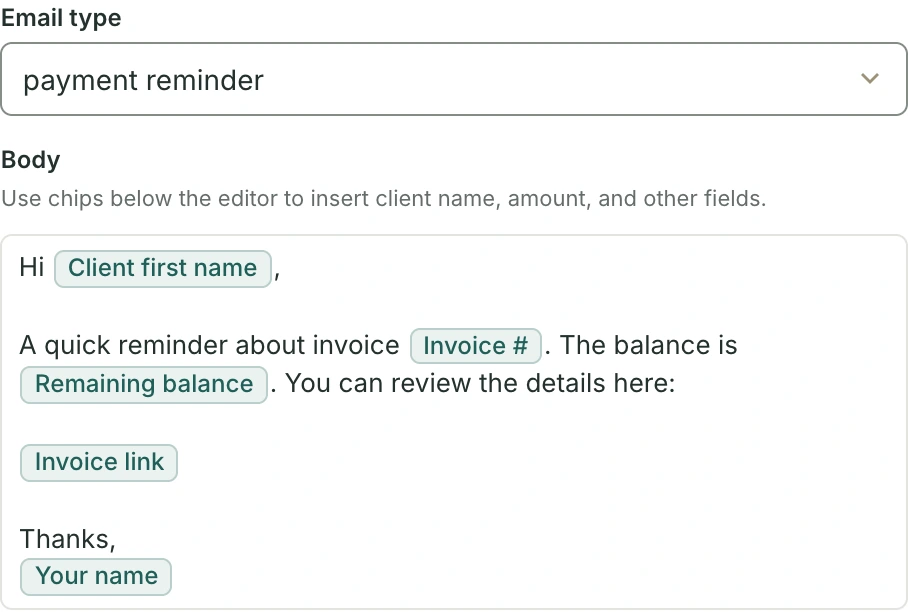
For invoices, save an accounts-payable handoff for forwards, a payment reminder for an open balance, and a thank-you for a payment. Automatic payment reminders have their own templates, too. For expenses, general client emails and client payment links, open the corresponding email and choose a saved message the same way. A teammate opening a reminder sees the choices for reminders.
For a contract signing request or a client conversation, save just the note. BillGrid supplies the subject and, for signing requests, the signing link.
Set the message everyone starts with
Use a named template when the sender should choose among several messages. For wording that should appear whenever someone starts a particular email, an admin can go to Settings → Email defaults → Default email bodies. Choose invoice, proposal, expense, client email, thank-you note or payment reminder, edit the body, and choose Save changes.
For reminders BillGrid sends on a schedule, open Settings → Payment terms. Under Wording, choose Written for each step and click a step’s subject to edit its subject and message. Preview it and save your changes. Choose The same for every reminder to use the payment-reminder body from Email defaults at every step.
The next time a client approves a design, anyone on Nora’s team can send the right invoice in their own voice. And if payment is late, the reminder already has the balance and the team’s agreed wording. Nobody has to reconstruct the conversation from an old email.
See saved templates and email defaults or payment terms and reminders.