The New BillGrid
BillGrid now runs on a rebuilt app. Every account moved across with its clients, invoices, estimates, payments, time and expenses, and every screen has a new design. This post covers what is new and the few things that now work differently.
What the Move Means for You
Sign in with the email and password you already use. There is nothing to set up again, and your history is intact, including who recorded each payment. Recurring invoices keep their schedules and now follow your company's time zone, so an invoice due today is due today where you are.
Switching tools is disruptive, and buyers know it: 44% of people who buy accounting software regret their choice, the highest rate of any category in Capterra's 2026 Software Buying Trends survey. We wanted this move to ask nothing of you. Before switching over, we signed in to each of the 25,637 open user accounts on a copy of the data, and every sign-in worked.
If your account had no subscription that was still being paid, you will continue to receive access to everything until November 1, 2026. To continue after that, choose a plan under Billing in Settings. If you are leaving, export what you need from Reports before then.
If you can't sign in or something doesn't look right, contact us or write to support@billgrid.com, and we will sort it out. Once you are signed in, Ask a question in the account menu reaches us from any page.
Faster Everywhere
We timed the same everyday tasks on the old BillGrid and the new one, with the same account and the same data. The dashboard now opens in about a quarter of a second, where it used to take about 12. Every page you use after signing in opens at least three times faster than before, and the slowest ones are now among the quickest.
Time spent waiting to do ten everyday tasks once, from opening the dashboard to running a report.
The pages that used to keep you waiting improved the most: the dashboard is about 50 times faster, the invoice report almost 30 times and the expense list 20 times. Lists, invoices, time entries and reports that took around a second now take about a quarter of one, and the sign-in page loads more than three times faster. Put together, opening ten everyday pages once took 38 seconds of waiting on the old BillGrid and takes under 3 seconds now.
The Dashboard
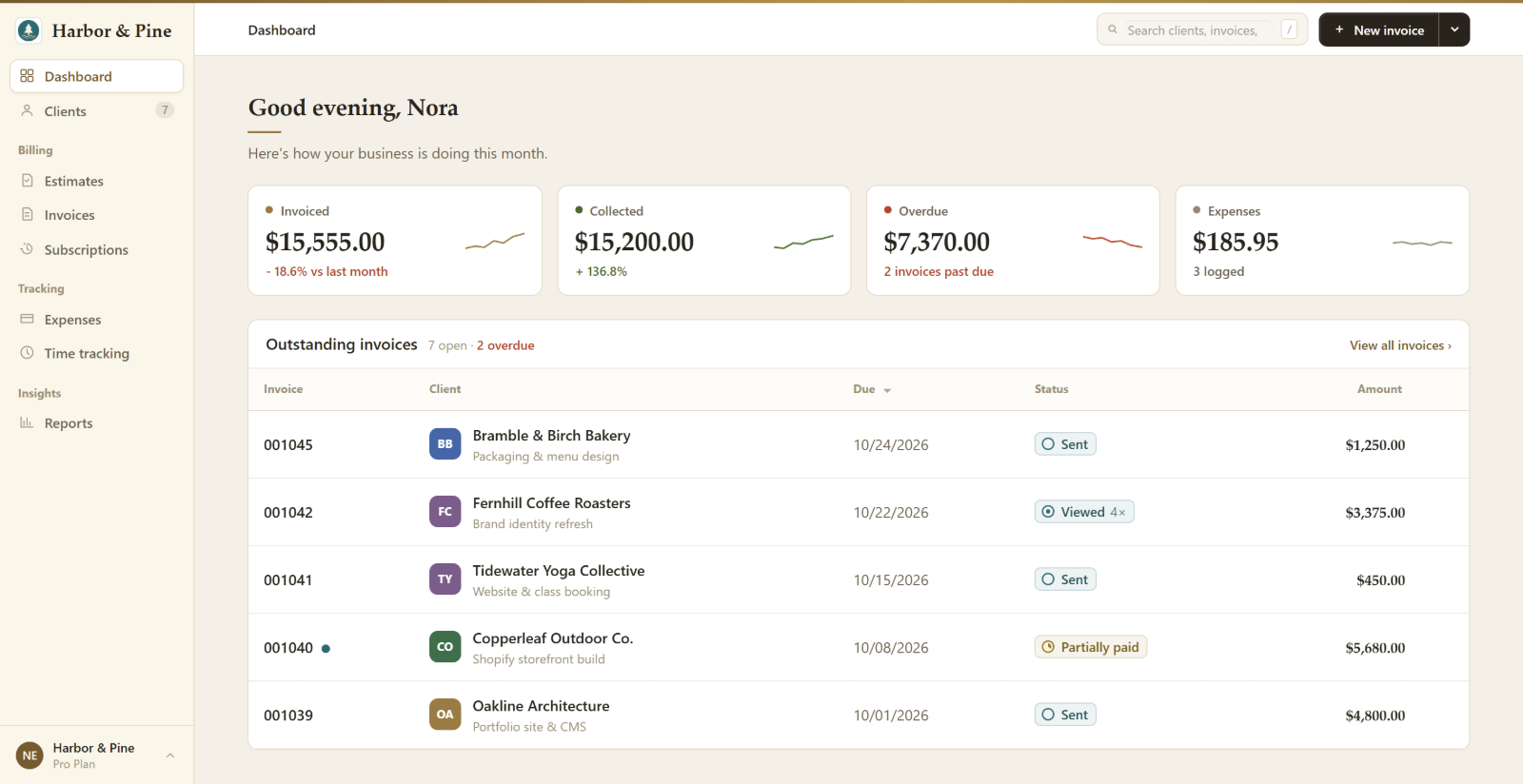
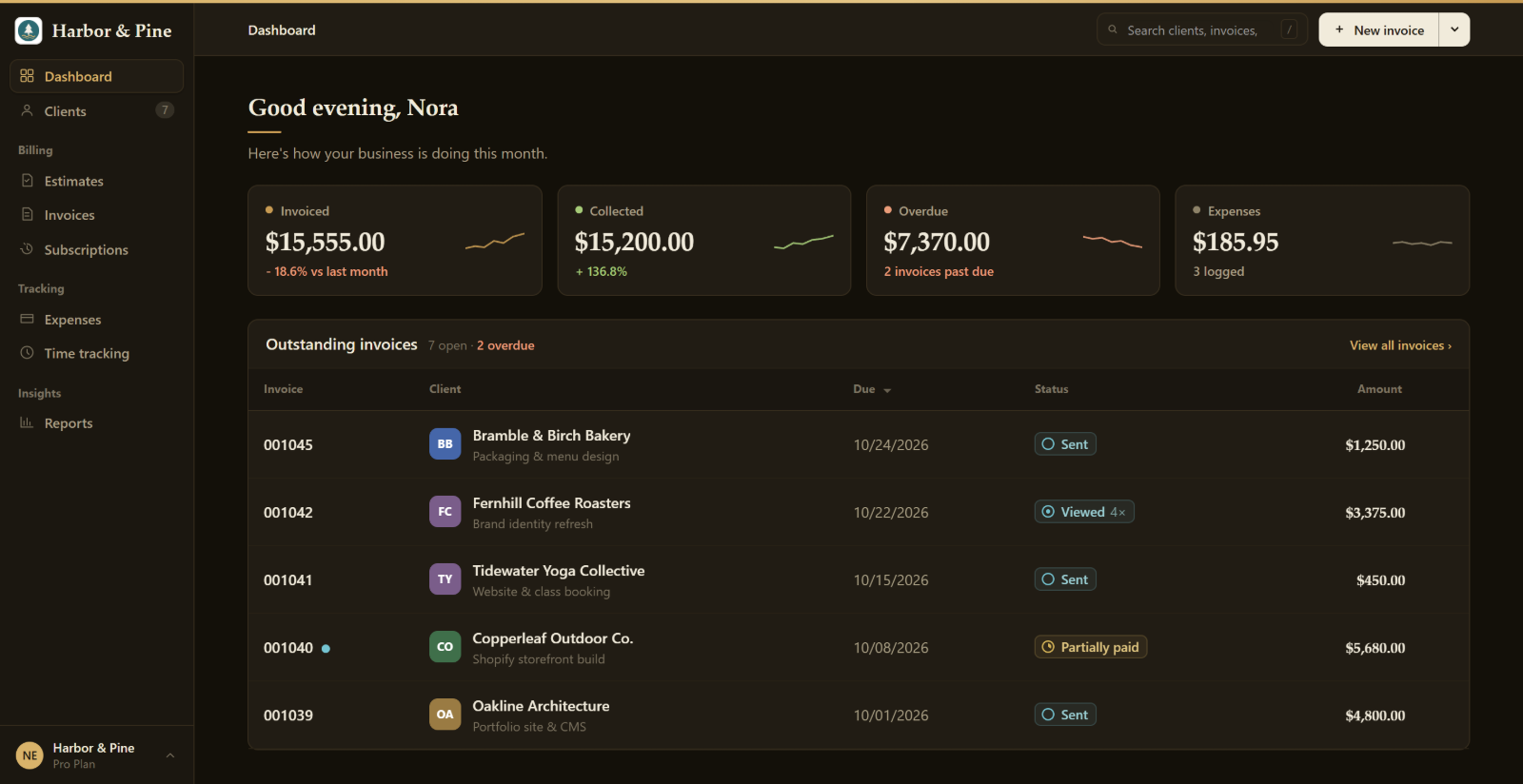
The dashboard opens with four figures for the month: invoiced, collected, overdue and expenses. Below them are the invoices still waiting on payment and your recent activity, so you can see how the business is doing without opening a report.
List Pages
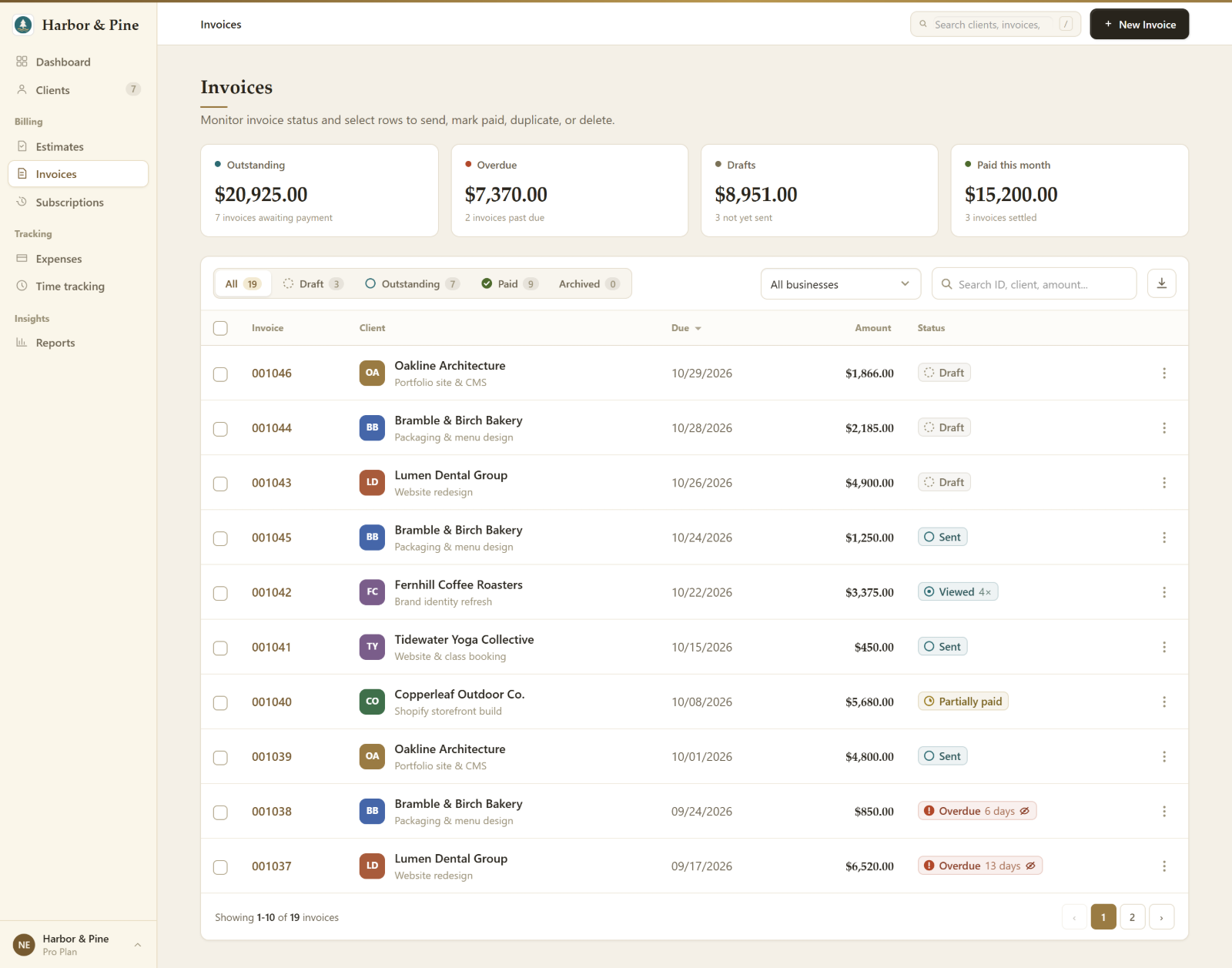
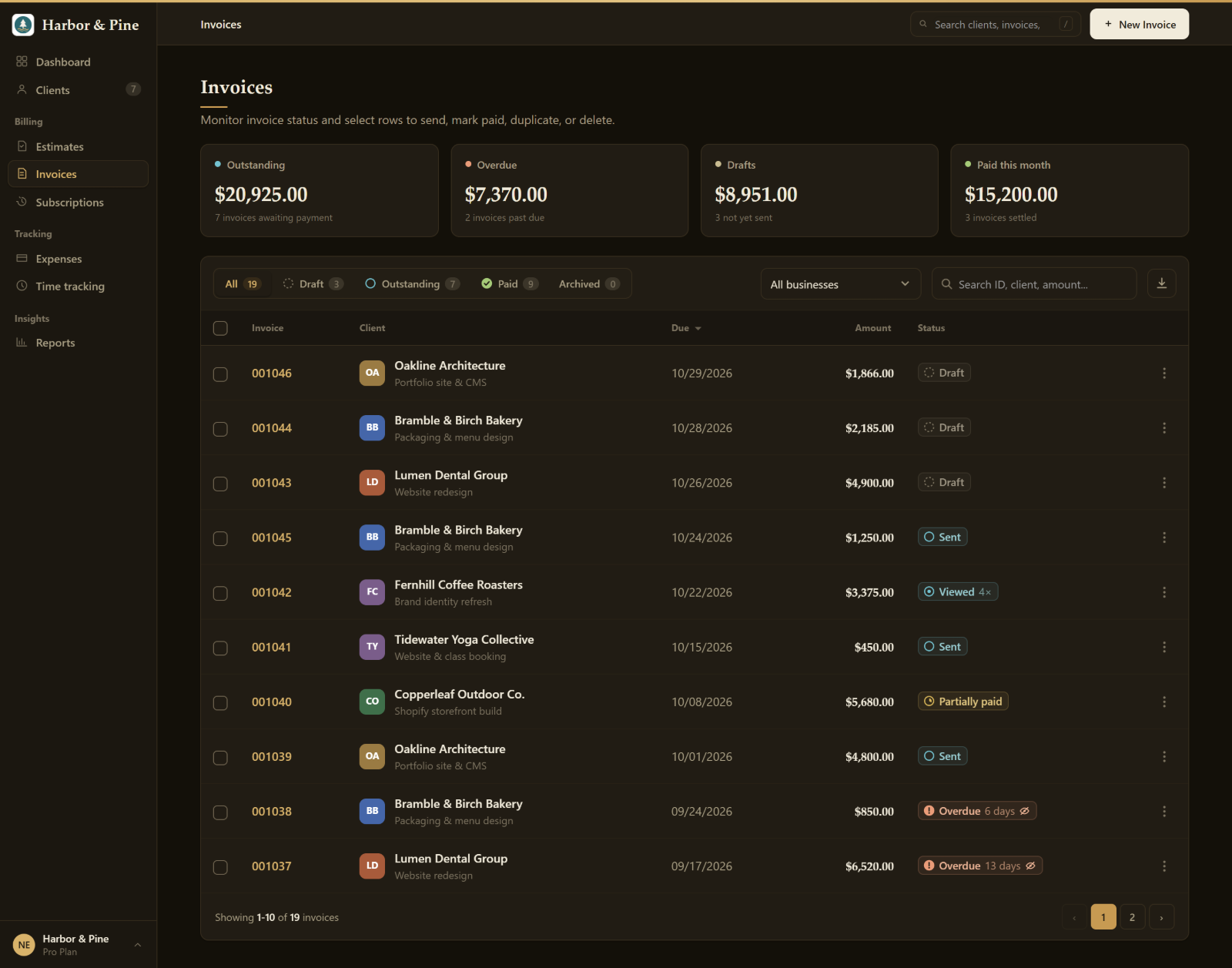
Invoices, estimates, clients and expenses now share one layout: totals at the top, filter tabs with counts, and a search box. On the invoices page the totals are outstanding, overdue, drafts and paid this month, each shown per currency. Press / on any page to go straight to search.
The Invoice Editor
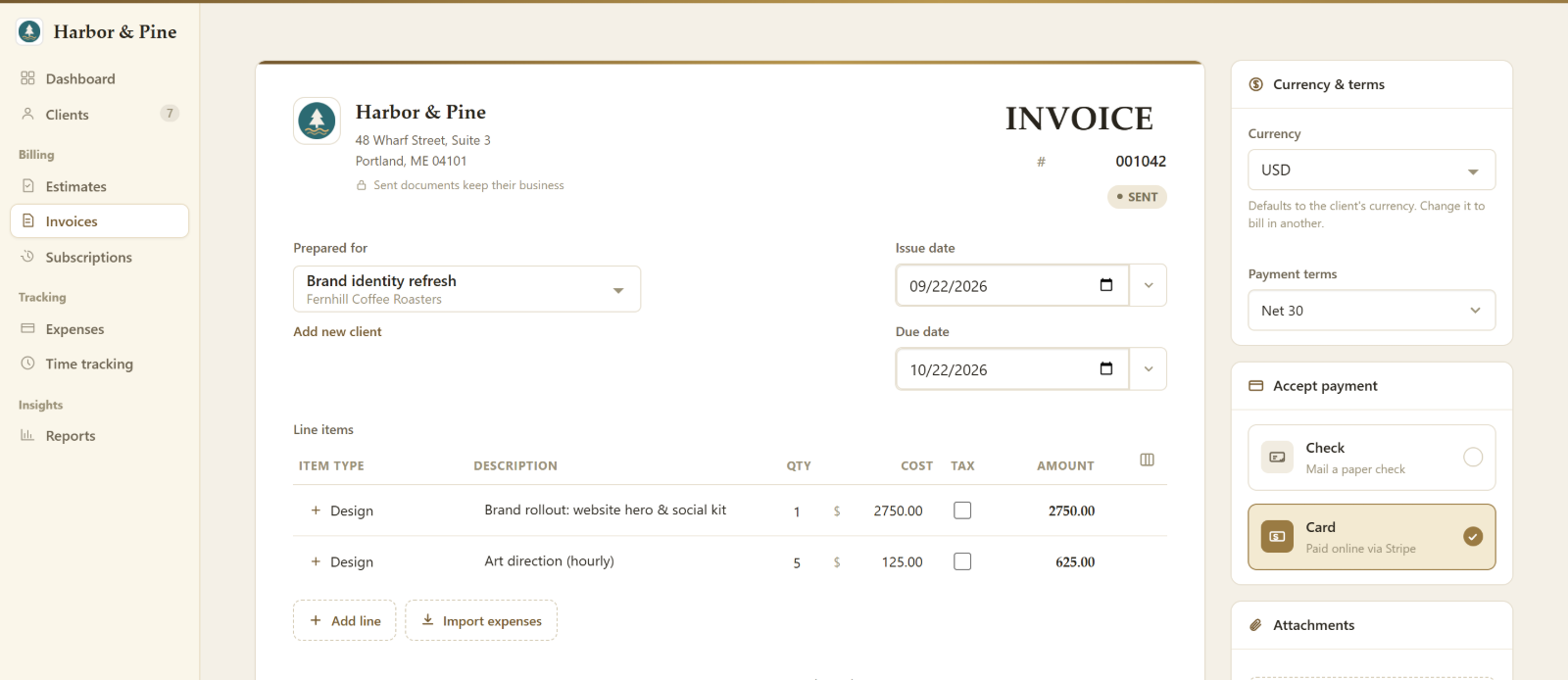
Invoices and estimates are built on a single wide screen. The client and dates sit at the top, line items and live totals in the middle, and a side panel holds currency, payment terms, accepted payment methods and attachments. The save bar stays in view with the running total, and the currency follows the client you choose. On a phone, each line becomes a card that is easy to edit.
Your Brand on Every Document
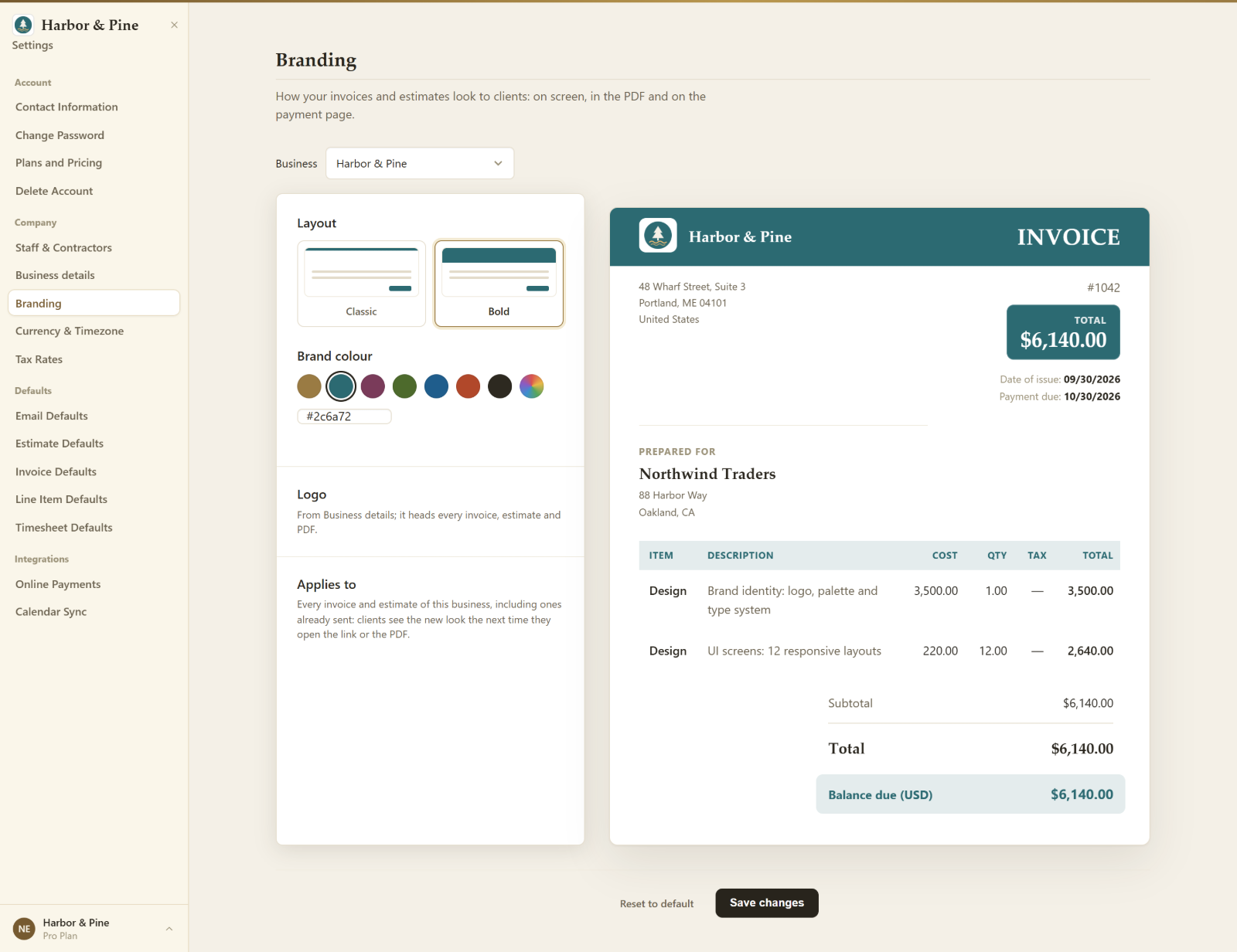
Invoices and estimates come in two layouts, Classic and Bold, in your brand colour. Choose one of seven presets or any colour you like, and BillGrid keeps the text readable against it. Your logo appears on the document and, for the first time, on every PDF, including email attachments and recurring invoices. Set it up under Branding in Settings, where a live preview shows a real invoice, or choose Customize look on any invoice to try colours on the document itself.
If you had changed your invoice colours in the old BillGrid, they have been carried over.
More Than One Business
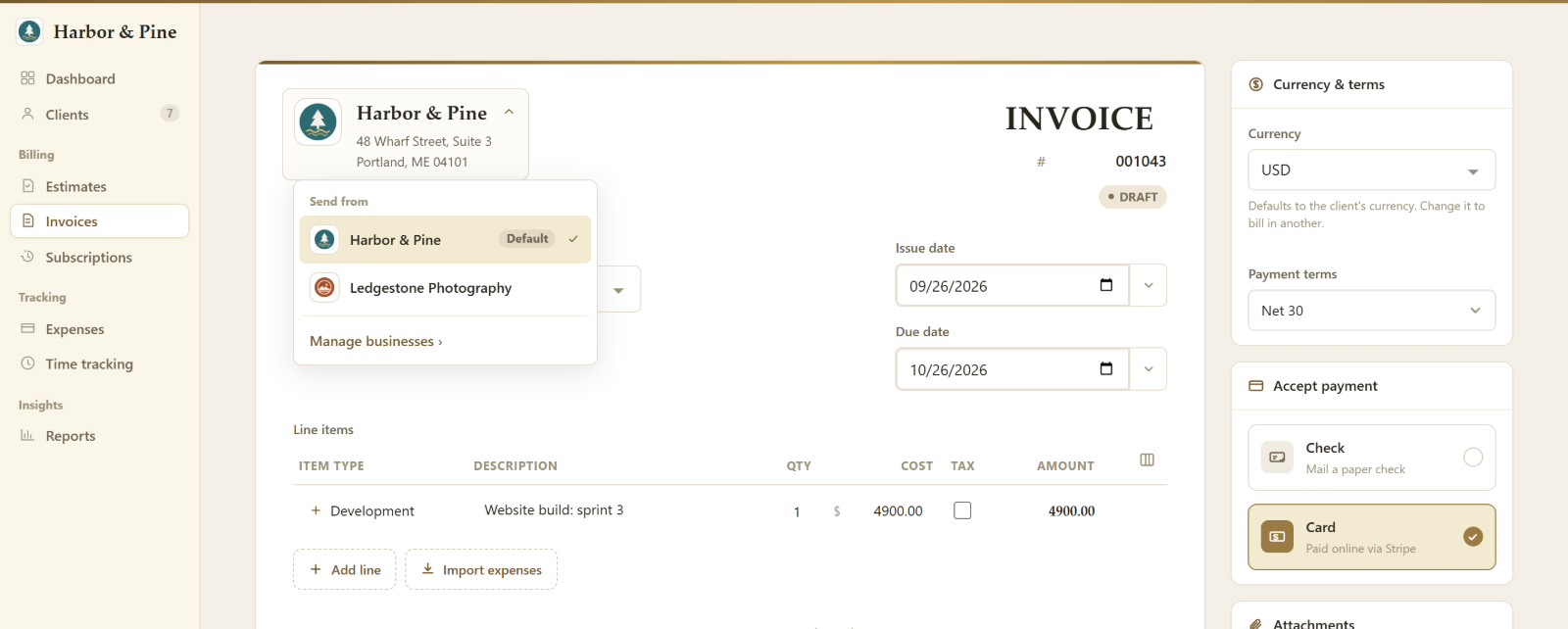
If you run more than one business, you can now send from each of them. Add up to five under Business profile in Settings, each with its own name, address, logo and brand colour. When you create an invoice or estimate, choose which business it comes from, and it goes out with that business's details and look. Clients, numbering and settings stay shared, so you keep one set of books, and the invoice and estimate lists and the invoice reports can be filtered by business. Nothing changes until you add a second one. Available on paid plans.
Email Preview
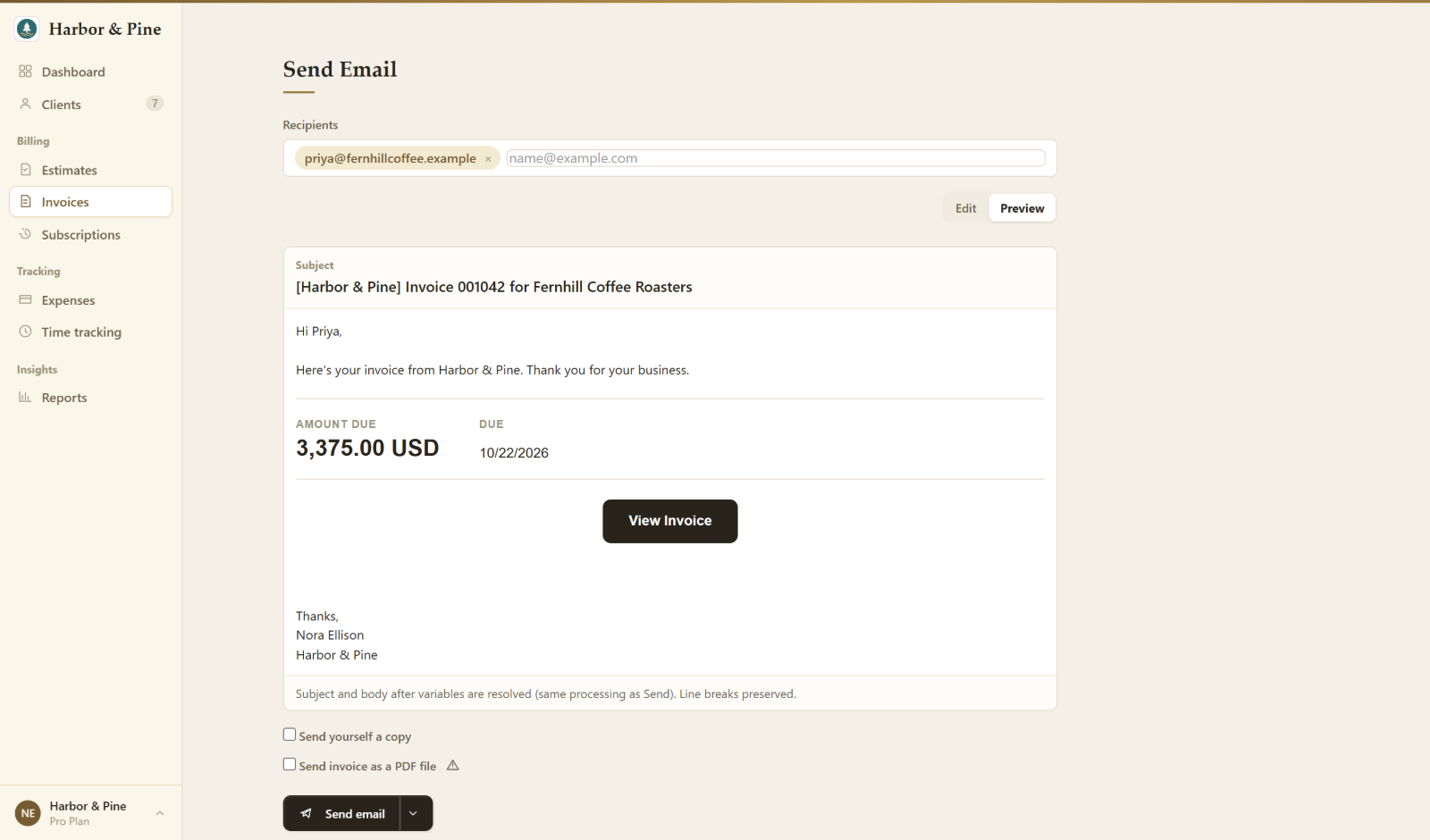
When you send an invoice or estimate, one Edit and Preview switch covers both the subject and the body. Preview shows the email exactly as your client will receive it, with their name, the amount due and the link filled in. You can insert fields such as the client's name, invoice number and due date with a click, then send straight away or schedule the email for tomorrow, a weekday or a date you pick. Default wording for each kind of email is under Emails & Notifications in Settings, along with due-date reminders and the thank-you note clients receive when they pay.
Retainers
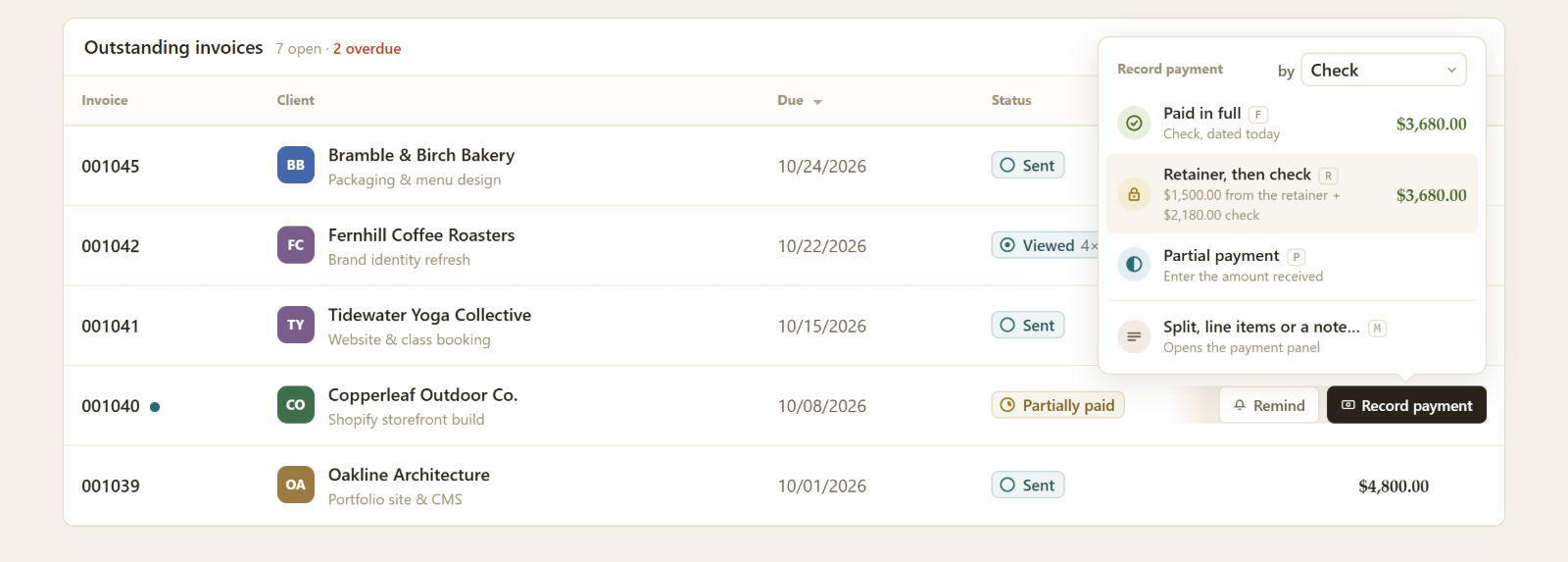
BillGrid can now hold a prepaid balance for a client. Add funds, apply the credit to an invoice from the payment panel, and review every change in the client's retainer history. If a client overpays an invoice, the difference is added to their retainer automatically.
Reports
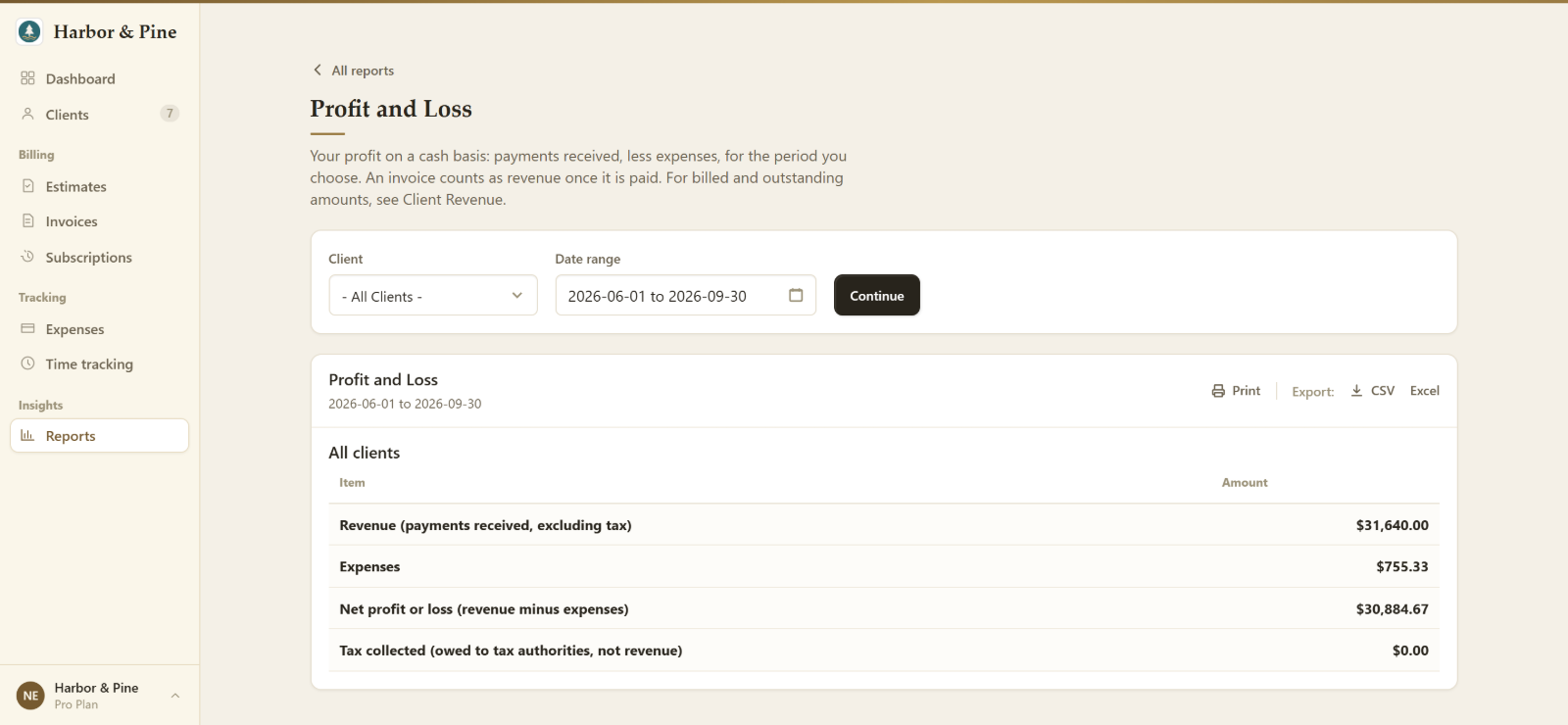
There are six reports: Profit and Loss, Payment Summary, Client Revenue, Invoice Details, Expense Details and Timesheet Details. They share one date range picker, never add amounts across currencies, and each one downloads as CSV or Excel.
What Your Client Sees
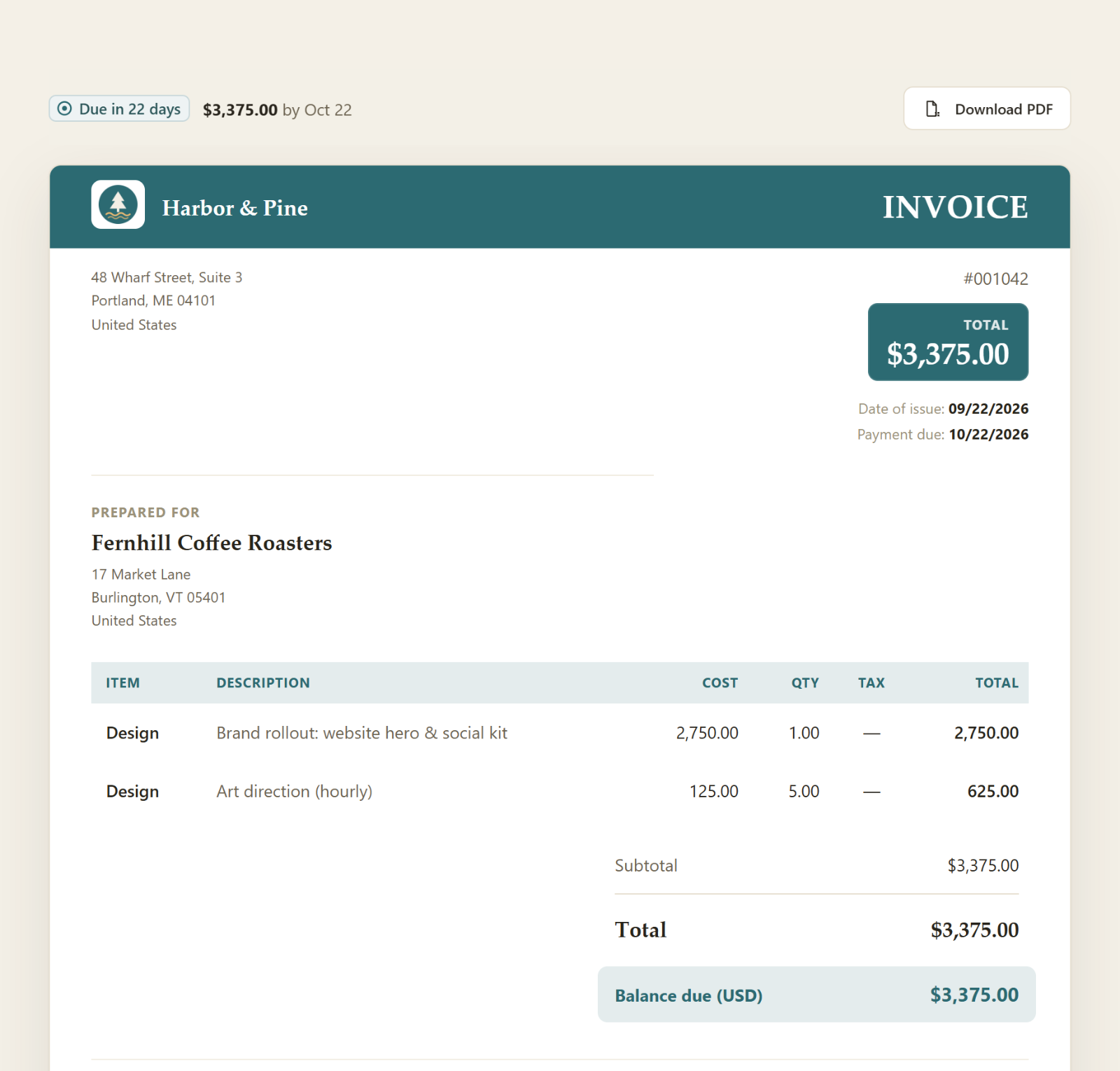
The page your client opens from an invoice email is a standalone document in your brand, showing the invoice, its status and the actions they need: pay by card, download the PDF or leave a comment. Clients can pay in full or in part, and estimates can be approved or declined on the same page.
The Help Center
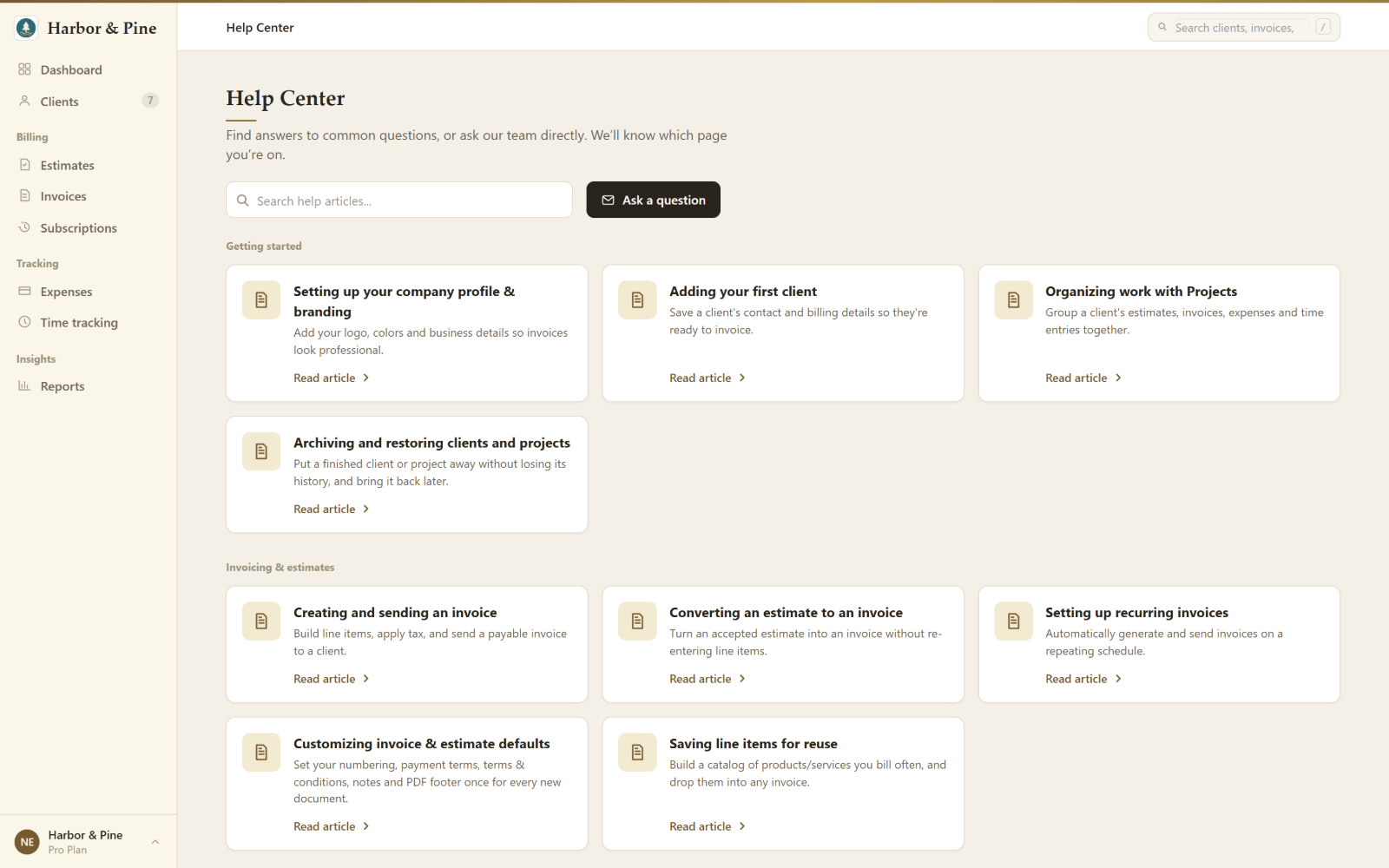
The Help Center has a guide for each part of BillGrid, from your first invoice to recurring billing and connecting Stripe, and its search filters as you type. Some guides show details from your own account, such as your plan and time zone. If you can't find an answer, use Ask a question, which is on every page. It sends us your question along with the page you were on.
Dark Mode
BillGrid now has a dark mode. Turn it on from the account menu at the bottom of the sidebar, and every page of the app follows, from the dashboard to the invoice editor. The invoices and estimates your clients receive keep your own colours.
Smaller Improvements
- Time tracking shows one day at a time with a running timer, switches to a weekly grid for entering hours in bulk, and previews exactly what will be billed when you add hours to an invoice.
- One set of icons and status colours across the app, so an overdue invoice looks the same on every page.
- A seat count on the staff page, showing how many of your plan's seats are in use.
- Google Calendar sync adds each invoice due date and estimate delivery date to your calendar. Read how it works.
What Works Differently
- PayPal is not yet available to your clients. They can pay by card through Stripe. If PayPal was the only way you accepted payment, connect Stripe under Online Payments in Settings.
- Signing in with Google has been removed. If you signed up that way, use Forgot password on the sign-in page to set a password for the same email address.
- Some older attachments could not be recovered. Files attached before 2024 had already been lost on the old system and are marked "No longer available". Everything added since then has moved across.
- Reports download as CSV or Excel, not PDF. To print a report, use your browser's print option.
- Staff work only with the clients they have access to, in their client list, on invoices and estimates they create, and on their timesheets. The Invoices, Estimates and Expenses lists and the reports still show the whole company's work, and choosing individual clients for a staff member is not available yet.
- Emails use BillGrid's standard design. Your brand colour applies to invoices, estimates and their PDFs.
- If you used Google Calendar sync before, you may need to reconnect it under Calendar Sync in Settings.