Ask a client to approve a piece of work, such as a homepage design, a logo or a floor plan. They approve or ask for changes on one page, with no account. Each round is a numbered version, and BillGrid keeps a record of who approved which version and when. On an invoice paid in parts, a payment can be due On approval: it falls due the moment your client approves that stage, and they can pay it on the same page.
Plan payments due on approval
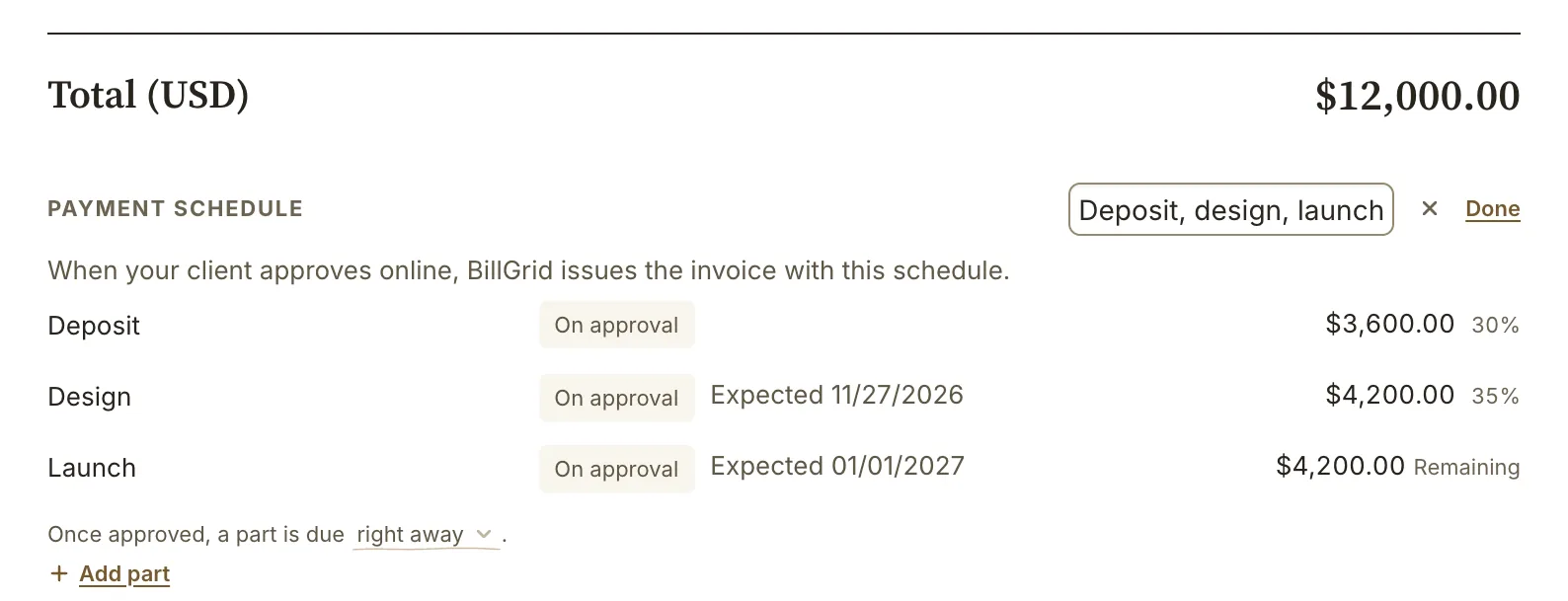
- On the estimate or invoice, choose Payment schedule under the totals.
- Pick Deposit, design, launch for a 30% deposit and two 35% payments on approval, or one of your saved schedules. On an estimate, the deposit is due when your client approves the estimate.
- Set any later part to On approval. It has no due date until its approval comes. The expected date beside it is for your own planning: it is never printed and never overdue.
- Under the parts, choose when an approved part is due: Once approved, a part is due right away, or 7, 14 or 30 days later.
The estimate, the invoice and their PDFs print the stage, never a date: "On approval" beside the part that waits, or "On design approval" where another part is due on approval. While a part waits, it is not due or overdue, and it gets no payment reminders or late fees. Your client can still pay ahead; paying doesn't approve anything. On the Invoices list, the invoice reads On approval with the part that comes next, such as "Design · part 2 of 3".
Ask for approval
The same dialog opens wherever you ask:
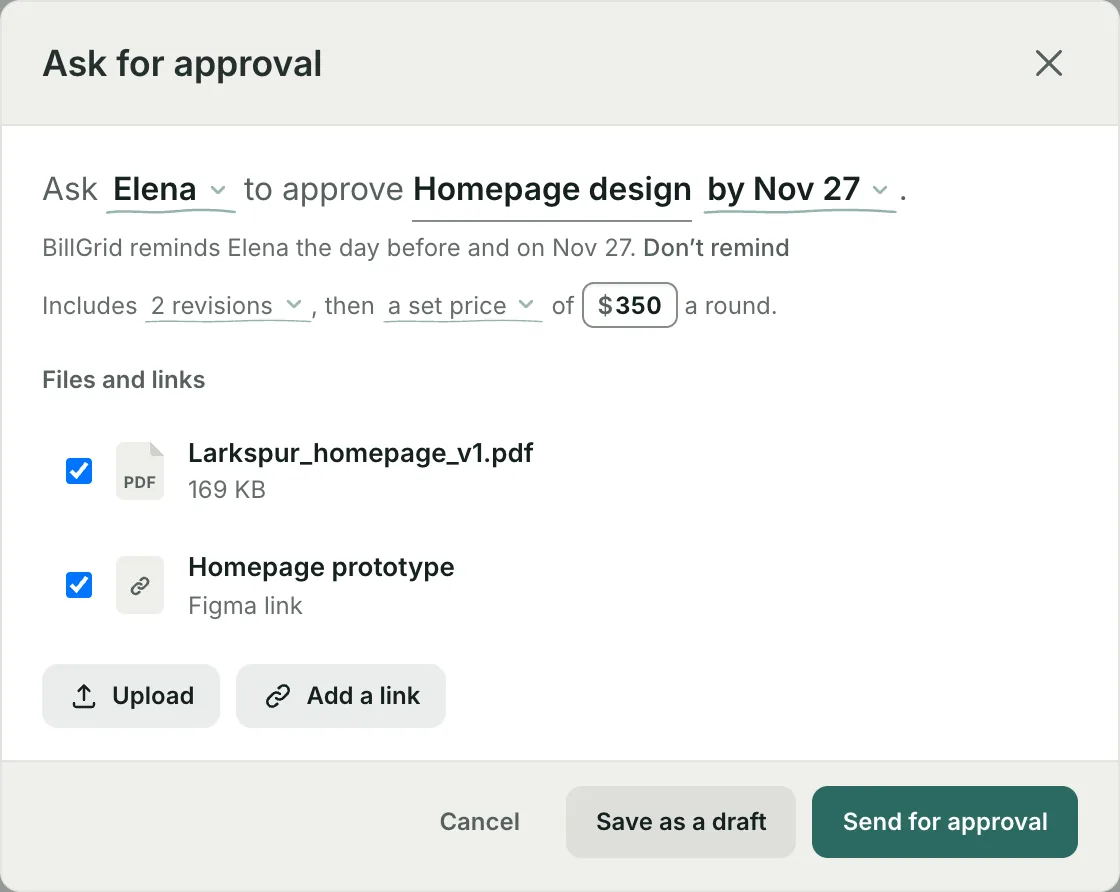
- On an invoice with a part on approval, open Send and choose Ask [name] to approve the [stage]. The approval then makes that part due.
- On a client's page, open … and choose Create › Approval, for work with no payment attached.
- In a project, choose Ask for approval on a milestone's approval row (see approvals in a project).
- Complete the sentence: who approves, what they are approving and by when. Only people at the client with an email address can be asked.
- Under Files and links, tick the files to show, Upload more, or Add a link for a Figma file, a staging site or a video. Your client sees a PDF's first page and an image itself; a link opens in a new tab.
- BillGrid reminds the approver the day before the date and on it. Choose Don’t remind to turn that off.
- Choose Send for approval, or Save as a draft to send it later. Your client gets one email with Review and approve.
What your client does
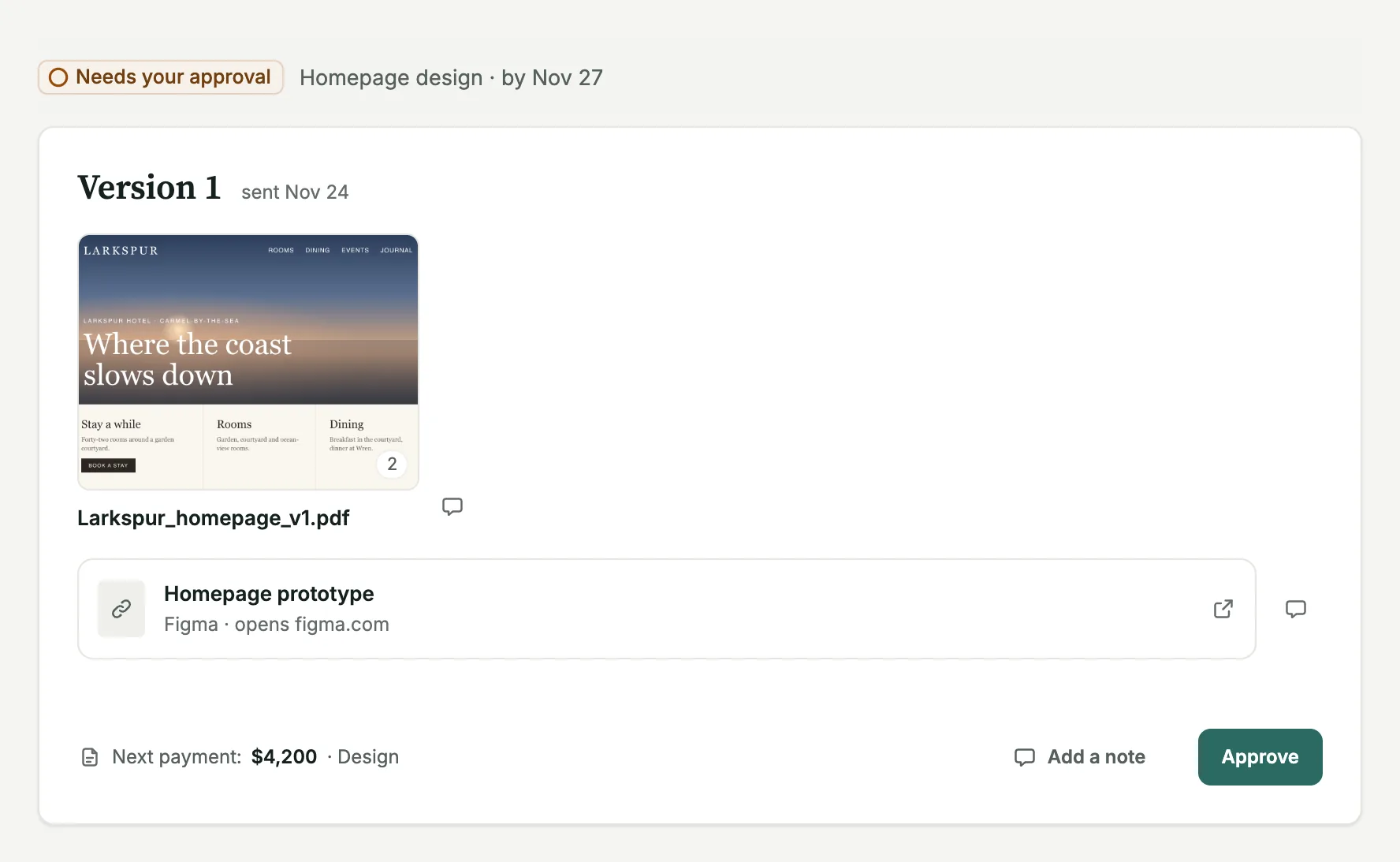
The link opens the approval with no sign-in. Your client sees the version, its files and links, each with a note button, and one decision under them. Notes are a short numbered list, one a line, each about one of the files or general. Then:
- Approve. Beside it, whoever pays reads the payment that comes next, such as Design, $4,200. Notes they've written go with the yes as fixes, each a task for you: the approval still counts.
- Ask for changes. With notes written, they can send them as changes instead: nothing is approved, and you send a new version.
Revision rounds. In Settings › Approval defaults, say how many rounds of changes a price includes, then what one more costs: a set price, or the hours it takes at the project's rate. A milestone can set its own beside who approves it. Your client reads how many are left; past them, Ask for changes says the price and confirms once before it goes. On your approval, the changes say whether they count: Don't count it for a fix of your own. A counted extra round waits on the project's next invoice, or, billed by the hour, is a task to log the time on.
A question isn't a change: your client can ask one in the comments without starting a new round. Once they approve, a part waiting on the approval is due. If they can see the invoice, Pay opens its usual pay panel with that part chosen. Someone who approves but can't see invoices, such as a marketing contact, approves the same way, and the client's billing contacts are emailed that the payment is due.
Handle changes and send the next version
- Your client's changes appear on the approval as a checklist. Tick each one when it's done, and choose Reply in a line where it helps.
- Choose Send version 2 (or the next number), with its files and a line on what changed.
- Your client sees each of their notes marked done or answered before they decide again. A note you haven't ticked carries into the next version.
Each version is frozen once it's sent, and a decision always belongs to the version it was made on. Asking for changes never changes money: a part on approval keeps waiting.
Record an approval given another way
If your client said yes on a call or by email, open the approval's … and choose Record approval. The record says you recorded it. A part waiting on the approval is due from the day you record it, so it never arrives overdue, and the client's billing contacts are emailed after a moment to Undo.
When an approval runs late
Once its date passes, a late approval is a line in your dashboard's Needs you, such as "Maya's approval of Label artwork is 2 days late", with Remind. BillGrid never sends a payment reminder for a part that is still waiting on approval.
Approvals in a project
Any milestone can wait for your client's yes. Edit the milestone and choose who approves it. Its approval becomes the milestone's last row, such as "Elena approves the launch", with Ask for approval once the work is ready. When your client approves, the milestone is marked done, with Undo; each fix they mention becomes a task under it. A milestone's approval and an invoice part's approval are asked separately for now: ask for a payment's approval from its invoice.
Files that follow a payment
On an invoice paid in parts, a file shared After payment can wait for one part: choose After the Launch payment, for example, and it opens once that part is paid. See files on invoices and estimates.
Save your schedule for next time
In Settings › Invoice defaults, choose New schedule under Saved schedules and give each part its share and timing. It appears in the payment schedule of every estimate and invoice. A client's Billing terms can choose the schedule their new invoices start with.
The approval record
On the approval, Approval record shows who decided, when, on which version and how, with a fingerprint of each file as it was shown; download it as a PDF. Once a part is approved, the invoice and its PDF print the approval under it, such as "Approved 11/23/2026 by Elena Ruiz · version 2".