Before you draft
Agree on the work, the price and what happens when plans change. The free contract templates help you prepare an unsigned draft; they do not send it or collect signatures.
A short checklist before sending
- The people: check legal names and who is authorized to sign.
- The work: name the deliverables, dates, exclusions and anything the client must supply or approve.
- The payment: check the amount or rate, currency, expenses and when each payment is due.
- The changes: agree how to request extra work, handle revisions and end the engagement.
- The rights: review ownership, permitted use and confidentiality where they matter.
Use wording both sides understand and replace every bracketed blank. Review the whole agreement, including any estimate it refers to. These are general preparation points, not legal advice.
Choose where to start
With an estimate
- Open the estimate and choose its client.
- Choose + Contract below the estimate's terms.
- Choose Project services, Creative work and licensing, Blank contract or an existing client agreement.
- Click the name and clauses to edit them. Existing estimate terms become an Additional terms clause.
Payment and late-fee clauses follow the estimate's billing details. Change those details on the estimate; these clauses are not free-text fields.
On its own
- Open Contracts under Billing and choose New contract.
- Choose the Client, then a starting point under Start from.
- Choose Start contract. Type directly on its page to change the name, clause titles and wording.
- Wait for Saved below the page. Choose Send for signature to send it on its own, or Attach to… to sign it with an estimate.
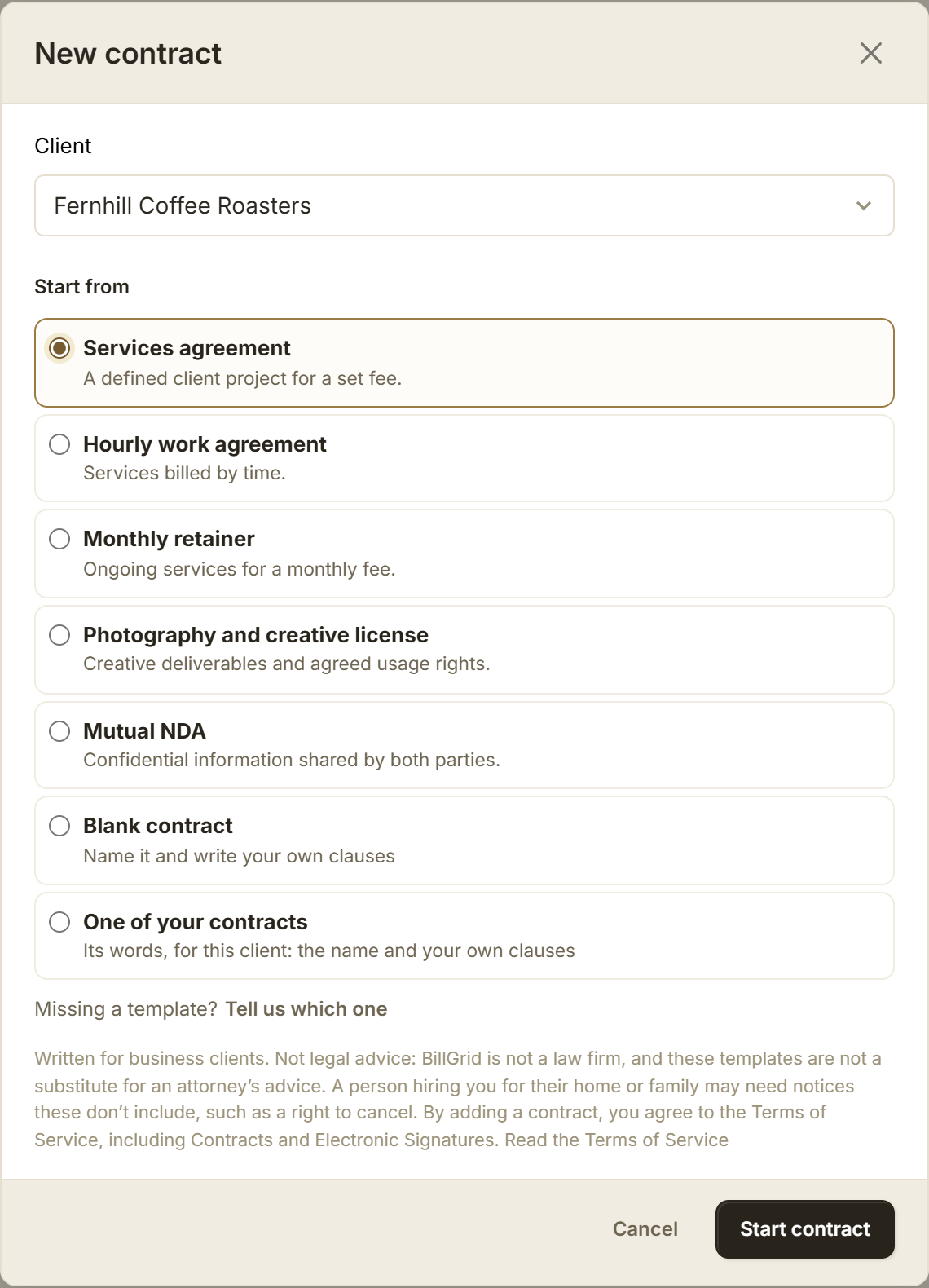
Choose a starting point
- Services agreement: a defined client project.
- Hourly work agreement: work billed by time.
- Monthly retainer: ongoing services and expectations.
- Photography and creative license: creative deliverables and their intended use.
- Blank contract or One of your contracts: write your own terms or reuse your clauses.
Mutual NDA is also listed in the app. It is not part of the public free draft tool. Get qualified advice on confidentiality terms and any notices the law requires.
Review the wording and fill in the bracketed details. Writing a rate or monthly fee does not configure billing. Set that up separately in the project or its retainer terms.
These are starting points for business clients, not legal advice or an assurance that a template suits your work. See the Contracts and Electronic Signatures terms.
Make the clauses fit the work
Use + Clause to write a clause or take one from a template. Move clauses up or down, or remove them. Give each a title and replace bracketed details before sending.
Packages, extras and estimate editing
On an estimate with packages or optional extras, a clause can apply to a particular choice. Open Applies always on one of your clauses and choose the package or extras section it belongs to. Use See it as to review the clauses included with each choice. If you later remove that option, choose when its clause applies before sending the estimate.
Once an unsigned contract is attached to an estimate, edit its wording there. From its contract page, choose Open its estimate.

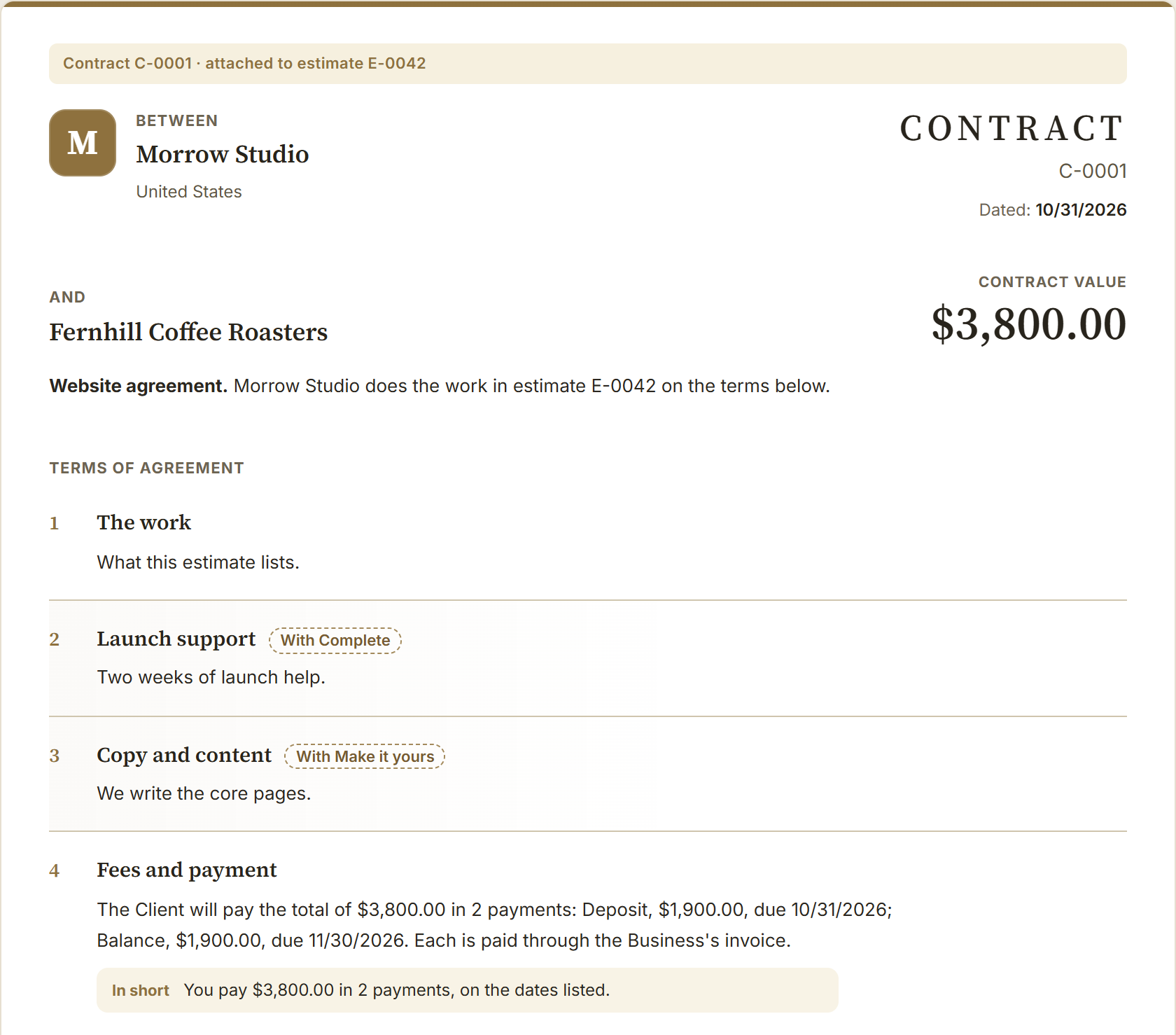
Attach an agreement to the right work
Choose Attach to…, then Estimate, Invoice or Project. Pick a record for that client and read what attaching will do before confirming.
What each attachment does
Unavailable records explain why they cannot be selected. The confirmation offers Undo while the records still allow the attachment to be reversed.
- An unsigned contract on an estimate: the contract goes out with that estimate, and one signature agrees to both. An unsigned contract can go out with only one estimate at a time.
- A signed contract on another estimate: the new estimate goes under the existing agreement. The client approves the new estimate without signing the contract again.
- A signed contract on an invoice: a draft invoice can be issued under it, with the contract's card in place of the invoice's terms. Sent invoices and recurring invoice templates cannot be attached this way.
- A contract on a project: this files it with the project. It does not send it or request a signature. An unsigned contract already going out with an estimate follows that estimate's project until signed.
Copying and attaching have different results. One of your contracts starts a new draft using the name and your own clauses. It does not carry the original signature, attachments or estimate-generated payment and late-fee clauses into the new agreement.
Send it and follow the signature
Sending a contract requires a paid account, or a client you have previously emailed a document through BillGrid. Marking an invoice as sent does not meet this requirement.
Send a contract on its own
- Finish the wording, including every clause title and any blanks in brackets. Choose Send for signature.
- Check Their name and Their email. Choose one of the client's people when offered, or enter the person who will sign.
- Add A note with it if needed, then choose Send.
Sending as the account owner or an admin signs for the business. If another staff member sends it, the owner or an admin must choose Countersign after the client signs.
Locked wording and following up
While it is out for signature, the wording is locked. Copy link lets you share its signing page. If BillGrid says the email did not go, use that link or withdraw the contract and send it again. Automatic signing reminders are not available for standalone contracts.
A contract already attached to an estimate goes out through that estimate. Estimate-generated payment or late-fee clauses also require an estimate; remove those clauses or attach the contract before sending.
What the recipient sees
Recipient details, email codes and the signed record
- Open the contract link and read the agreement. No BillGrid account is needed.
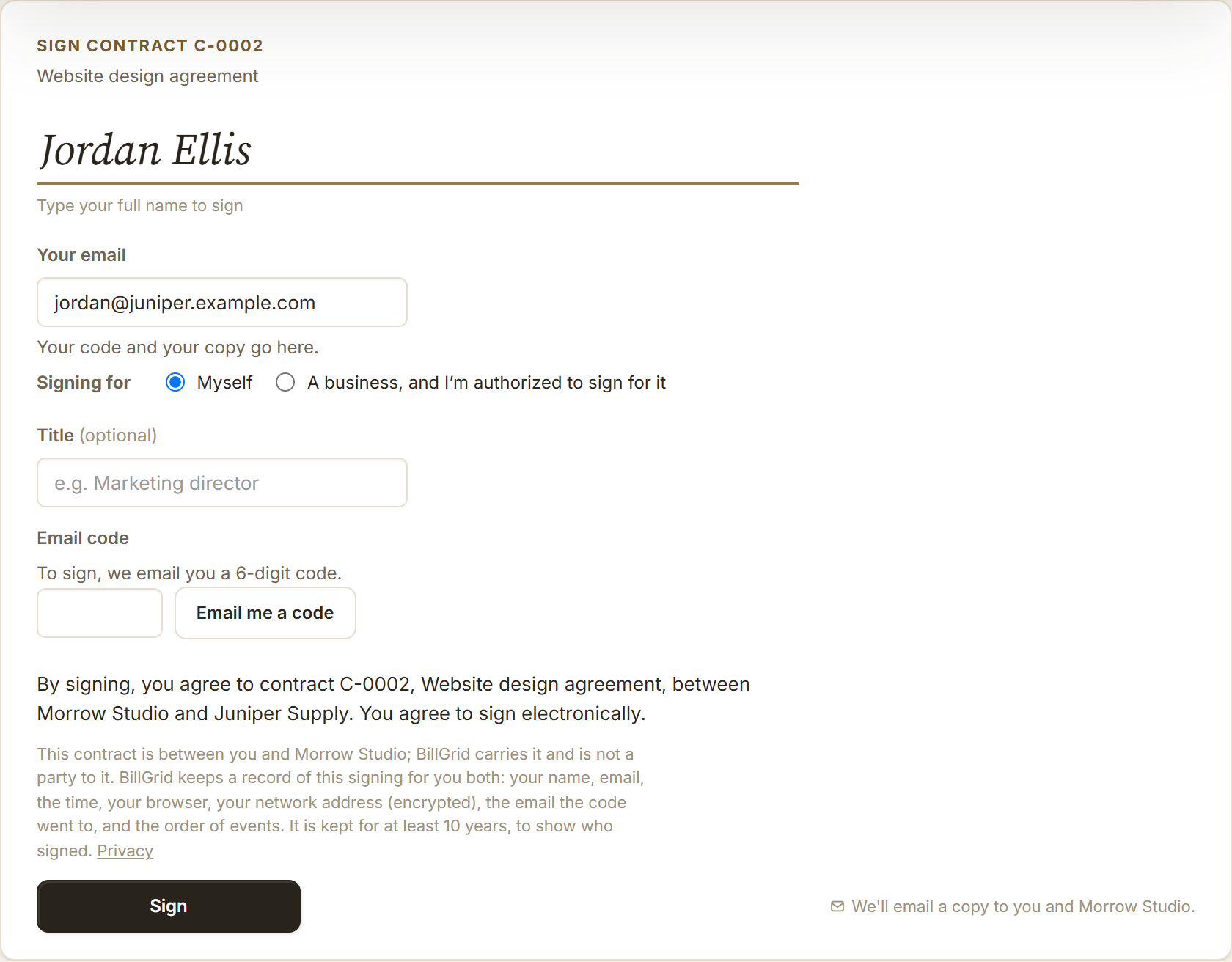
- Type a full name and check Your email. A forwarded recipient should use their own details. Under Signing for, choose Myself or a business. A business signature requires its legal name and the signer's title.
- Choose Email me a code, enter the six-digit Email code sent to that address, then choose Sign.
The page then says either that the business signs next or that the contract is in effect. BillGrid emails the signer and the account contact. Once both sides have signed, their copies include the agreement and signing certificate as a PDF when it can be prepared. A contract waiting for a countersignature has no completed PDF yet.
The code lasts ten minutes. If the signing email changes or the code expires, request a new one and use the newest code for that address. After several requests, the page may ask the signer to wait.

Send with an estimate
Review both documents and use the estimate's Send action. The client signs the contract as part of approving the estimate:
Client approval and invoicing
- Open the estimate link, review the contract and make any package or extras choices.
- Choose Approve, check Signing as and type a full name. Someone else lets a forwarded recipient enter their own details.
- Complete Signing for and verify the signing email with Email me a code.
- Choose Approve and sign, or Approve & continue to payment when an online payment is due on approval.
BillGrid emails approval copies to the signer and to you. If the estimate has a payment schedule, the client's online approval also issues its invoice. See the estimate approval guide for billing after approval.
Find the status and keep the record
Use Contracts to find an agreement by number, name or client. Select a client's name to show only their contracts, or use the status tabs:
Statuses and signing records
- Drafts: contracts that have not gone out, including standalone contracts returned to draft with Withdraw.
- Waiting to sign: contracts sent on their own or with an estimate. Sent and Viewed do not mean signed. Needs your signature means the client signed and the business must countersign.
- In effect: contracts signed by both sides, or covered by a standing signed estimate approval.
- Ended: ended or withdrawn records, when present.
Open a contract to read it, follow its Attached to links and review Contract activity. For a completed standalone agreement, choose Download signed PDF for the agreement and signing certificate. This PDF is generated from the saved signing record; contracts signed with an estimate have a sealed PDF record.
Keep your downloaded file. Online access depends on the account and project remaining open. If a completion email says its PDF could not be prepared, open the contract and try downloading later. Older standalone records identify where historical party details were not captured.
For earlier approvals, open the estimate's Approval record. Review who approved, when and what they agreed to, then choose Download record (PDF) or See the approved version. If you recorded approval yourself using Mark as approved, the record says so; it is not the client's online signature.
When the agreement changes
Before the client signs a standalone contract, choose Withdraw to return it to a draft and close its signing link. You can then edit or attach it again.
Signed wording, revised estimates and save conflicts
After withdrawing, Undo reopens the same link while the draft is unchanged. Sending again creates a new link.
Once the client has signed, you cannot withdraw or edit the wording, even while it waits for a countersignature. Keep that record and start a new contract for revised terms.
Changing agreed details on an editable estimate ends its standing approval after you confirm; send the revised version for a new approval. The earlier record remains available. When the approved estimate has already become an invoice, use Start a change order for new work.
To remove an unsigned contract from an estimate, use Remove contract or Detach in its contract card's menu. The contract remains a draft. Detaching an existing signed agreement that the estimate is under leaves that agreement untouched.
If editing shows Not saved · changed elsewhere, keep the page open and choose deliberately: Use theirs reloads the saved version; Keep mine saves your page's wording over that version. For a connection problem, wait for the connection to return and choose Try now.
Further guidance
Contract preparation and electronic signatures
Requirements depend on the work, the parties and the law that applies. A template or an email code does not guarantee enforceability. Ask a qualified adviser about terms or obligations you do not understand.
- Preparing a contract — Australian government guidance on clear scope, payment, changes and other terms. Its legal requirements are specific to Australia.
- U.S. E-SIGN Act, section 7001 — electronic form alone does not invalidate an agreement; other legal requirements still apply.
- New York's Freelance Isn't Free Act — official guidance and a model contract for work covered by that law.
For other U.S. locations, see the freelance payment law guides and their official sources.