1. Choose the hours
Open Time > Invoice time. In Unbilled, find your client and select the entries to bill. Check the hours and choose Preview invoice.
Keep the selection to one client and currency. Resolve any No rate entries before continuing.

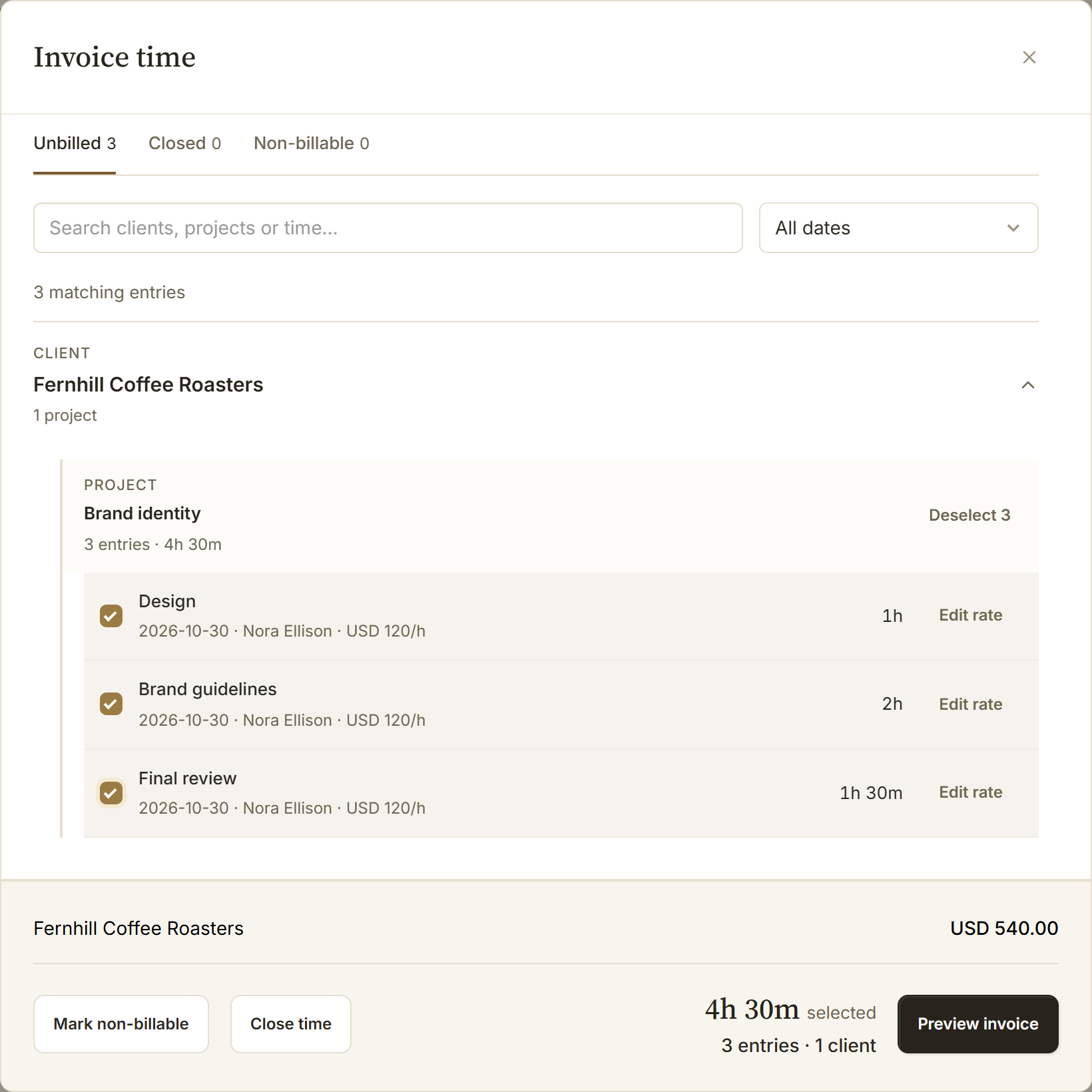
Rates, filters and selection limits
Each entry keeps its saved rate. A later project rate change does not reprice earlier work. Choose Set rate or Edit rate, enter the hourly rate and choose Update. This changes only that entry, keeping project defaults unchanged. Zero is allowed; Undo restores the previous rate.
Select up to 1,000 entries. Search and date filters narrow the list; changing a filter or billing state clears the selection. Through today excludes later dates. Check the preview for time logged ahead today.
This list shows uninvoiced, billable hourly time. Bill fixed-fee milestones and retainer charges from the client or project.
2. Make it clear
Choose By project and rate for a concise invoice, or One line per entry for an itemized record. Check the descriptions, hours, rates and total.

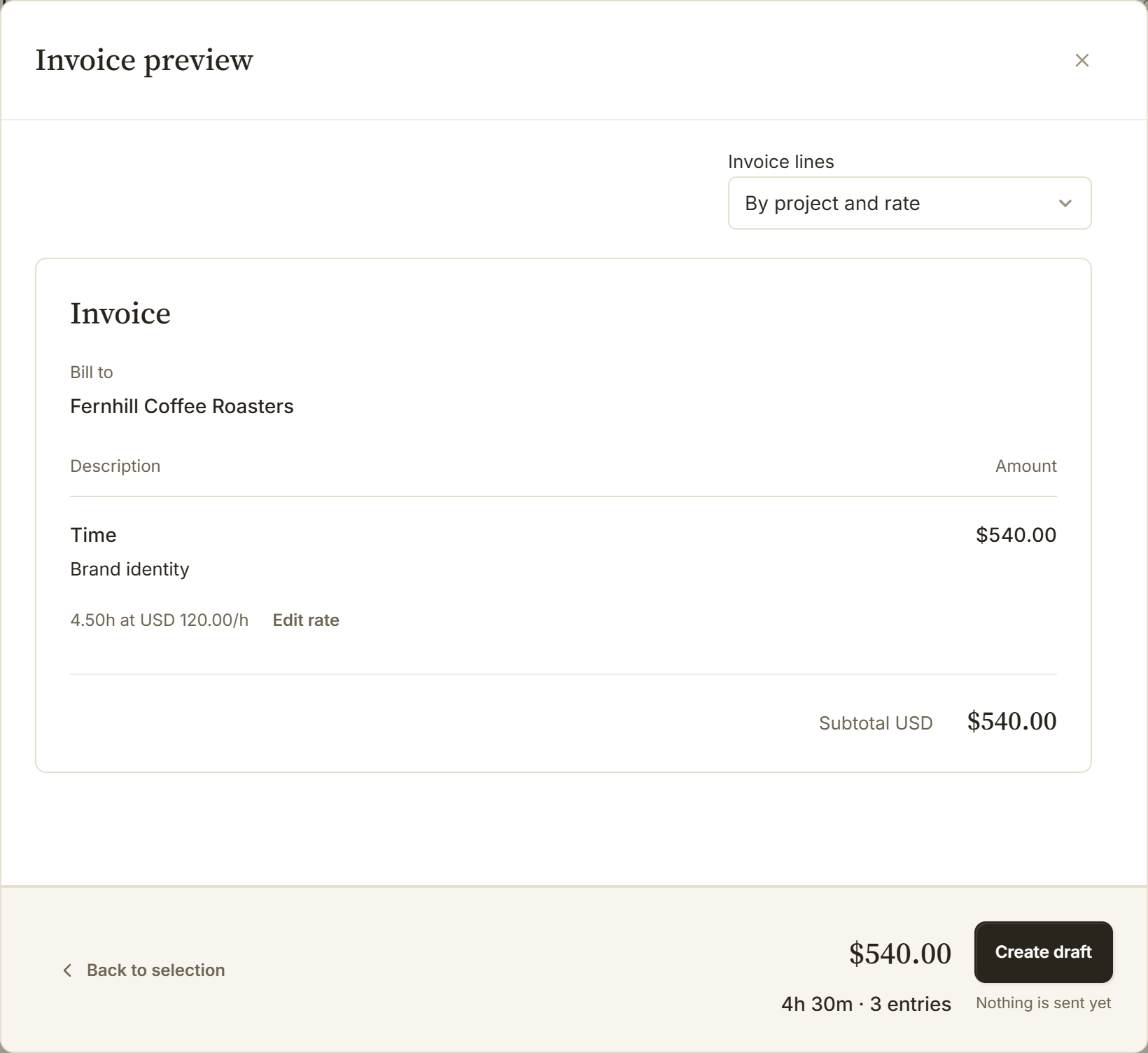
Different rates or a longer invoice?
Choose Edit rate on a preview line to update the selected entries it represents. Project defaults stay unchanged. Check the refreshed total; use Undo to restore the previous rates.
Different saved rates stay on separate lines. Use Previous and Next to review every preview page; they all belong to one invoice. The limit is 500 lines, so group the time or choose fewer entries if needed.
Back to selection keeps your choices. Nothing is reserved until you create the draft.
3. Create the draft
Choose Create draft, then Open invoice. Check taxes, payment terms and the due date before sending. The selected time is linked to this draft, so it cannot be invoiced twice.
Changed your mind? Undo draft returns you to the preview.
Using the full import screen
Import Time to Invoice, including after a Toggl import
This screen offers more control over dates and line descriptions.
- Choose the Date period, Client, projects and, where available, people.
- Check Billable: it starts at All.
- Choose Detailed for individual entries or Grouped for hours by project, milestone and saved rate. Select the description fields to include.
- Review the totals and notices, then choose Import to invoice. The draft opens for review.
A preselected import includes only those entries. Use all matching time switches to your filters. The preview displays the first 50 lines; its total and the invoice include all matching lines.
Already-invoiced time is excluded. Price missing-rate groups before proceeding. Close time entries once imported marks time closed rather than exported; both states link it to the invoice.
Need another look?
The hours or amount look wrong
Check the selection, search, cutoff date and missing rates. Look in Closed or Non-billable for time set aside. Already-invoiced time cannot be selected again. Check future-time notices before billing.
The draft was not confirmed
Use Retry creation in the same preview. If the time changed during review, return to selection and review it again.
I am not charging for these hours
Keep the work record and close the time or mark it non-billable. Available actions depend on your staff access.
Still bringing hours into BillGrid? Start with Harvest or Toggl 2.0.