A passkey signs you in with Face ID, a fingerprint or your device’s PIN. There’s nothing to type and nothing to steal: it stays on your device or in your password manager, and it only works on billgrid.com, so a fake sign-in page can’t use it. Available on every plan.
Add a passkey
- Open Settings > Sign-in & security on the computer or phone you want to use.
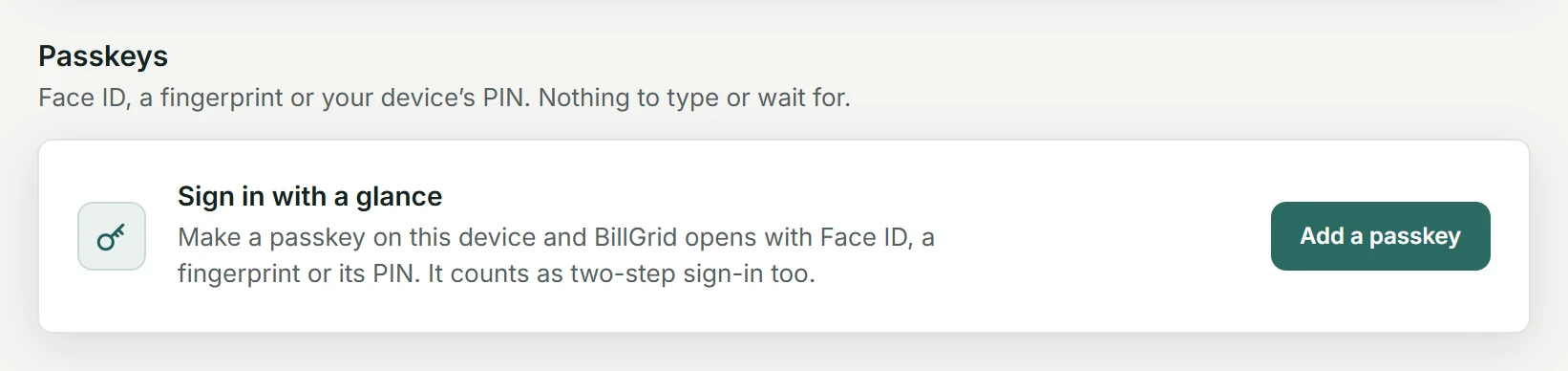
- Under Passkeys, choose Add a passkey. If BillGrid asks you to confirm it’s you, do that first.
- Confirm with your face, fingerprint or PIN when your device asks. Where to save it is your device’s choice: iCloud Keychain, Google Password Manager, 1Password and the like all work.
The new passkey is listed with the browser it was made on, when you added it and when you last used it. We email you whenever a passkey is added or removed.
Sign in with it
On the sign-in page, choose Sign in with a passkey, then your face, fingerprint or PIN. You don’t even type your email. On a computer without your passkey, your browser may offer to use the one on your phone by scanning a QR code.
Passkeys and two-step sign-in
A passkey that checks your face, fingerprint or PIN proves two things at once, the device and you, so with two-step sign-in on it signs you straight in. A security key without a PIN proves only the device: the code from your authenticator app follows.
Confirming it’s you
When BillGrid asks you to confirm it’s you before an important change, choose Use a passkey. It’s the quickest way.
Remove a passkey
Choose Remove beside it and confirm it’s you. That stops it working for BillGrid; to delete it from your device too, remove it in your password manager. Lost the device? Remove its passkey from another browser, then sign the lost one out.