You don’t need a password for BillGrid. Sign in with a code we email you, a passkey or Google; add a password only if you like one. Each person on your team chooses their own way.
With a code we email you
- On the sign-in page, enter your email and choose Continue.
- Choose Email me a code.
- Enter the 6-digit code from the email. The sixth digit signs you in.
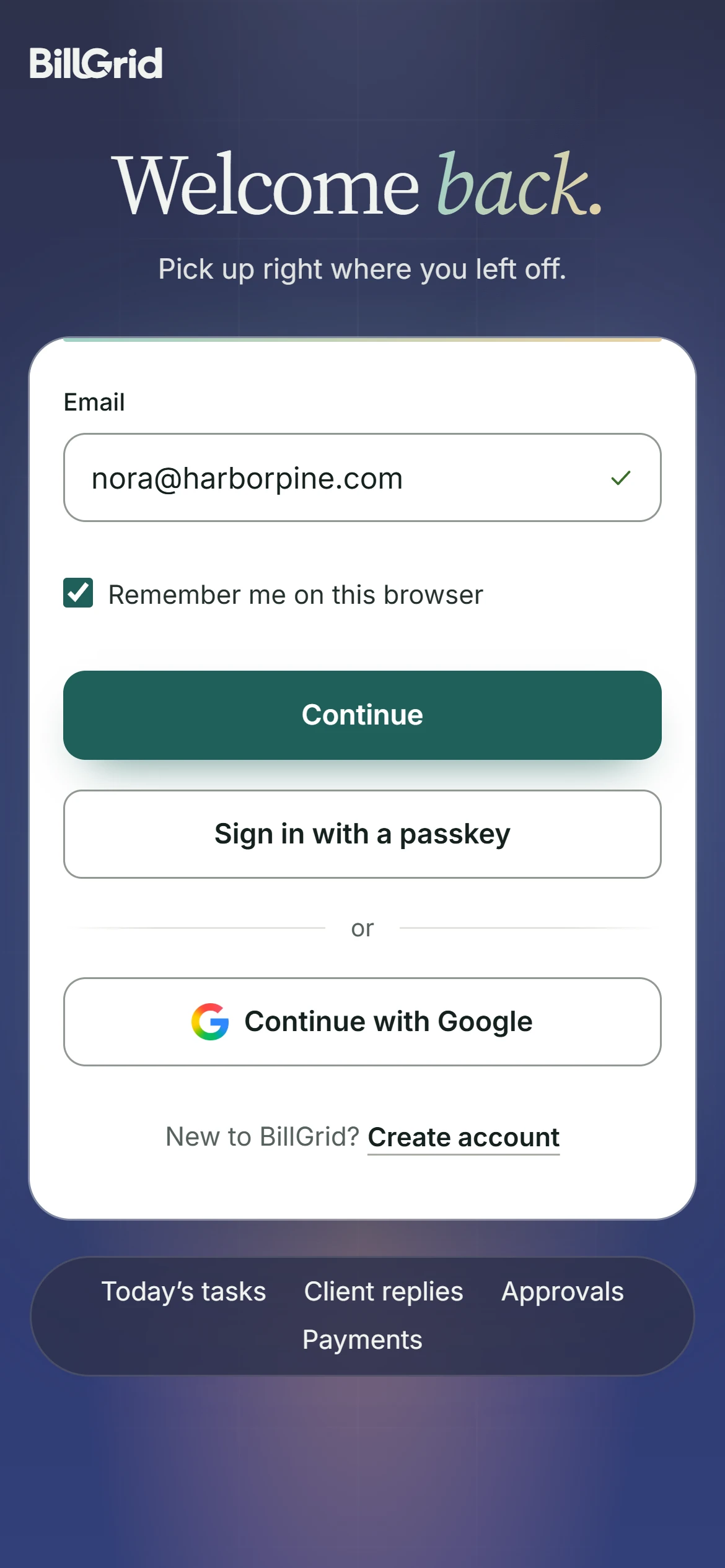
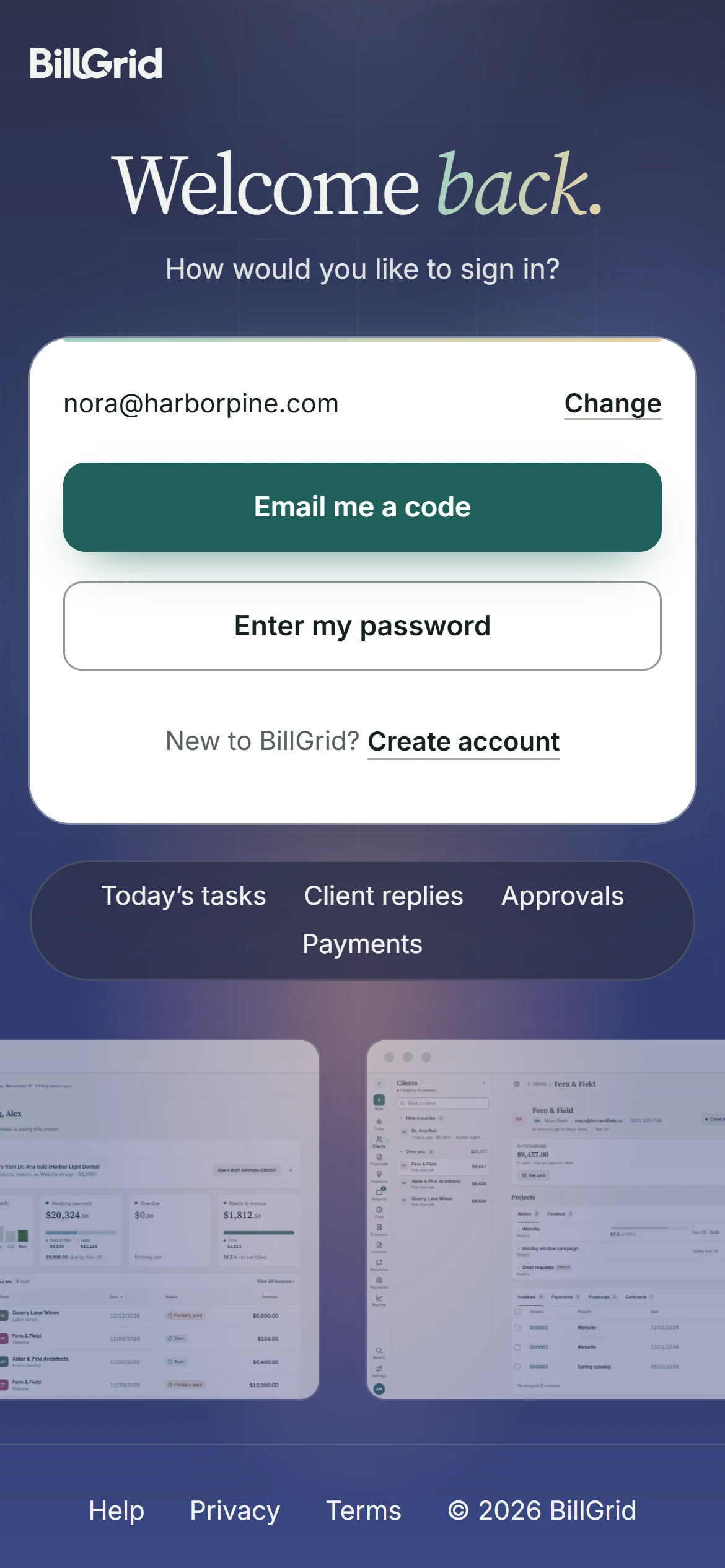
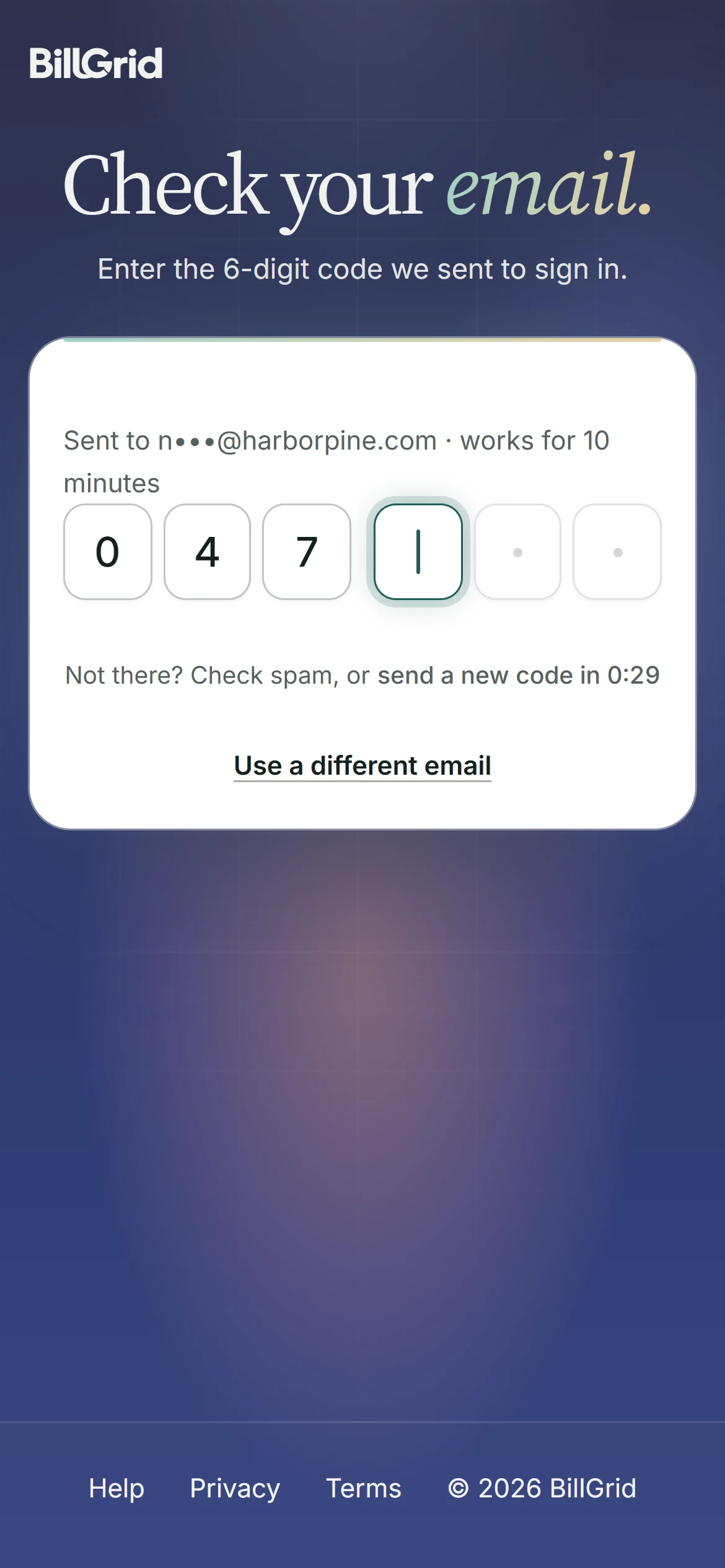
A code works for 10 minutes, once, and only in the browser that asked for it, so a code someone tricks out of you is no use to them on their own computer. Five wrong tries end it; ask for a new one. Nothing there? Check your spam, or choose send a new code after 30 seconds.
Never share a code. BillGrid never asks for one by phone, email or chat. If someone does, they are trying to get into your account.
With a passkey
Choose Sign in with a passkey and confirm with Face ID, a fingerprint or your device’s PIN. There’s nothing to type, not even your email. Add a passkey first, from Settings.
With Google
Choose Continue with Google and pick the Google account connected to BillGrid. Connect or disconnect Google in Settings > Sign-in & security. The browser remembers the way you last signed in and puts it first, marked Last used.
With a password
After Continue, choose Enter my password. A browser that last signed in with a password asks for it straight away, with Email me a code instead under it. Forgot it? Sign in with a code, then set a new password from Settings, or choose Forgot password? for a reset link.
Remember me
Unticked, you’re signed out when you close the browser, after 8 hours away, or after 24 hours at most. Ticked, Remember me on this browser keeps you signed in for up to 30 days, or until you haven’t used it for 14. Tick it only on a computer or phone that is yours. Either way, the browser appears under Where you’re signed in, where you can sign it out.
With two-step sign-in on
After your code, password or Google, BillGrid asks for the code from your authenticator app. A passkey that checked your face, fingerprint or PIN counts as both steps. Set up two-step sign-in.
Signing up
Enter your email on the sign-up page and we email you a code. The code proves the inbox is yours before any account exists, so nobody can open an account in your name. If the address already has an account, the code signs you in to it instead.